POCKET NOTES
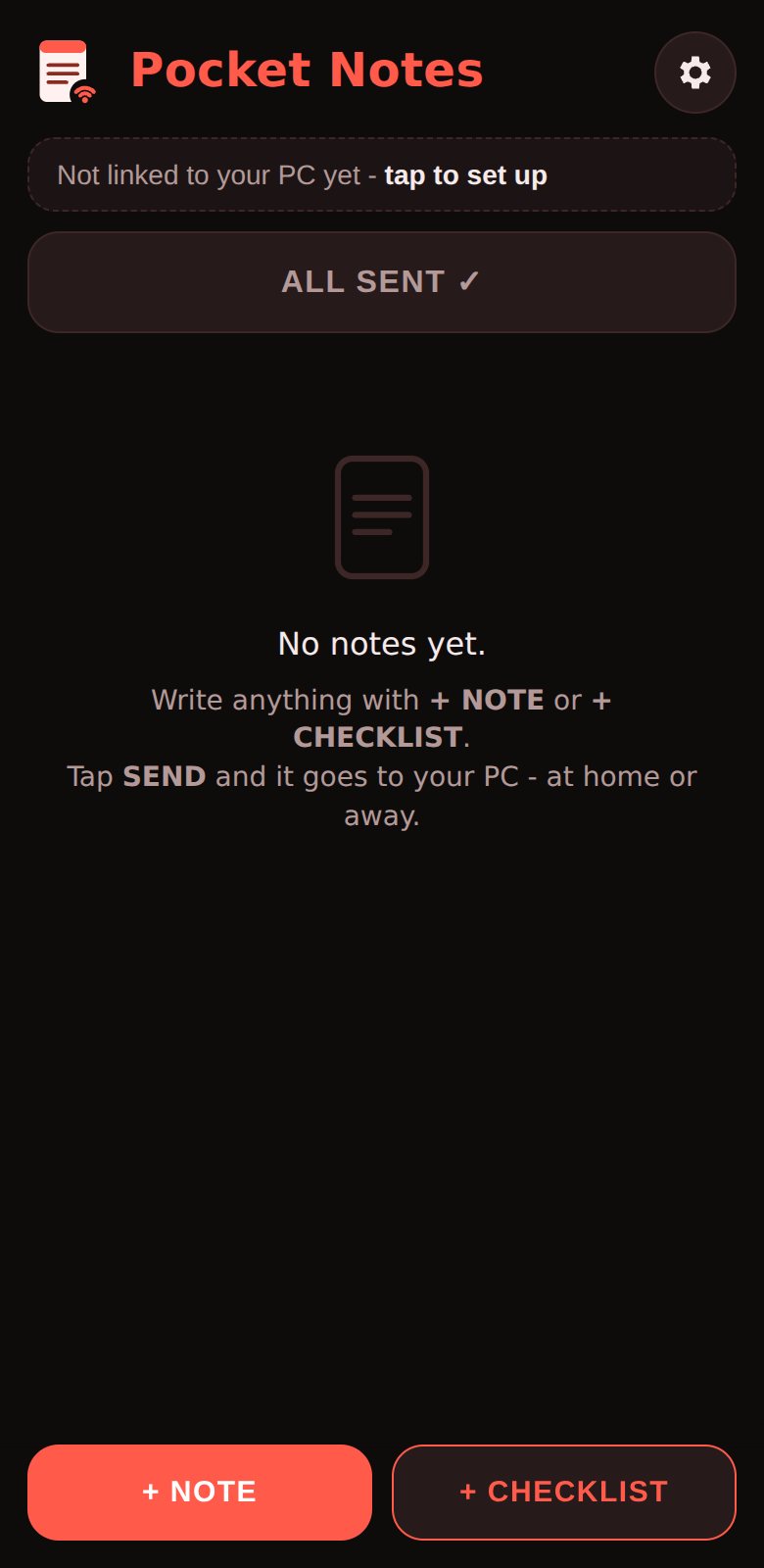
Notes and checklists on your Android phone. Tap SEND and they land in the Inbox on your PC - at home over Wi-Fi, or from anywhere over the internet - and go into a Word or Writer document with one click.
CONTENTS
Quick startThe phone: your notesWriting notes and checklistsDeleting several notesLinking the phone and the PCSending from anywhereThe PC: your notesThe documentThe PC menuSending notes to the phoneUpdatesTroubleshootingClick any picture to see it full size. Numbers on the pictures match the numbered lists next to them.
Quick start
- Install Pocket Notes on your Android phone and the Pocket Notes PC helper on your computer (Windows or Mac) from the Downloads page.
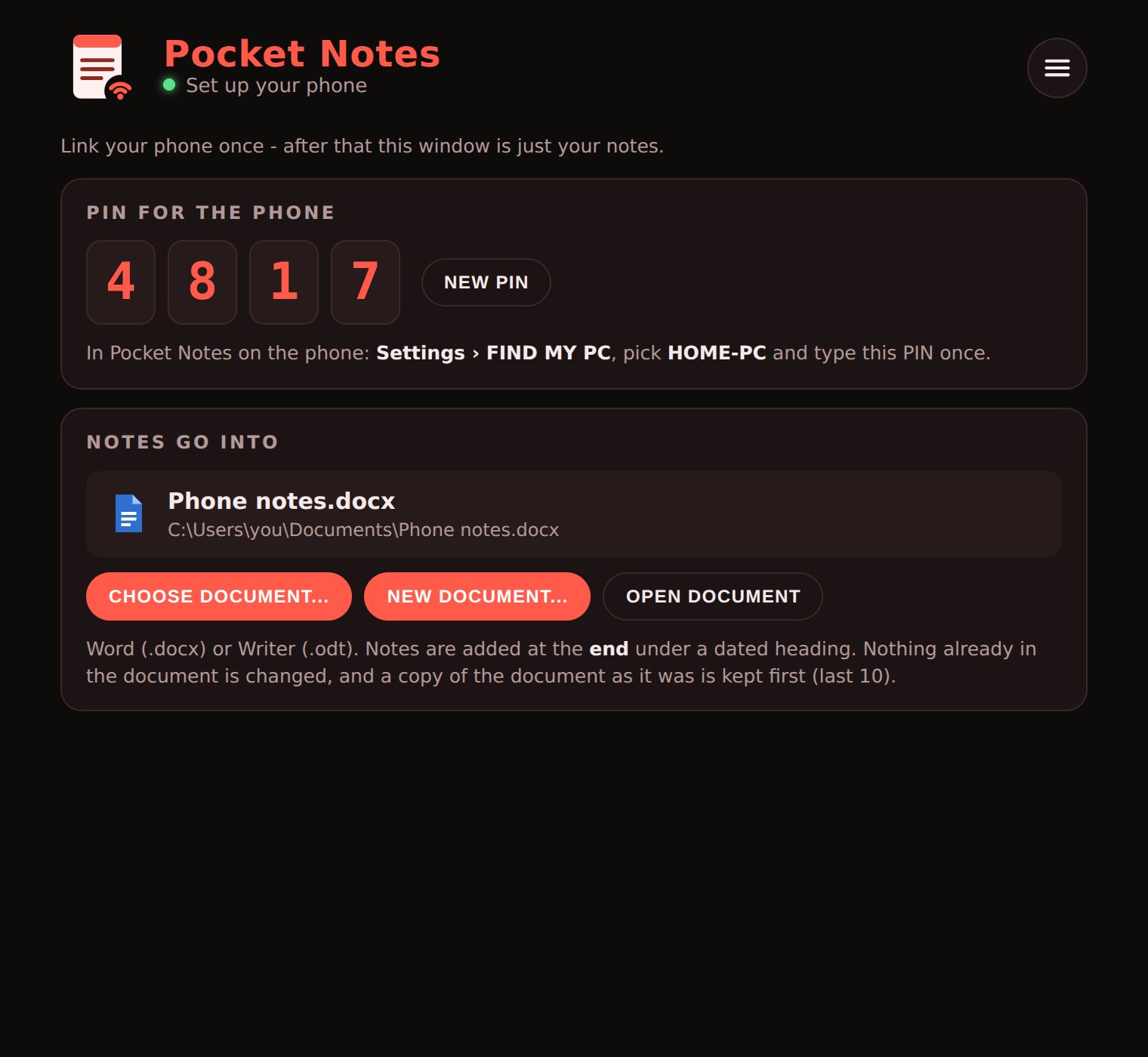
- Start the PC helper. It shows a 4-digit PIN, then waits quietly by the clock (on a Mac, in the menu bar).
- On the PC, pick the document your notes go into - CHOOSE DOCUMENT... or NEW DOCUMENT....
- On the phone (on the same Wi-Fi as the PC): Settings › FIND MY PC, tap your PC, type the PIN, LINK.
- Write notes on the phone and tap SEND. They appear in the PC's window; add them to the document from there.
The phone: your notes
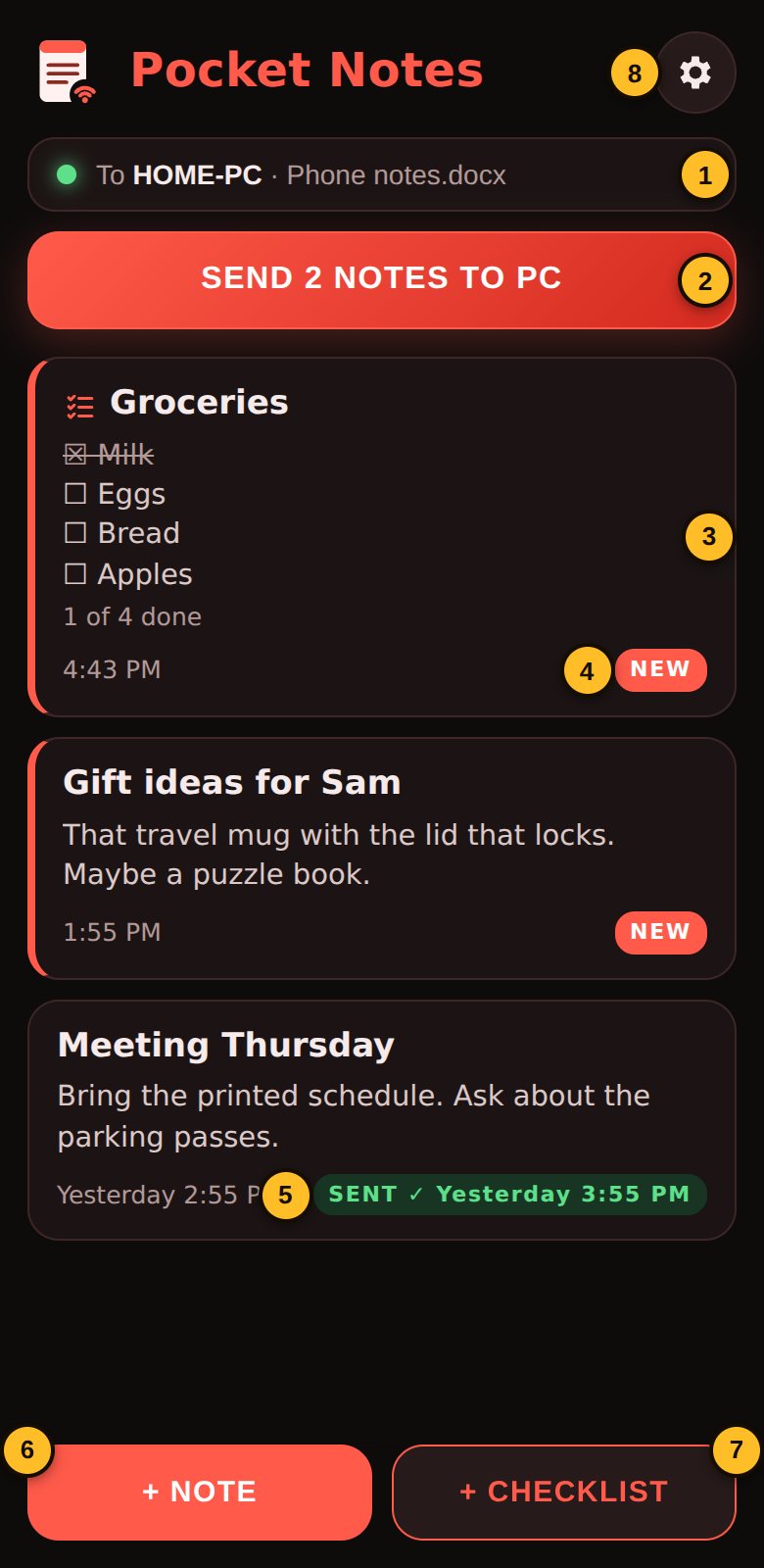
- Your PC - where SEND goes, and the document. Tap it to open Settings.
- SEND - sends every new or changed note to the PC. It says ALL SENT ✓ when there's nothing to send.
- A checklist - shows its first items and how many are done.
- NEW / EDITED - not sent yet (EDITED = changed since it was sent).
- SENT ✓ - when it was sent. Sent notes stay on the phone until you clear them.
- + NOTE - a new note.
- + CHECKLIST - a new checklist.
- Settings - linking the PC, clearing sent notes, updates.
Notes are listed newest first. A note from the PC (see Sending notes to the phone) is marked FROM and the PC's name.
Writing notes and checklists

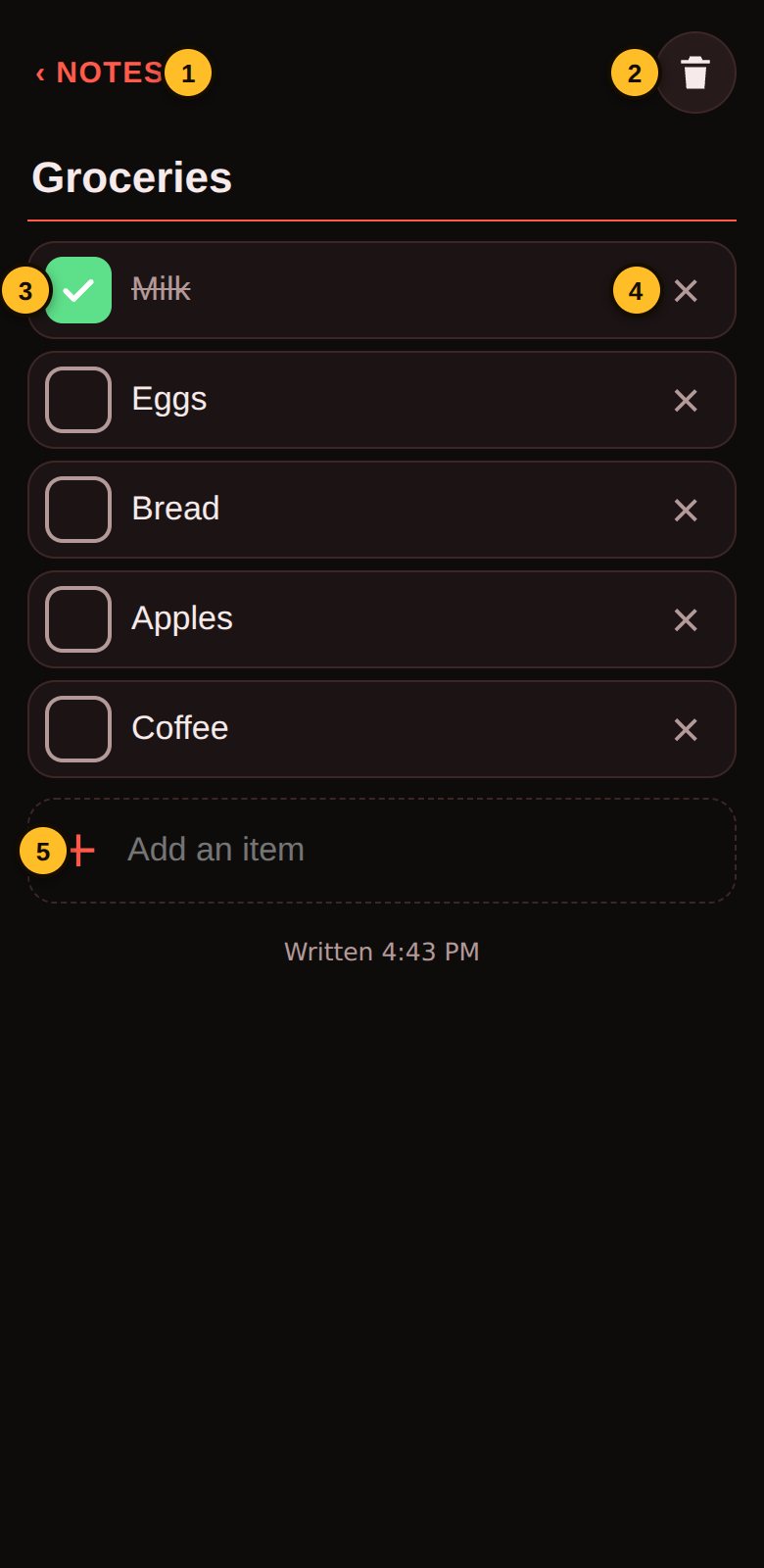
- NOTES - back to the list. Everything is saved as you type.
- Delete - deletes this note (it asks first).
- Tick - marks an item done (crossed out).
- × - removes an item.
- Add an item - type and press Enter for the next one.
Give a note a title, or leave it empty - the first line is used as the title. The keyboard's microphone works for talk-to-text. A note you already sent shows SEND AGAIN at the top if you want it on the PC a second time.
Deleting several notes
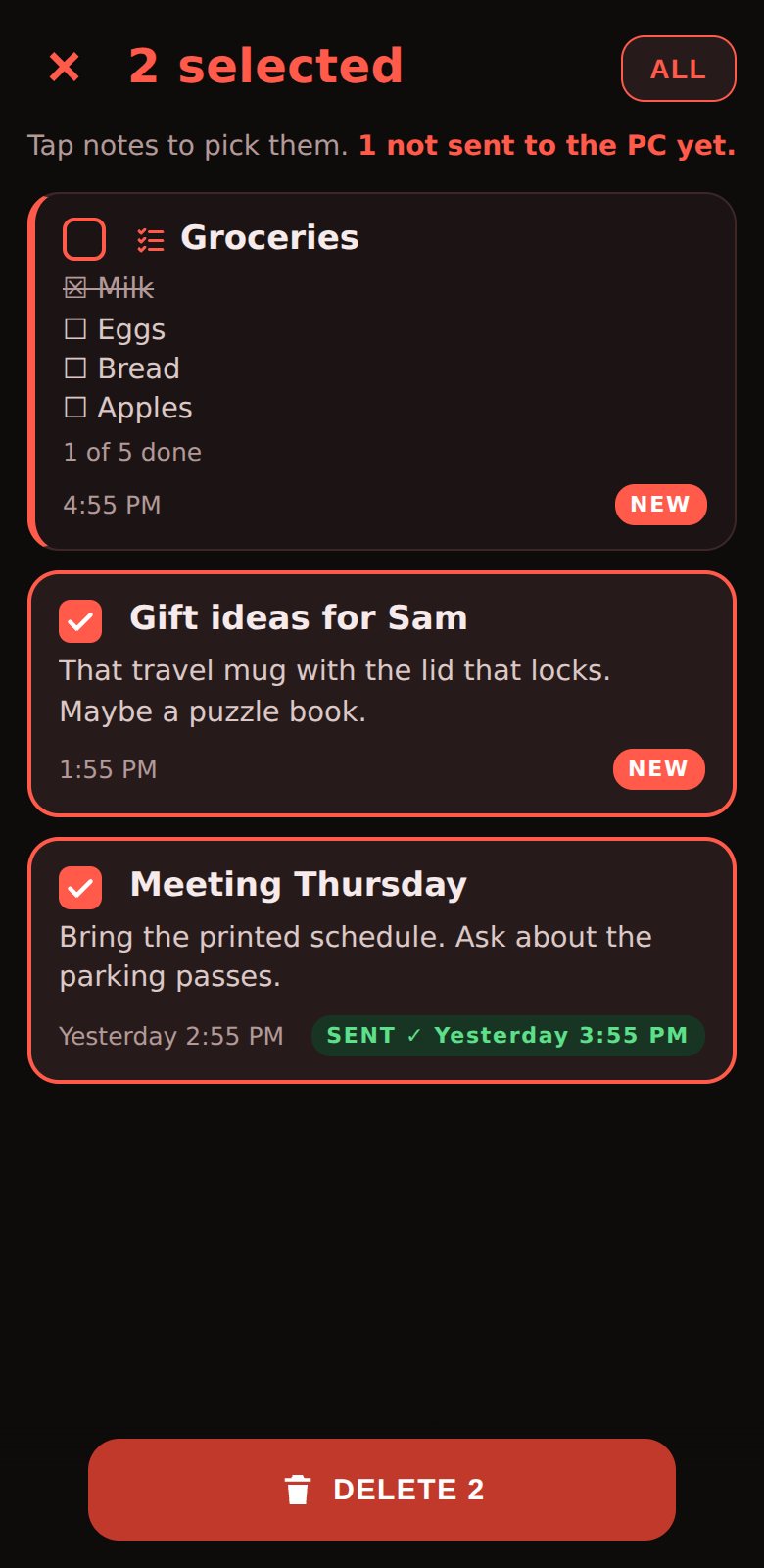
Press and hold a note to start selecting, then tap the other notes you want. ALL picks every note. DELETE removes them (it warns you if some haven't been sent to the PC yet). Tap × or the phone's Back button to stop selecting.
To clear out everything you've already sent: Settings › DELETE SENT NOTES.
Linking the phone and the PC
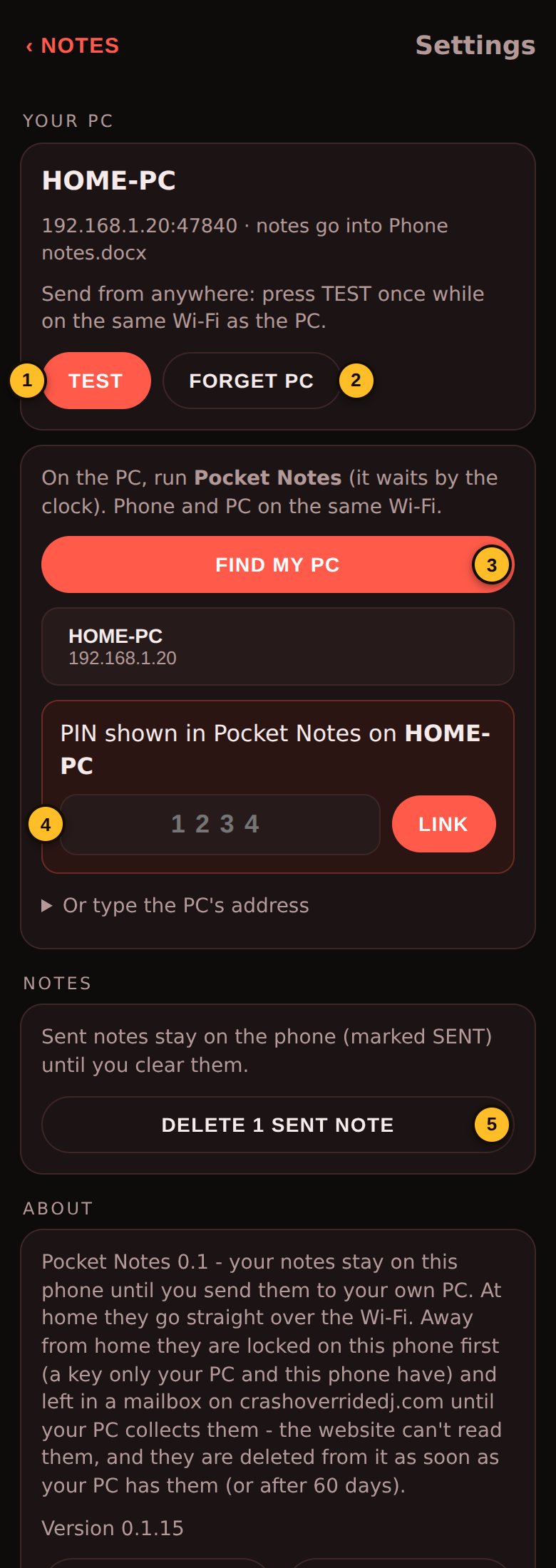
- TEST - checks the link (and sets up sending from anywhere - see below).
- FORGET PC - unlinks this PC.
- FIND MY PC - looks for Pocket Notes PC helpers on your Wi-Fi.
- PIN - type the PIN shown in Pocket Notes on the PC, then LINK.
- DELETE SENT NOTES - clears notes already on the PC from the phone.
The phone and the PC must be on the same Wi-Fi to link. If FIND MY PC finds nothing, open Or type the PC's address and type the address shown in the PC helper's menu, plus the PIN.
Sending from anywhere
At home, notes go straight over the Wi-Fi. Away from home they go over the internet: press TEST once while the phone and PC are on the same Wi-Fi, and Settings says "Send from anywhere: ready". After that, SEND works on mobile data or any Wi-Fi.
Away from home, notes are locked on the phone first with a key only your phone and your PC have, and wait in a mailbox on crashoverridedj.com until your PC collects them (it checks every minute while it's running). The website can't read them, and they are deleted as soon as your PC has them, or after 60 days.
The PC: your notes
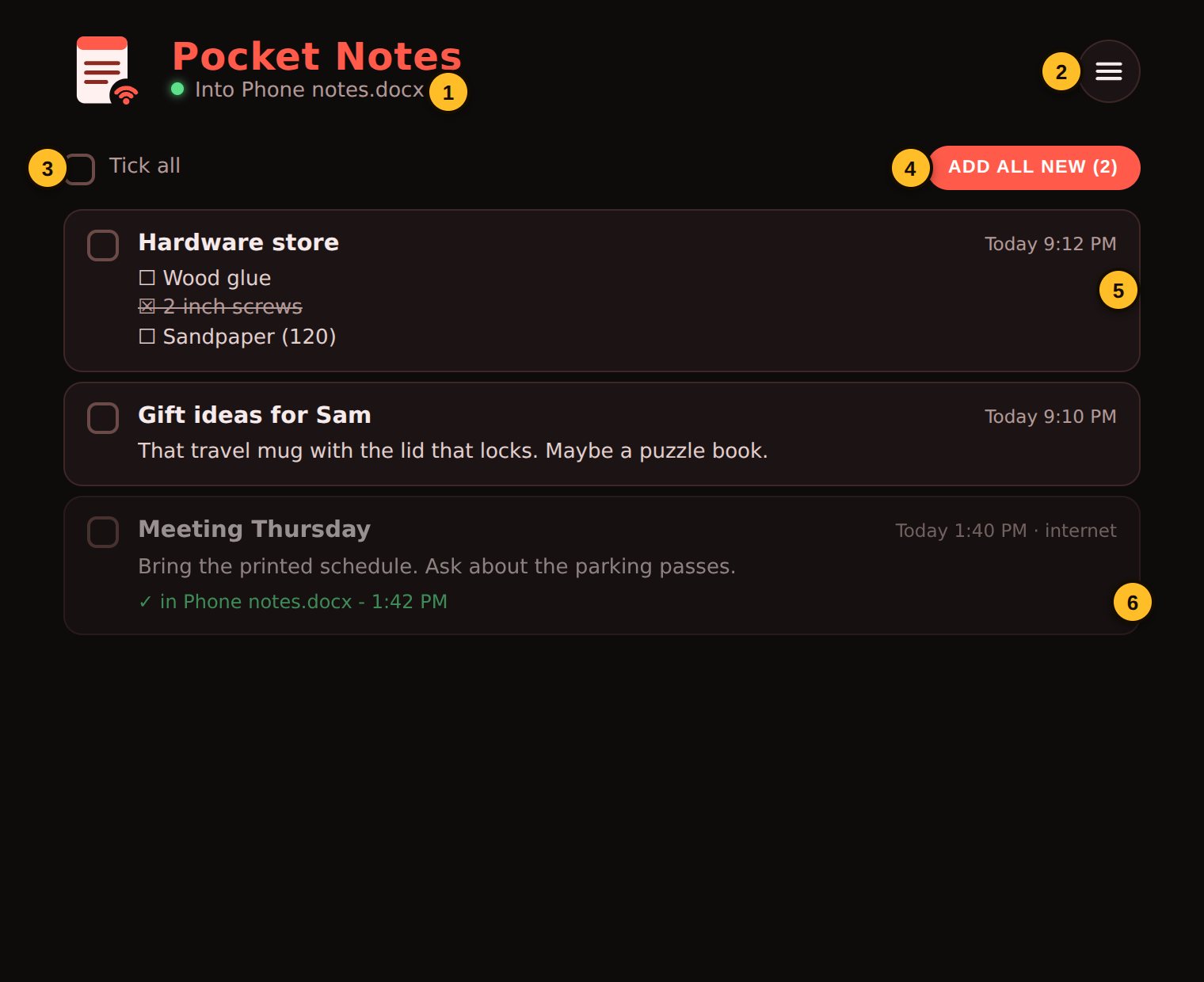
- Into ... - the document notes go into. Green dot = ready for the phone.
- Menu - PIN, document, settings (see The PC menu).
- Tick all - ticks every note.
- ADD ALL NEW - adds every note that isn't in the document yet.
- A note - tick it to pick it. It shows when it arrived, and "internet" if it came from away.
- ✓ in ... - already added to the document (dimmed).
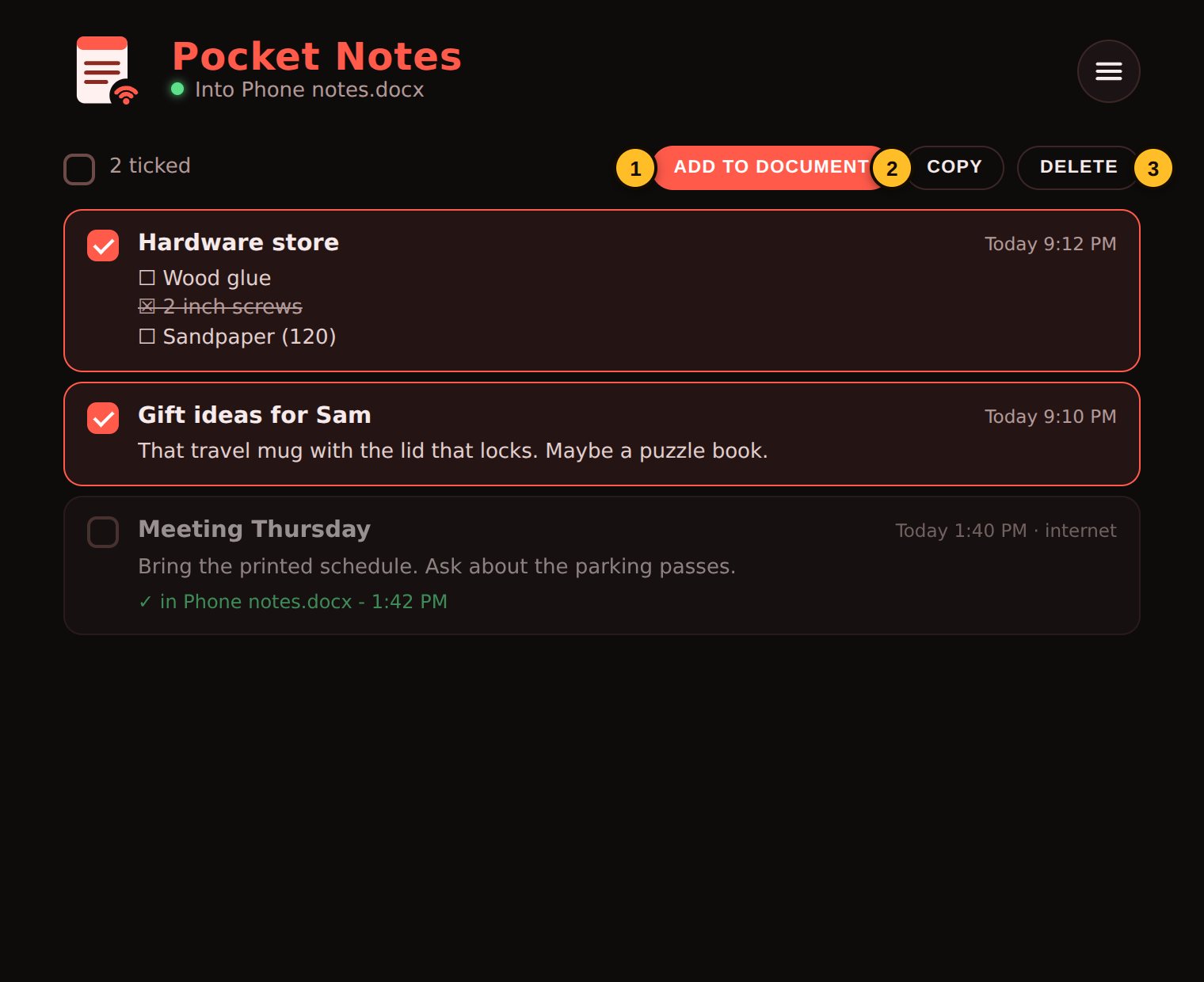
- ADD TO DOCUMENT - adds the ticked notes to the document.
- COPY - copies them as text, to paste anywhere.
- DELETE - removes them from the list (it asks first if any aren't in the document yet).
The document
Notes go into a Word (.docx) or LibreOffice Writer (.odt) document - Word or the free LibreOffice opens it. They're added at the end, under a dated heading. Nothing already in the document is changed, and a copy of the document as it was is kept first (the last 10 copies).
- If the document is open in Word or Writer, the notes wait (the window says so) and go in when you close it - save your own changes first.
- With Add to the document by themselves on (in the menu), new notes go straight in without ticking.
The PC menu
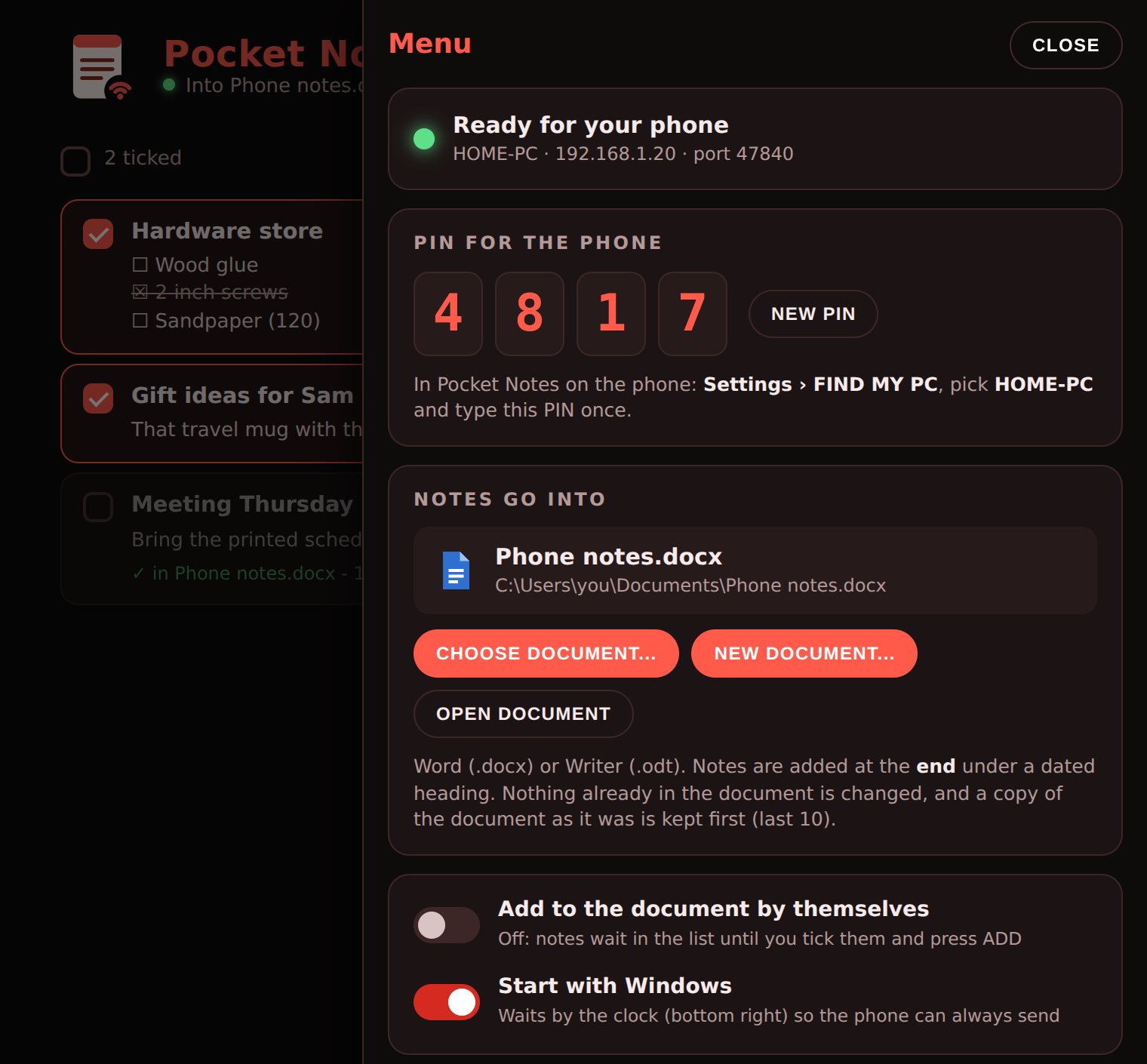
| Ready for your phone | the PC's name and address (type this on the phone if FIND MY PC doesn't find it). |
| PIN for the phone | the PIN to link a phone. NEW PIN makes a new one (linked phones will need it). |
| Notes go into | CHOOSE DOCUMENT..., NEW DOCUMENT..., OPEN DOCUMENT. |
| Add to the document by themselves | off: notes wait in the list until you tick them and press ADD. |
| Start with Windows | the helper waits by the clock so the phone can always send. (Mac: start when the Mac starts.) |
| Received | a log of what arrived and how. |
| CHECK FOR UPDATES | see Updates. Also LICENCES & CREDITS and SEND AN IDEA. |
Closing the window keeps Pocket Notes running by the clock (Mac: in the menu bar), so the phone can still send. Right-click its icon there to quit.
Sending notes to the phone
The other way works too: in the PC menu, OPEN POCKET NOTES BOX opens a folder. Drop a .txt or .md file into its To phone folder and it shows up as a note on the phone the next time Pocket Notes is open there (at home or away). Lines like [ ] milk make a checklist.
Updates
Phone: when a new version is out, a banner says New version - UPDATE (also in Settings › ABOUT › CHECK FOR UPDATES). Android asks once to allow installing it. Your notes are kept.
PC (Windows): an Update ready card offers UPDATE NOW; Pocket Notes restarts by itself with your notes and settings kept. Updates are only accepted if they're signed by the maker. On a Mac, download the new version from the Downloads page.
Troubleshooting
| "No PC answered" | Is the PC helper running (icon by the clock)? Are the phone and PC on the same Wi-Fi? Some guest networks block devices from seeing each other - use "Or type the PC's address". |
| Notes don't arrive from away | Settings must say "Send from anywhere: ready" - press TEST once at home. The PC must be on with the helper running to collect them. |
| Notes wait instead of going into the document | the document is open in Word or Writer - close it (save first). Or no document is chosen yet: open the menu. |
| New PIN on the PC | phones linked with the old PIN need the new one: Settings › FIND MY PC. |
| Install fails over an older phone version | send your notes first, then uninstall the old app and install the new one. |
Your notes stay on your phone and your own PC. See the privacy page.
Pictures show invented notes.