Kindred Farm Manager
Kindred keeps your farm's animals, chores, eggs, feed, money and 4-H / FFA records in one place - on the PC and everyone's phones.
Click any picture to see it full size. The people, animals and farm in the pictures are made up.
Getting started
Kindred runs on a Windows PC and Android phones. The PC usually holds the farm's records; phones join the same farm and stay in step with it (see Family, phones + sync).
The first time it opens
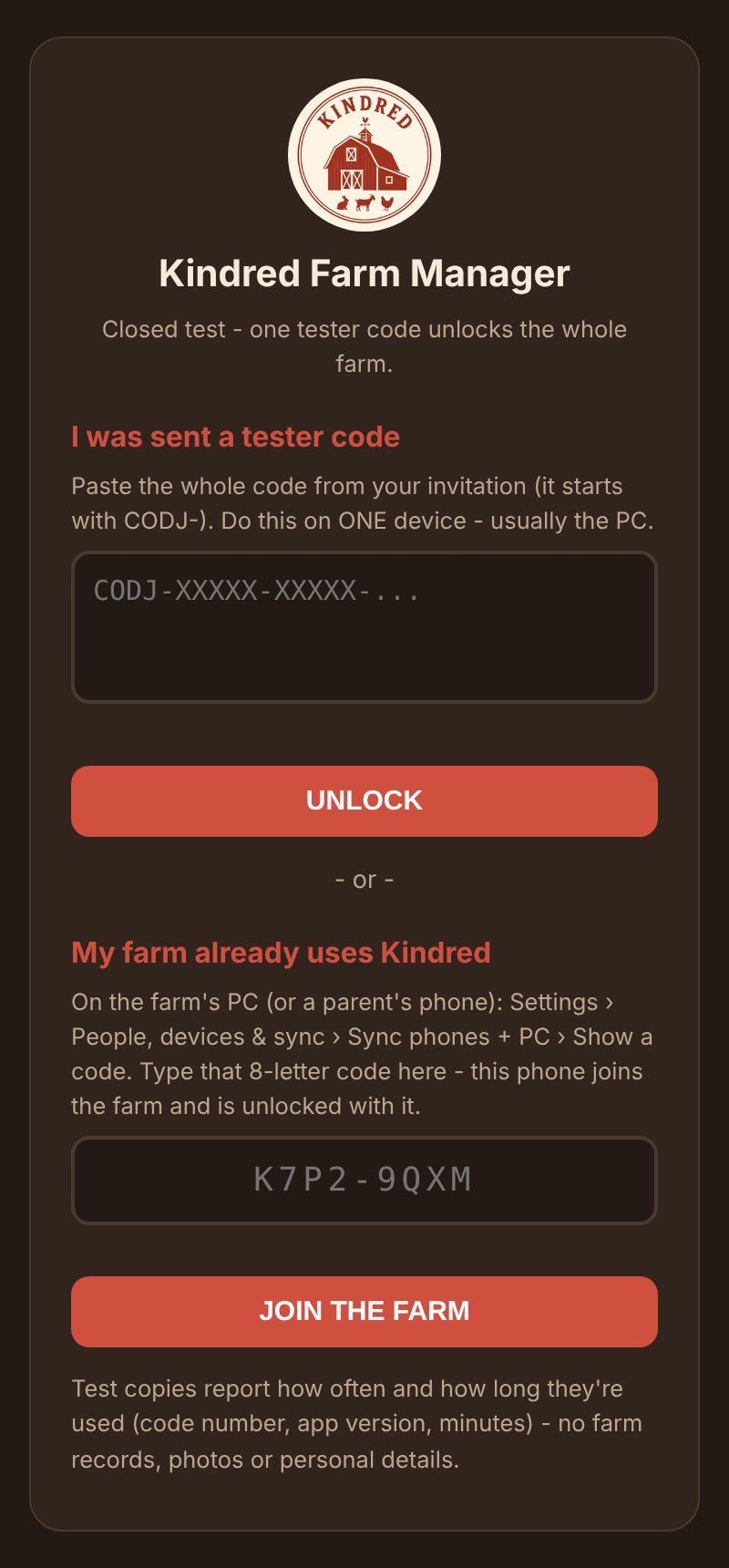
- On the PC: paste the whole tester code from your invitation (it starts with CODJ-) and press UNLOCK. One code unlocks the whole farm - every phone that joins later is unlocked with it.
- On a phone: don't paste the code again. On the PC go to Settings › Sync phones + PC › Show a code, then type that 8-letter code under My farm already uses Kindred and press JOIN THE FARM.
- In Settings, type your farm name, pick pounds or kilograms, and press Save settings.
- In Settings › People, add your family. Kids are added as Youth (with their 4-H or FFA club if they have one).
- Add your animals on the Add page, then pick chores from the Chores › 📚 Library.
Finding your way
The Kindred logo at the top left always takes you back to the home screen. On a phone the pages are in the ☰ menu.
The home screen
On the PC (or a tablet turned sideways) the home screen has four layouts. Pick one with the buttons at the top right - Dashboard, Kid lanes, Timeline or List. Each PC and phone remembers its own choice.
The row across the top is the same in every layout: chores done today, late or missed chores, today's eggs (morning + evening), open problems, feeds running low, and how many chores were done on time over the last 7 days.
Dashboard
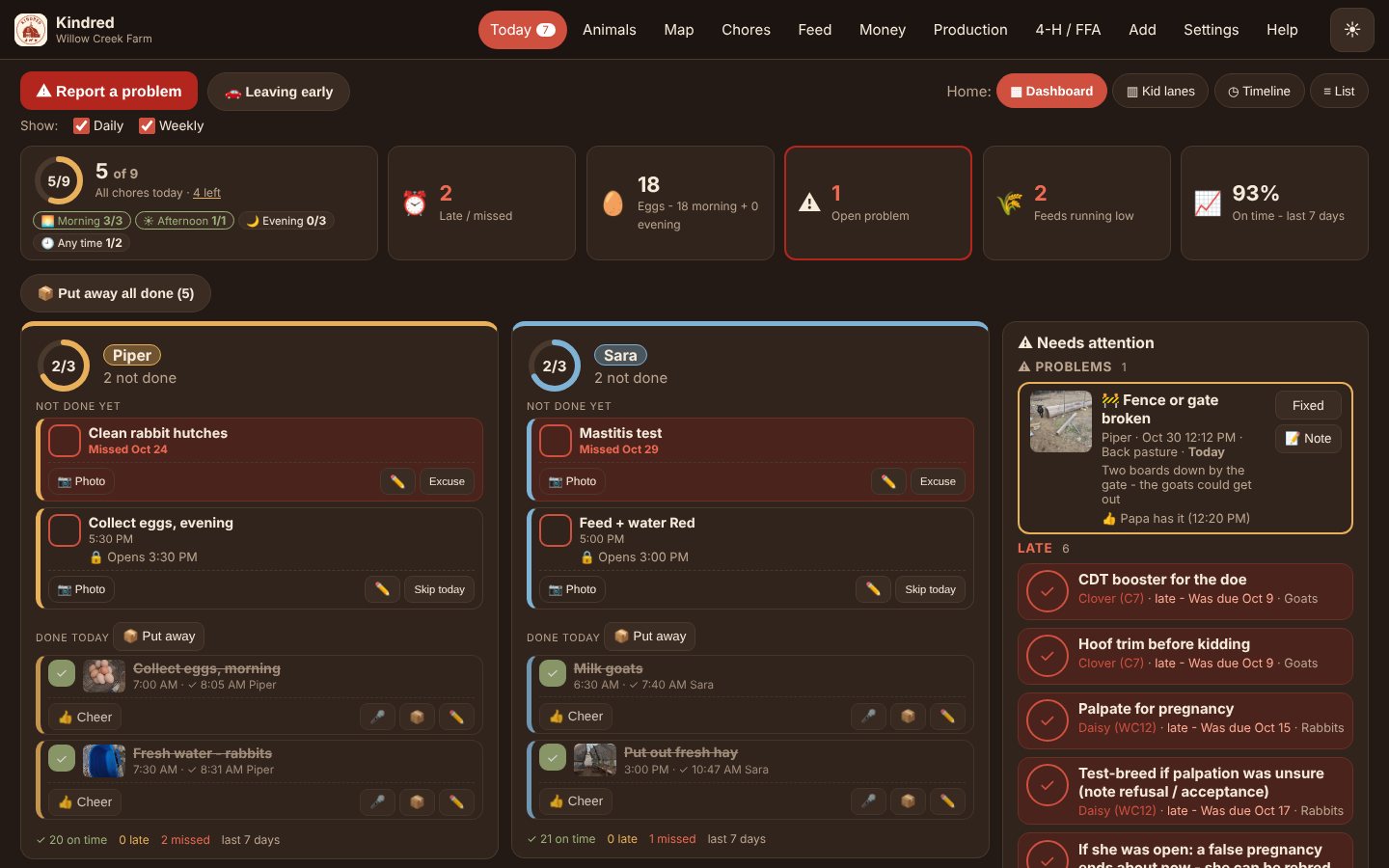
Each person with chores gets a tile: a ring showing how many of today's chores are done, the chores not done yet, their latest chore photos, and their last 7 days (on time / late / missed). Chores nobody is assigned to are in the Anyone tile.
Needs attention lists open problems first, then late and due reminders. Under everything is Today's chore photos - show all of them, one kid's, or grouped by chore.
Kid lanes

Timeline
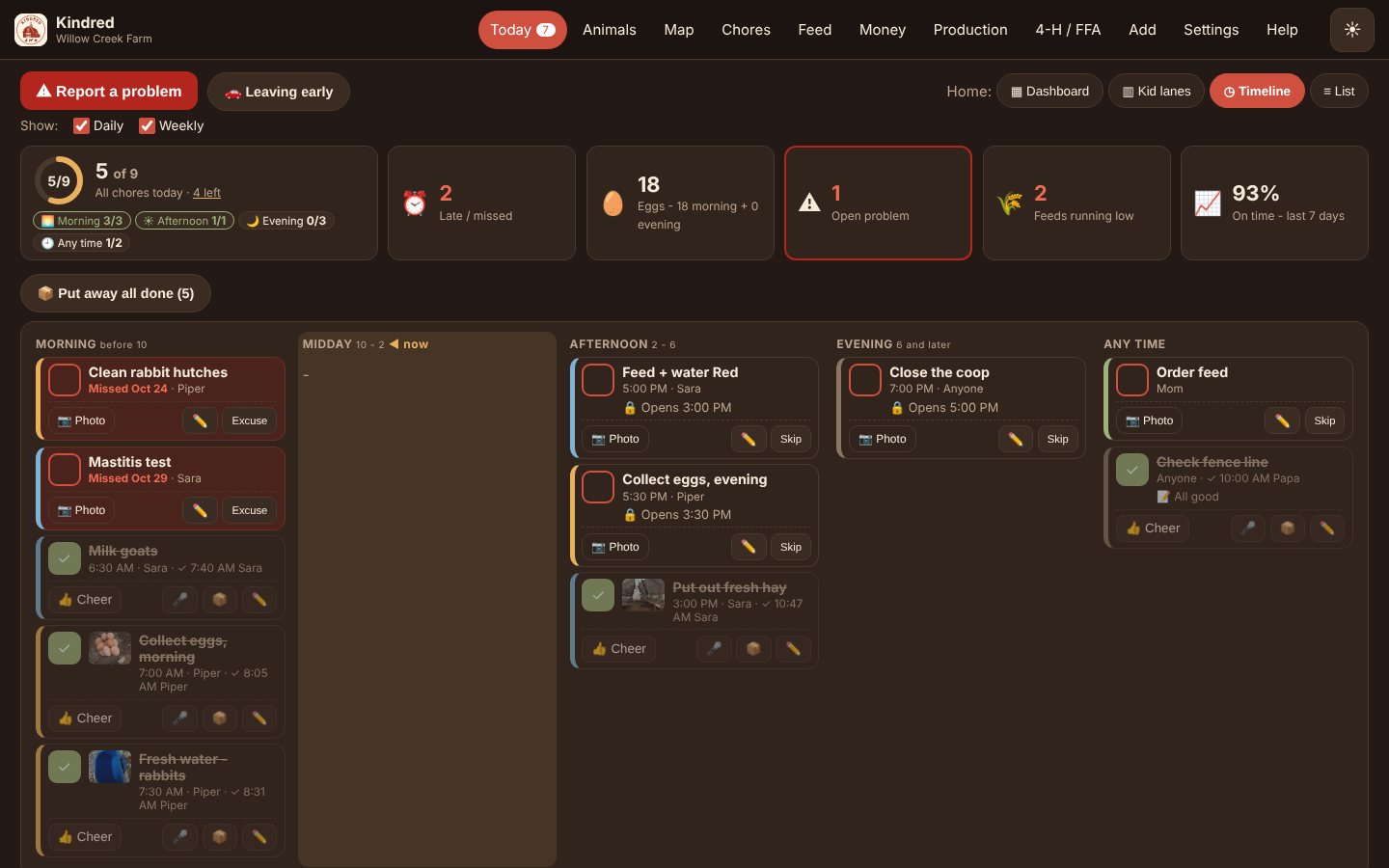
Chores are coloured by person. Missed ones are put at the front of Morning so they aren't lost.
Working from the home screen
- ✓ box - check the chore off. A chore on one person is checked off as that person. If it needs a photo or counts eggs, a small form opens.
- 📷 - check it off with a photo.
- Skip today - (parents) excuse a chore for today. It leaves the list and doesn't count as missed. On a missed chore the button says Excuse. Changed your mind? Press UNDO on the message at the bottom.
- Click a photo - see it big. If the job wasn't really done, press Not done - Send it back and it goes back on the kid's list.
On a parent's phone
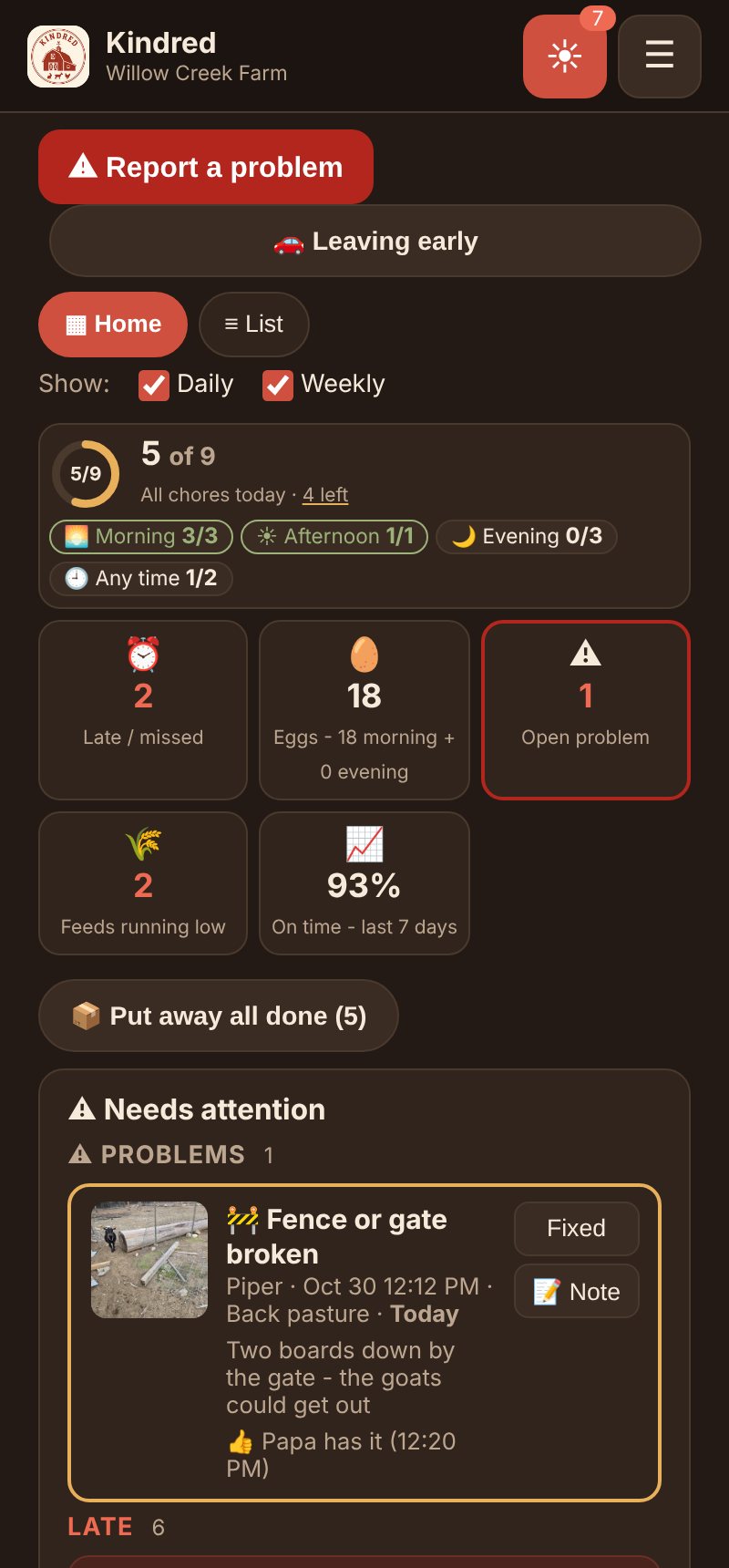
Phones have Home and List. List is the simple page: your chores, then reminders in Late / Today / This week order.
New on the home screen
- Chores done today - the ring counts all of today's chores. Under it 🌅 Morning, ☀ Afternoon, 🌙 Evening and 🕘 Any time each show done / total (green when that part of the day is done). Tap the ring for everything still left today, or a part for just those chores - ✓ and 📷 work right there.
- Each chore tile has its buttons in a thin bar along the bottom: 📷 Photo (👍 Cheer once it's done), 🎤 note, 📦 put away, ✏️ edit, Skip.
- ✏️ Edit opens that chore's settings right from Home (PC and parent phones).
- 📦 Put away clears finished chores off Home until tomorrow - all of them, one person's, or one chore. They still count.
- 🖨 Print: an animal's page has 🖨 Print (its record - tick the parts you want); the Animals page has 🖨 Print for a summary list, full records or a treatment log - all animals, one kind (goats, rabbits…) or one location. Print on the PC, or Save / Share the PDF.
- Fold-open cards: tap a card's title on an animal's page to fold it shut or open (Pedigree, Photos and History start shut). Each phone / PC remembers.
- 💉 Notes that are treatments: a health check or note that names a medicine (CDT, Safe-Guard, copper…) with no treatment on file shows "↪ Make it a treatment" - it fills in the medicine, date and the dose you typed, so the meat / milk withdrawal is tracked. Kindred never suggests a dose.
- ☑ Steps (big jobs): in New / Edit chore, open Steps and add each part (paste a list, one per line, to add them all). A step can be for one person and can need a photo. The chore shows "Steps 2 of 5"; tap it (or the ✓) to tick steps as they get done - it saves as you go, on any phone. Ticking the last step checks the chore off. Only the phone that ticked a step, or a parent, can untick it.
- 🚗 Leaving early moves only the part of the day you tick (Morning, Afternoon, Evening, Any time) to a new time - earlier or later. The rest keep their times. Kids' phones are told and ring 30 minutes before.
- 🔒 Opens 4:00 PM - a chore with a time can be checked off from 2 hours before it (Settings › Chore times changes that). A parent can still check one off early - it asks first.
- A chore tied to an animal shows that animal's newest picture from the kids.
- 📥 Photos to review shows under Needs attention when a kid sends a tag picture or an official head shot - see Animals › Photos from the kids.
Animals
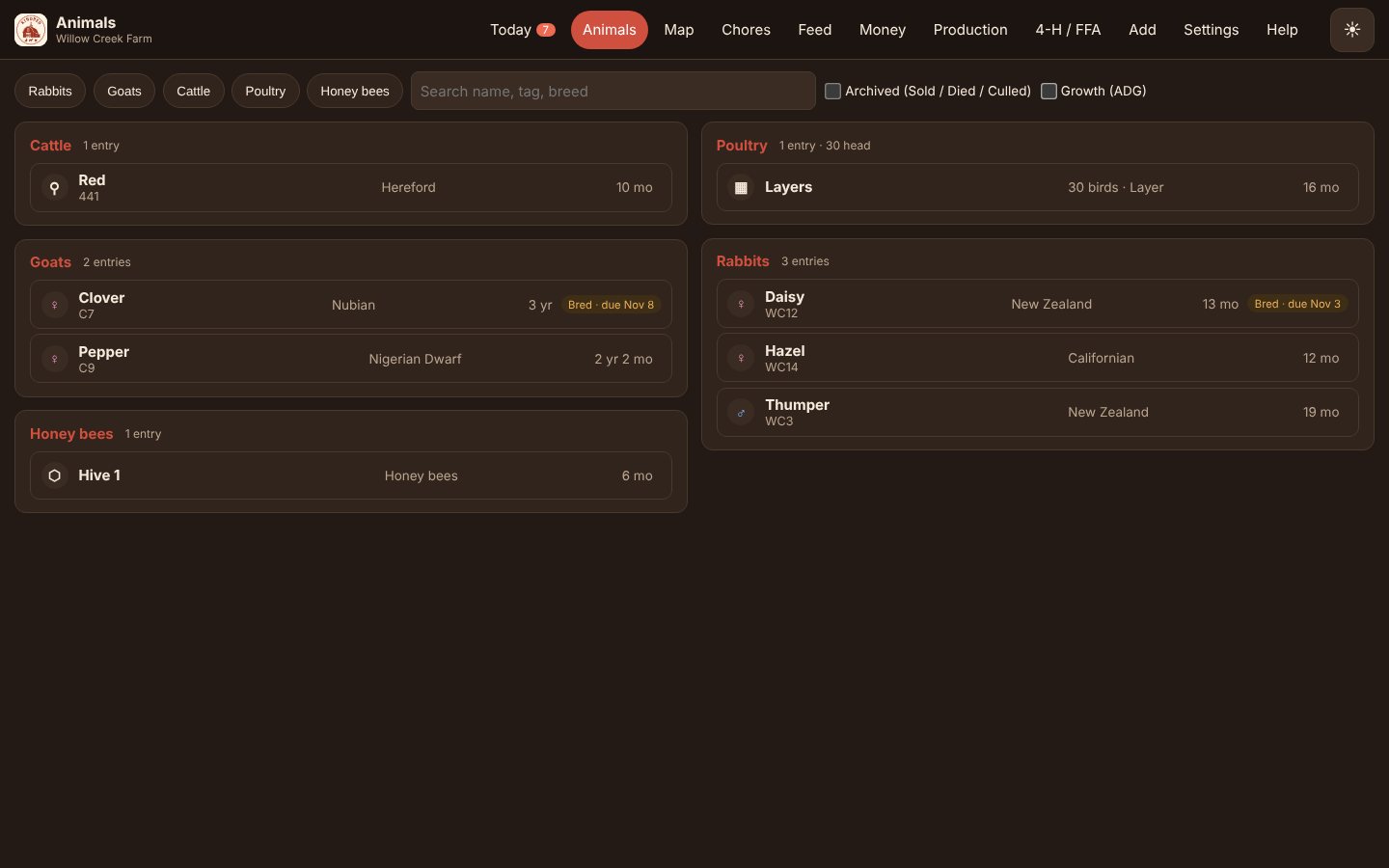
Kindred keeps single animals, groups (a litter, a flock, a pen of feeder swine - just a head count), eggs in the incubator and bee colonies. Tick Archived to see sold, dead and culled animals; tick Growth (ADG) to sort by average daily gain.
Adding
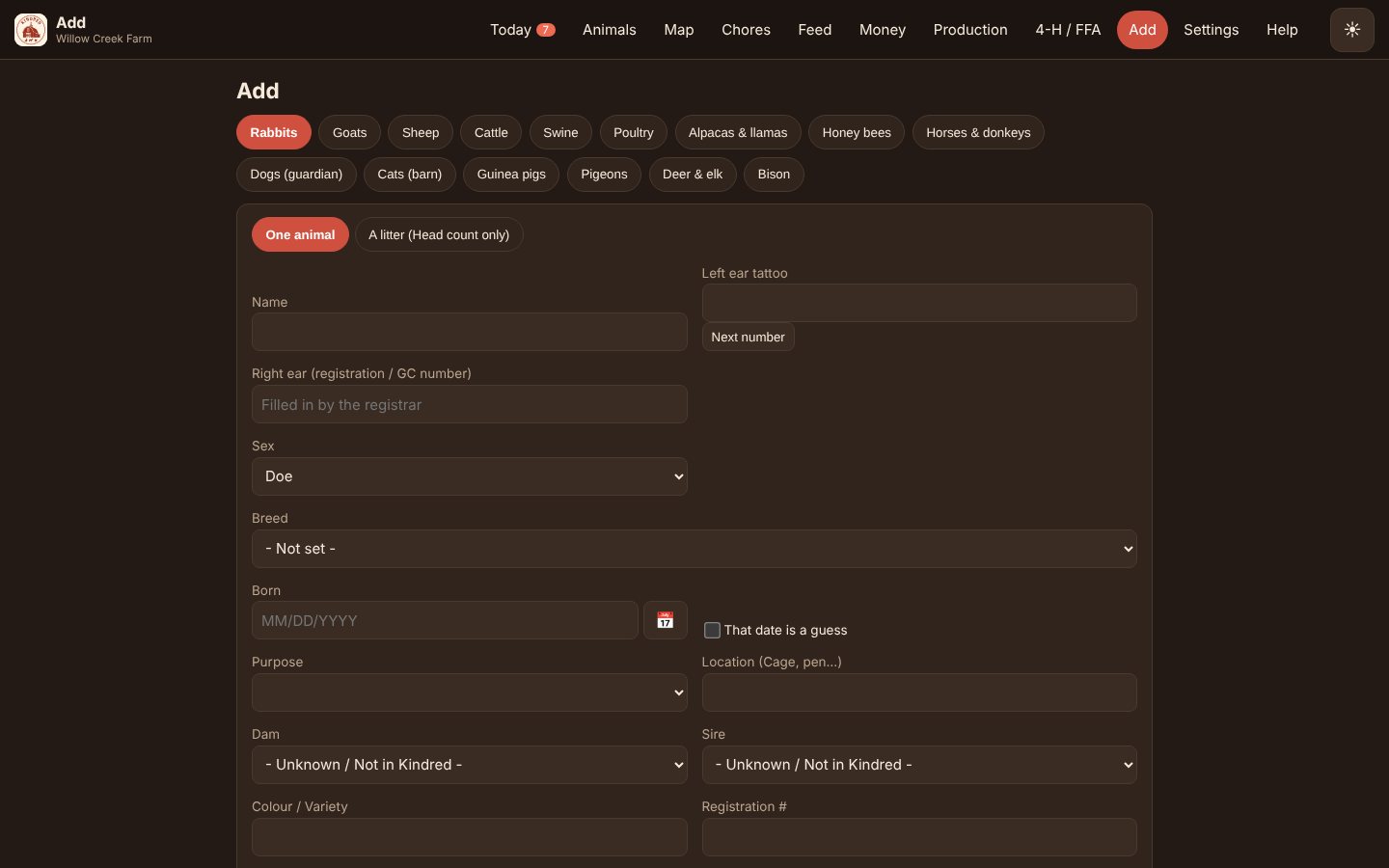
Pick the species along the top, then One animal, a group, eggs or a hive. Only a name or a tag is needed; everything else can be filled in later. Next number suggests the next tag in your herd prefix. Save + add another keeps the form open for the next one.
A breed that isn't in the list? Pick + Type a new breed - it's then in the list for good, and in crosses too.
An animal's page
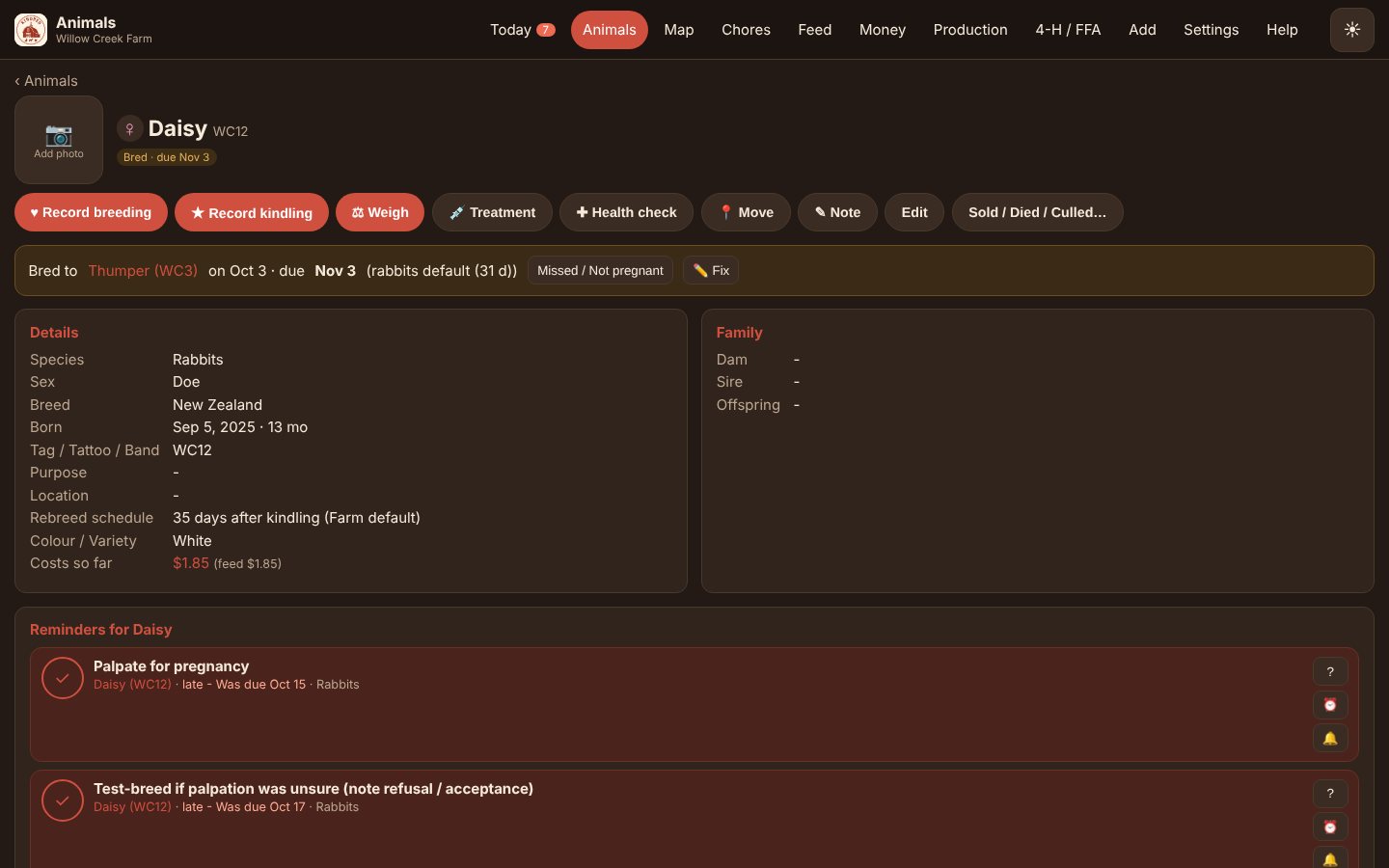
The buttons change with the animal: ♥ Record breeding and ★ Record kindling / kidding / birth for females, 🥚 Eggs collected and Set eggs for laying hens, 🔦 Candle and 🐣 Hatch for eggs, 🐝 Inspection, Mite check and 🍯 Harvest for hives. Every animal has ⚖ Weigh, 💉 Treatment, ✚ Health check, ✎ Note, Edit and Sold / Died / Culled….
- Breeding - pick the sire and the date. Kindred works out the due date from the species pack (and the doe's own history once she has some), then lines up the reminders: palpation, nest box, due date, rebreeding.
- Birth - alive, dead, and each kit / kid if you want them as their own animals. Family links are made for you, so pedigrees build themselves.
- Treatment - product, the dose you gave and the meat / milk / egg withdrawal days. Kindred shows a withdrawal hold on the animal until it's safe. Before it saves, Kindred asks you to check the dose against the product label or your vet's written instructions - Kindred never supplies a dose.
- 💊 Your farm's products - type a product that isn't on the list and Kindred offers to add it to your list with everything you entered: active ingredient, route, your dose, an optional rate (like 3 mL per 100 lb), the meat / milk / egg withdrawals and the vet. Next time pick it at the top of the Product list and it's all filled in - the shaded boxes are yours; change any of them for that time (Kindred offers to keep the new ones). Manage the list in Settings › 💊 Medicine. Turn on 🧮 Work out doses from my rates there and Kindred multiplies your rate by the animal's latest weight and shows the math (≈4.2 mL = 3 mL × 140 lb ÷ 100) - it's arithmetic on your numbers, so check it before you give it. It warns when there's no weight, the weight is over 60 days old, or the dose is more than double the last one. A product filled in from your list and not changed saves in one tap. Withdrawals show in Home › Needs attention (🚫 Daisy - no milk until Thu) and on the morning one ends (✅ Daisy - milk OK again today), with a phone alert. Each product shows who it's for (Goats, Swine, Chickens…) - pick them with the chips when you add or edit it. The same medicine can be listed once per kind of animal, each with its own dose and withdrawals: open it and tap ⧉ Copy for another kind of animal. A treatment lists the products for that animal first; using one saved for other animals offers to save a separate one for this kind.
- Weigh - the growth chart and ADG (average daily gain) fill in from every weight.
- Pictures - add a profile picture and as many show-day or growth pictures as you like.
- Pedigree - three or more generations, ready to print, with the inbreeding figure (COI) of any planned mating.
Meat batches (Broilers and rabbits)
Broilers: Add › Poultry › 🍗 Meat batch - the hatchery, the order (order date, expected and actual ship dates, tracking number and link - tap the link on the batch to follow the box), how many arrived alive and arrived dead, hatch and arrival dates and what the chicks cost (it goes in Money). Rabbits: open a litter and tap 🍗 Make it a meat batch. Its feed is either its own bags (purchases of that feed from 14 days before they arrive to the last processing day, less what's left over) or its share of a ration - for rabbits on the same pellets as the herd: the amount per head × the head count each day. On the batch's page: ☠ Lost (with why), ⚖ Weigh a few now and then, 🔪 Processing day - on the farm (hours of work and supplies) or at a processor (fee per head), with live and dressed weights if you weigh them - and 💲 Sell: broilers whole, by the pound, parts or live; rabbits whole (dressed), live for meat or live for breeding. Live sales come off the head count. When the last one is done the batch is marked Processed. Each batch has an expected processing date (filled in from the hatch / birth date - 8 weeks for broilers, 10 for rabbit fryers - change it to yours): the card counts down to it and Today reminds you from a week before. Processing costs go in Money under Processing. The card shows the losses, feed, feed conversion (lb of feed per lb of live weight), cost a head, cost a lb dressed and the profit; your own hours are shown but not counted as a cost. Production › 🍗 Meat batches puts every batch side by side.
Horses: papers, farrier, worms, emergency card
A horse's page has a 🐴 Horse care card. 📄 Papers: the Coggins (accession #, the date the blood was drawn, the expiry date on the paper - it depends on your state, so Kindred doesn't guess it), registration, health certificate, brand inspection, passport, insurance - each with a photo. A paper with an expiry date reminds you a month before. 🔨 Farrier: + Farrier visit (what was done, who, the cost and a photo of the bill - the bill goes in Money under Farrier / Hoof care, on this horse). The next visit is counted from the last one, every 7 weeks unless you set this horse's own cycle (Change). 🪱 Worms: + Fecal egg count (eggs per gram) shows low / moderate / high shedder by the AAEP's guide, and the dewormers it had (from 💉 Treatment). Kindred doesn't pick dewormers or doses - your vet does. 🚑 Emergency card: vet and back-up vet, owner and second contact, insurance (call before surgery), microchip, allergies, medications and notes, plus photos of the signed consent-to-treat and financial-responsibility forms. Open it from the horse's page and print it for the barn. Blank sample forms are there to print - they're samples only; have a lawyer in your state look them over.
Year-end records
Money › 📄 Year-end records - one year of what was recorded, for your tax preparer: profit & loss, income and expenses by category with your line, totals by your lines, animals bought and sold (with "kept since"), the head count at the start and end of the year, and the entries typed without a receipt photo. Print / Save as PDF, or Save the files (every entry and the lists, open in Excel). It's records - not a tax form and not tax advice. Settings › Money & feed › Year-end records - where each category goes: pick the line for each category, type your own, or leave one off the totals; Kindred's usual picks are there until you change them. Farm money only - 4-H / FFA project money is in each member's record book.
Calls from the emergency card
Every phone number on a horse's emergency card is a button: tap it and the phone's dialer opens with the number in it (nothing is dialed until you press Call). On the PC the number goes to Windows' phone app if you have one set up. When you come back to Kindred it asks Did you make the call? - No, tapped by mistake (kept in the record log, hidden from the history unless you tick "Show taps that weren't calls"), Not now (it waits in Home › Needs attention), or Yes: why, what happened and the appointment if one was made (it goes on Today). Save shows ✓ Saved and the box stays open: 💬 Text the owner opens Messages with a summary filled in - change it and press Send (on the PC it's copied for you to paste) - and 📞 Call the owner (that call logs itself). Discard asks first if you typed something; the call stays in the history as "no reason given", so there are no gaps.
Horses: boarding, turnout, feeding, blanketing, riding, heats
More on the 🐴 Horse care card. 🏠 Boarding (parent devices): the rate (a month or a day), since / until and what it includes; the owner's name and phone come from the emergency card - tap the number to call. + Extra charge (farrier passed on, supplements...), + Payment (goes in Money as Boarding income on the horse) and 📄 Monthly statement: board for the days it was here, extras, payments and the balance carried from earlier months - print it or 💬 Text the owner the summary. 🌳 Turnout: its group and who it must be kept apart from - if they end up in the same group, the horse card, Home and the barn sheet warn you. 🌾 Feeding chart: what it gets morning, midday and evening; a change keeps the old chart with its dates; Add as chores makes daily feeding chores for it (assign them on the Chores page; changing the chart updates them). 🧥 Blanketing: your own temperature bands (below 60 °F sheet, below 40 heavy...) and "clipped" - no forecast. 🏇 Riding / Exercise: minutes, what (ride, lesson, lunge, trail...), who and a note; the month's total shows. 🌸 Heat cycle - only for mares kept for breeding: record a heat with its signs, and Today reminds you to watch for the next one about 21 days later (none while she's bred and waiting). Animals › 🐴 Barn sheet (Link on the horse card) prints every horse's feeding, blanketing and turnout on one page.
Locations
Settings › 📍 Locations - type your places once (Pasture 1, Barn, Chicken run). An animal's Location then picks from the list, its page has 📍 Move (with a date - the moves are kept), and the Animals page can be filtered by location. Each location has its own page: who's there now, + Move animals here, move the ticked ones out, and the moves in and out. Renaming a location moves every animal and chore with it. Report a problem › Where picks from the same list.
Equipment
Locations › 🚜 Equipment - your tractor, mower, truck, saws. Each machine keeps its hours (hour meter) or miles (odometer), or just dates. Add its service jobs - tap a common one or type your own - and how often from the owner's manual: every so many hours / miles, every so many days, or both (whichever comes first). Kindred never guesses intervals. Anyone can tap ⏱ Log hours or ✓ Done (date, meter reading, a note like "10W-30"); parents add machines and jobs. Jobs due or coming up show on Home › Needs attention. Retired / sold keeps the history and stops the reminders.
Repairs & costs - on a machine, tap + Log a repair (what broke or was done, who fixed it - you or the shop - the meter reading). Parents can add the cost and a receipt picture; it goes in Money under Repairs and maintenance, tagged to the machine (change the category there if your tax preparer wants it elsewhere). ⚠ Report it broken opens Report a problem with the machine picked - and Report a problem › Equipment broken asks which machine. When a parent marks it Fixed, the fix and its cost go in that machine's repair log. + Add a cost is for things that aren't repairs (tires, parts, registration), and a ✓ Done service job can take a cost too. Each machine shows what it cost this year and all time; the purchase price is shown apart.
Fuel - tap ⛽ + Fill-up (how much, the hour meter or odometer, and - parents - the cost, which goes in Money › Fuel). Fill to the top each time: after two fill-ups with the meter, the machine shows how much it uses (per hour, or miles per gallon). Parts on hand - parents add the filters, belts and blades kept for a machine, with the part number, how many, and "tell me when down to". Anyone can tap − / + on the count. Link a part to a service job and ✓ Done takes one off. Parts running low show on Home › Needs attention. 🖨 Machine list (Equipment page, parents) is one page for the insurance agent or tax preparer - serials / VINs, where each is kept, when bought and the price paid, hours or miles, this year's costs and the pictures - to print or save as spreadsheets (machines, service, repairs, fuel, parts).
Pastures
🌱 Pastures (in the menu once you have a paddock; also Locations › 🌱 Pastures) is a record of where your animals grazed and how the grass looked. Kindred counts the days - it never suggests when to move, how long to rest or how many animals a paddock holds. The planned days and rest targets are your own numbers.
- Set up a paddock (PC or a parent phone): pick one of your Locations (Farm › Pasture › Paddock), tick "This is a pasture / paddock", and add its size (acres or square feet), your rest target in days (optional) and notes like the water source.
- ➡ Move in: tick the animals or groups, the paddock, the date in and planned days (optional). The head count of each kind of animal fills in from the animals - change it if it's different. The animals' Location moves too. On the PC or a parent phone it also adds a chore "Move … from …" on the planned day; ticking that chore offers to record the move out.
- ⬅ Move out: the date out. "Move on to" another paddock opens Move in for the same animals.
- Each card shows who's on it and "Day 4 of 6", or "Resting 22 of 30 days" when it's empty - with "✓ Reached your 30-day target" once the days rested reach your own target - plus the last grass check.
- 🌱 Grass check: the height (inches, or cm on a metric farm), a condition word (Short, Grazed, Recovering, Ready - change the words in Settings › Farm & places) and a photo if you like.
- 📅 Move-out days lists the planned days by week. A paddock's own page has the grass log, its moves and a season report: days grazed and animal-days (head × days) per kind of animal, animal-days per acre, the rest periods and the grass height over time.
- Helper phones can move animals in and out and add grass checks; changes after 24 hours and paddock details are made on the PC or a parent phone.
- A move made on a helper phone has no chore (chores are made on the PC or a parent phone). Its planned move-out day still shows on Today, on the day and after, as "Move … from …". Ticking it offers to record the move out, like the chore does.
- Splitting a group: when Move in takes only some of the animals on a paddock - or a lower head count of a group - the move is split. The ones that left get their own record on the old paddock (out on the day they moved), and the rest stay on with the head count that's left, e.g. "Split: 3 moved to South, 5 still on North". Animal-days stay right on both paddocks.
- Settings › Export everything includes pasture-paddocks.csv, pasture-moves.csv (head counts, days on, animal-days per acre) and pasture-grass-checks.csv.
Photos from the kids
On a kid's phone, 📷 Send an animal photo:

- 🐾 Fun picture - goes up right away and shows on that animal's chores. The animal's page has them under From the kids (the newest 10 are kept); 🏅 Official there makes one the official head shot, ⭐ keeps one for good.
- 📸 Other picture - straight into the animal's photos, marked who sent it.
- 🏅 Official head shot (pedigrees, sale sheets, record books) and 🏷 Tag / tattoo / band - wait for a parent. The kid can pick "Not sure / a new animal", and type what the tag says.
Tagging a picture: a Fun or Other picture can have any number of animals (+ Another animal) - or none - plus Who's in it (tap the kids and parents in it) and your own tags (type a word like fair or new fence and press Enter; tags used before pop up as you type). Everyone tagged gets "📸 Piper tagged you in a picture!", a kid sees it under 📷 Pictures of me, and every tagged picture is on the 📷 Pictures page (top menu) - show everything, or one person, animal or tag. A parent (or the phone that sent it) can take a picture off that page; it stays in the animals' photos.
On the PC or a parent phone, 📥 Photos to review (Home › Needs attention) opens each one big. Pick the right animal if needed, then Use as its official head shot / Use as its tag picture (the old picture moves to its photos - nothing is lost), Add to its photos instead, or ✗ Not this one with a reason the kid sees. A tag picture shows what the kid typed next to the tag on the record, with a tick box to change the tag. Photos left waiting 2 days get a morning reminder.
The Locations page and the farm map
Animals › 📍 Locations › shows a tile for each place: who's there with how many days they've been there, today's chores there, ⚠ for an open problem and ⏰ for a late chore, + Move animals here and Open ›. Animals without a location are in their own tile at the end.
🗺 Map: upload a picture of your farm - a hand-drawn map, a photo of a sketch, a drone shot (use a picture you made or have the right to use). Pick a place, press ✏️ Outline it, tap its corners, then ✓ Done. Each outlined place shows its animals (🐐×9) and ⚠ when it has an open problem or a late chore; tap a place to open it. Changing the map picture clears the outlines, because they won't line up with a new picture.
Moving a label: as a parent, drag any label to where you want it - its line stays on the place and follows it. A label dropped inside its own place has no line. ↺ Auto-place labels puts them all back. A plain tap still opens the place.
Fixing a breeding
Got the date or the buck wrong? On her page, the breeding box has ✏️ Fix (and every breeding in her history has Edit). Kindred asks Change this breeding? first, then you can correct the date, the male, how and the note - the due date and reminders move with it, and the history shows it as corrected. A breeding entered by mistake can be removed with ✕, unless her litter is already recorded.
Who can change what (parent devices and regular phones)
The PC and up to 2 parent phones (Settings › Devices) can change everything. A regular phone:
- Can add animals, move them (to a place already on the farm's list), change their status, add notes, and record breedings, births, weights, health checks, feed purchases and feed counts.
- Can fix something it entered itself within 24 hours. A change to anything older - or to something another device entered - goes to a parent: the PC / parent phone gets 🔧 Changes to approve in Needs attention, with Approve or Decline (and a reason the phone sees).
- Treatments only when a parent ticks Can record for that phone in Settings › Devices (off to start).
- Can't change the farm settings, chore times or reminders, add or rename places, edit an animal's details (tag, sex, breed, birth date, parents, owner...) or remove an animal - those are on the PC or a parent phone.
Fixing a birth: on her page, the birth in her history has Edit on the PC and parent phones. Kindred asks Change this birth record? first; then correct the date, born alive / dead, peanuts and nest (rabbits) and the note. A new date moves the young's birth date with it; a litter's head count is changed with + / − head count on the litter's page.
Also parent devices only: Settings › Feed tracking (a feeding check-off can still switch on "Log each feeding") and Settings › People; the animal's main and tag pictures (a regular phone sends them with 📷 Send an animal photo for a parent to approve - it can still add more pictures); marking a problem Fixed (anyone can still report one, add notes and say "I've got it"); setting up feeds and rations (a phone still logs feedings, counts and purchases); the 🔔 alert times; undoing someone else's chore check-off (a phone can undo its own). Money: a regular phone keeps its kid's 4-H project money, and can add a farm expense under Money › + Add an expense - it counts once a parent approves it in 🔧 Changes to approve.
Medical entries from helpers
When a helper's phone records a health check, a treatment or ticks off a medical care reminder (vaccines, deworming, castrating, disbudding...), the PC and parent phones get a 🩺 pop-up to look it over and acknowledge (✓ Seen, or Later - it waits in Home › Needs attention). Routine care - hoof, toenail and teeth trims, the farrier - doesn't pop up. Turn it off in Settings › 🩺 Medical entries from helpers (on to start). A care reminder ticked off on a helper's phone can be unticked there within 24 hours; after that by a parent.
Fixing mistakes - almost everything
Paperwork mistakes happen; a wrong record is worse than none. In an animal's History: Edit on weights, egg counts, head counts, notes, health checks, treatments, mite checks, inspections and other entries - fix the date or the details, or pick This was for when the wrong animal was picked (Kindred asks first; a treatment's cost moves with it). ↩ Untick a care reminder ticked by mistake (castrated, vaccinated...), Undo 'missed' on a breeding, Undo a status change (sold / died... - a sale's price comes out of Money too) and Undo move - each asks first. The first entry stays in the record log. Helper phones fix their own within 24 hours; after that a parent approves (🔧 Changes to approve).
The 24-hour clock: it starts when the helper phone logs the entry, and runs on Kindred's own clock, which can't be turned back - changing the phone's date does nothing, and every sync sets it by the sync server's clock. The helper phone shows "5 h left to fix"; the PC shows "phone fix closes in 5 h", then "🔒 phone fix closed" (changes then go to a parent).
Places inside places
Settings › 📍 Locations › + Inside on a place adds stalls, pens, paddocks, runs, hutches... inside it - one at a time, or a numbered set (Stall 1 to 12). Up to 3 deep (Barn › Aisle A › Stall 1). An animal can be in the barn or in a stall; the barn's tile, page, map label and the Animals filter count everything inside it, and its page lists the places inside with who's in each. Renaming a place renames everything inside it. Remove takes a place (and what's inside it) off the list but keeps it for its history - the animals in it move up to the place it was in; Removed places › Bring back undoes it. On the map only the top places get outlines.
Reminders and alerts
Reminders come from what you record: a breeding gives a due date, a treatment gives a withdrawal end, eggs give candling, lockdown and hatch days. They show up on the home screen as Late, Today and This week.
- ✓ - done.
- ? - "Why this date?" shows the exact math and which species pack it came from.
- ⏰ - remind me tomorrow.
- 🔔 - phone alerts just for this reminder (up to three, for example the day before and at 6 AM).
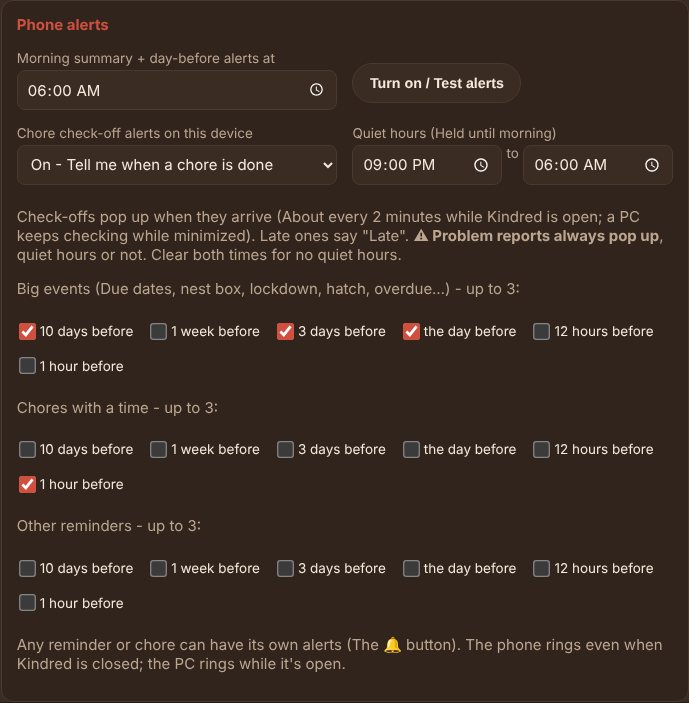
Under Settings › Phone alerts pick the morning summary time and the usual alerts for big events, timed chores and everything else. Press Turn on / Test alerts once on each phone. Phones ring even when Kindred is closed; the PC rings while Kindred is open (or minimized).
Chore check-off alerts
Parent phones and the PC can pop up a message each time a chore is checked off (late ones say "Late"). Turn it off, or set quiet hours - messages that come in overnight wait until morning. Problem reports always come through, quiet hours or not.
Chores
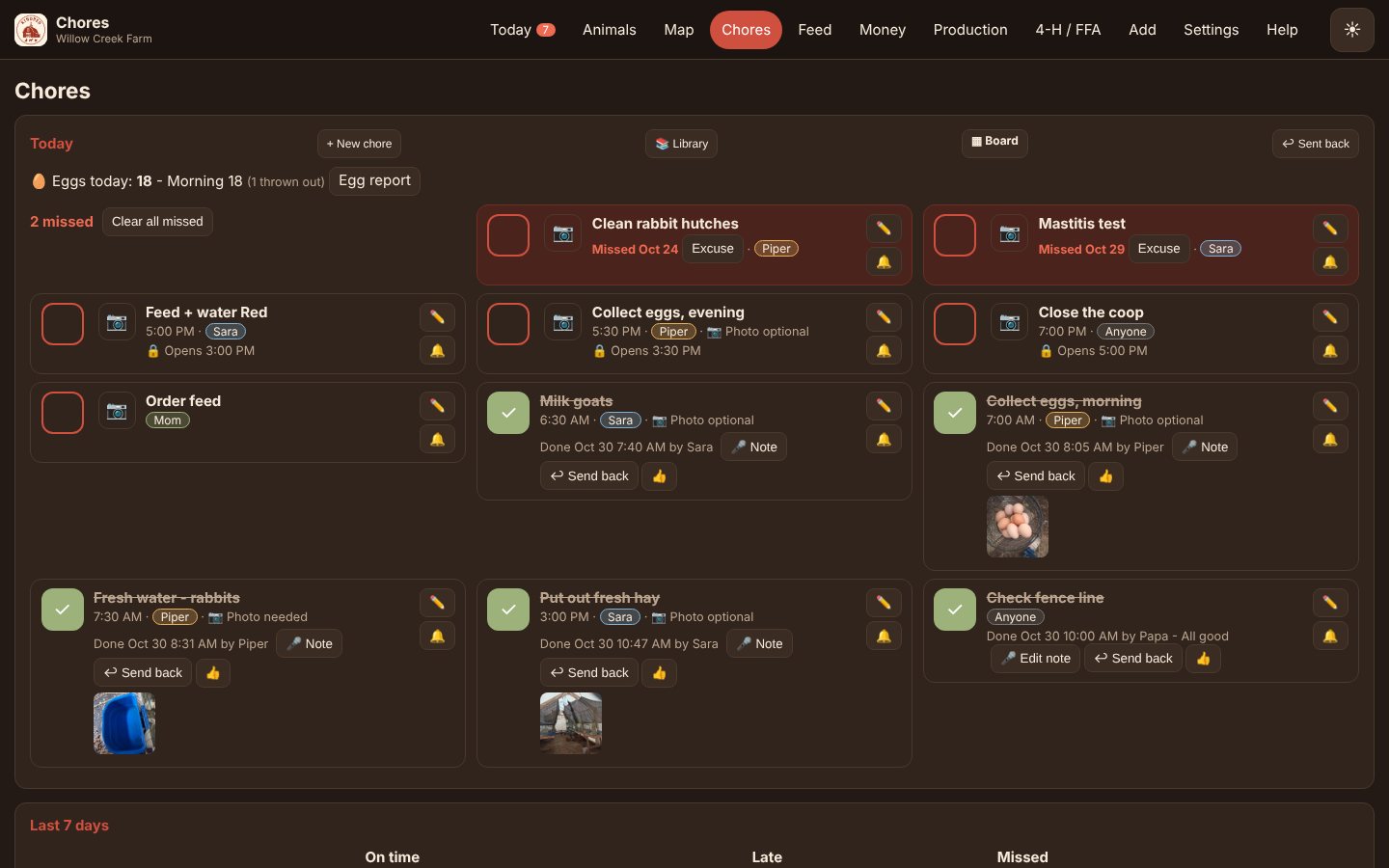
Chores are made and assigned on the PC and parent phones. Kids check them off on their own phones.
The chore library
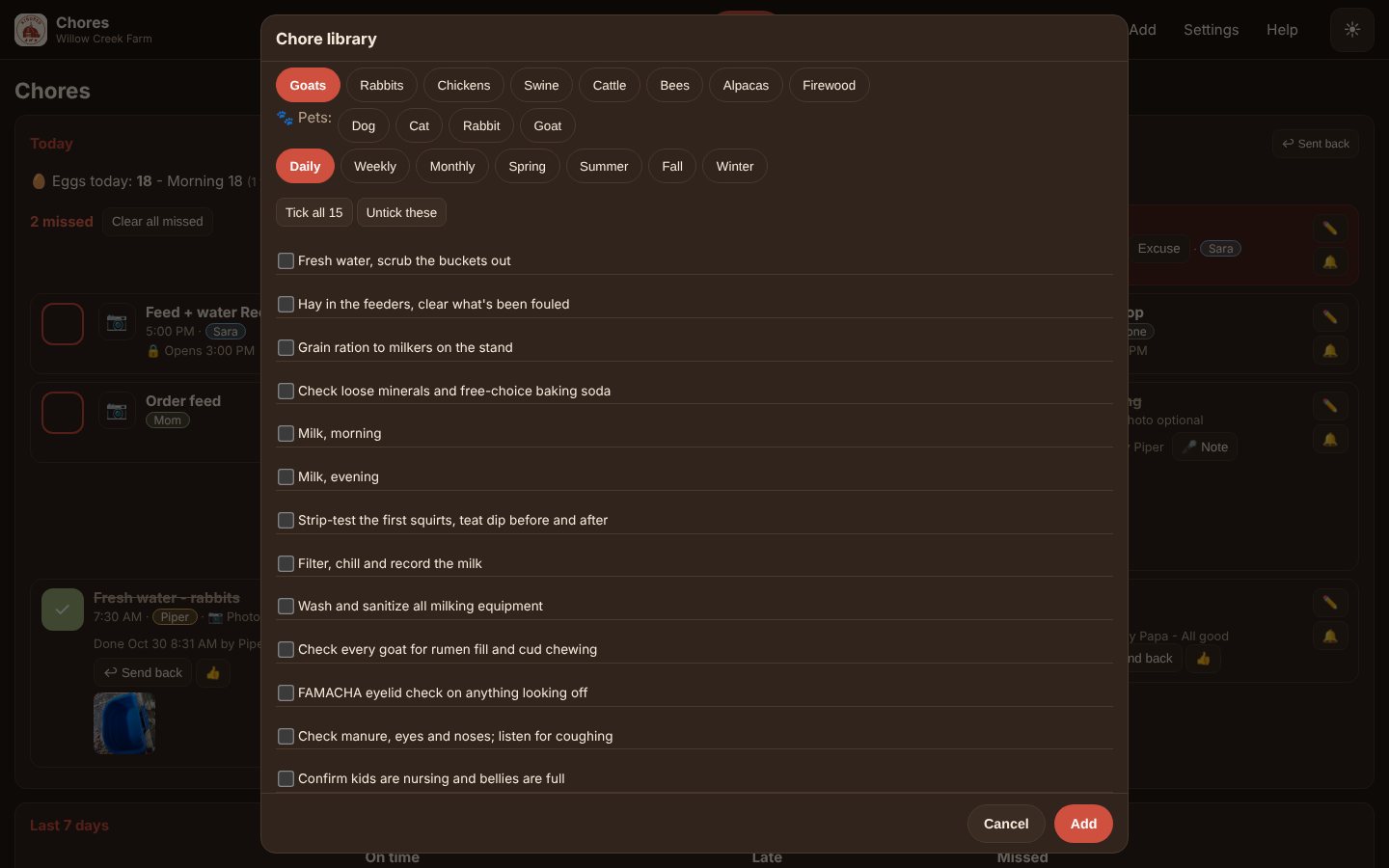
- Press 📚 Library. Pick a group (Goats, Rabbits, Chickens, Swine, Cattle, Bees, Alpacas, Firewood…) and how often.
- Tick the chores you want. Tick all takes the whole list.
- Something missing? Type it in the Write your own… box and press Enter. It goes on the list ticked, and stays in the library for next time. ✕ takes your own one out again.
- Optionally tick who does them, then press Add.
Making or changing a chore
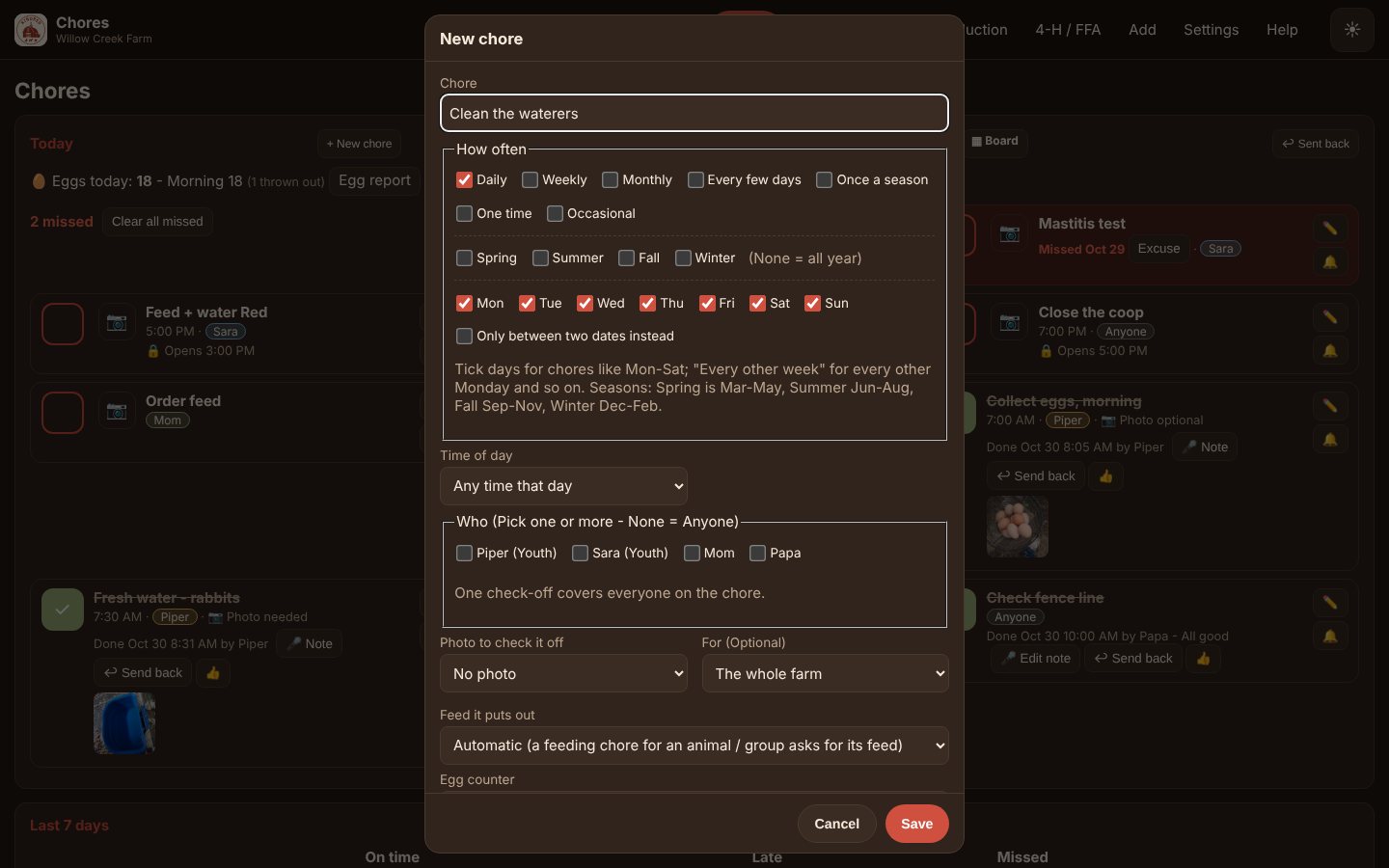
| How often | Every day, every few days, weekly on chosen days, monthly (31 = last day of the month), or once in a season or date range. |
| Time | Leave blank for "any time that day". A time puts the chore in the right part of the Timeline and lets it ring. |
| Who | One or more people - or nobody, which means anyone can do it. One check-off covers everyone on the chore. |
| Photo | No photo, Photo optional or Photo required. A required photo has to be taken before the chore can be checked off. A photo can always be added with 📷. |
| Egg counter | "Collect eggs" chores ask how many eggs - see Eggs + production. |
| For | Tie it to one animal or group if you like. |
Tap any chore in the list to edit it. Untick Active to pause it - the history stays.
The chore board
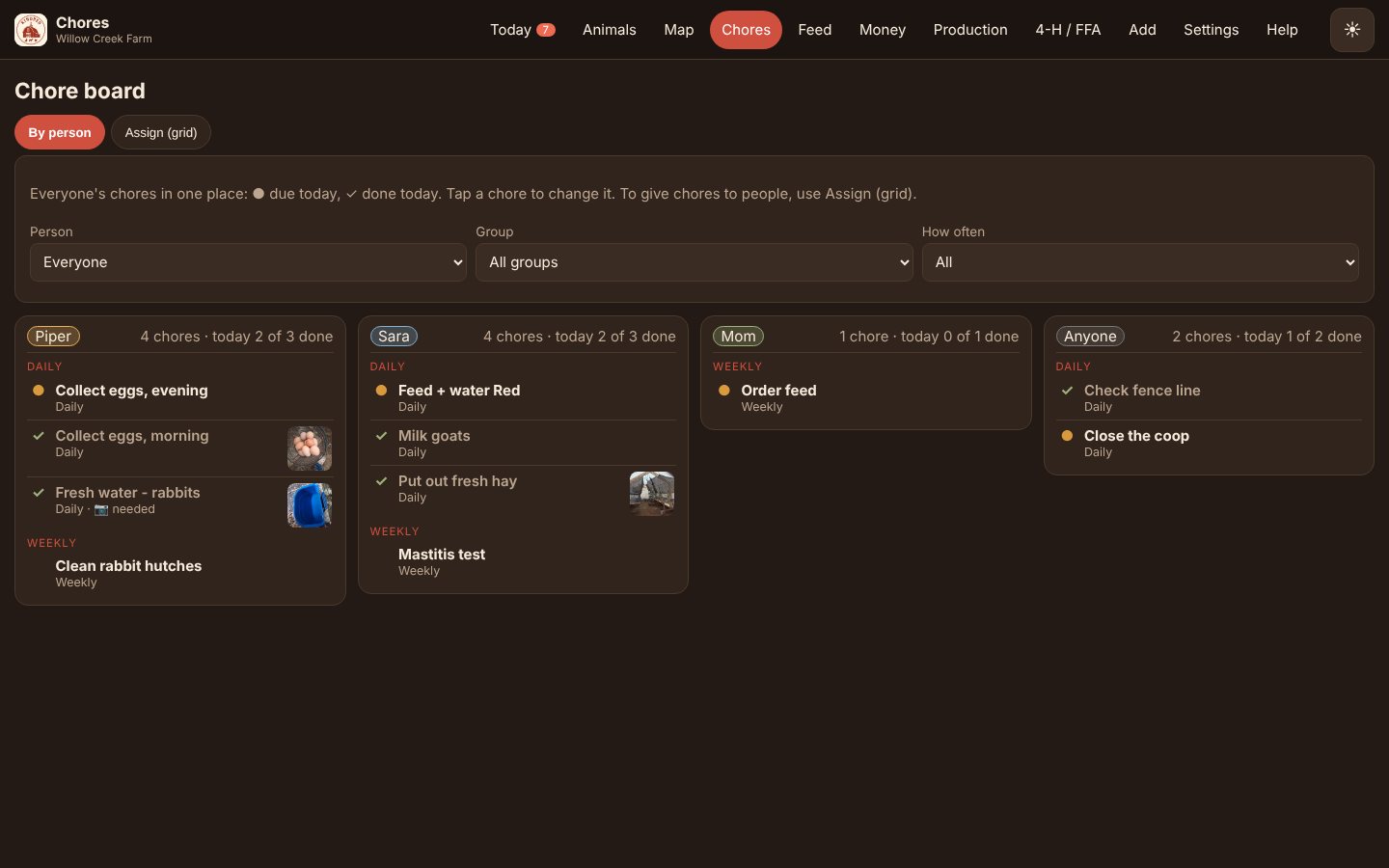
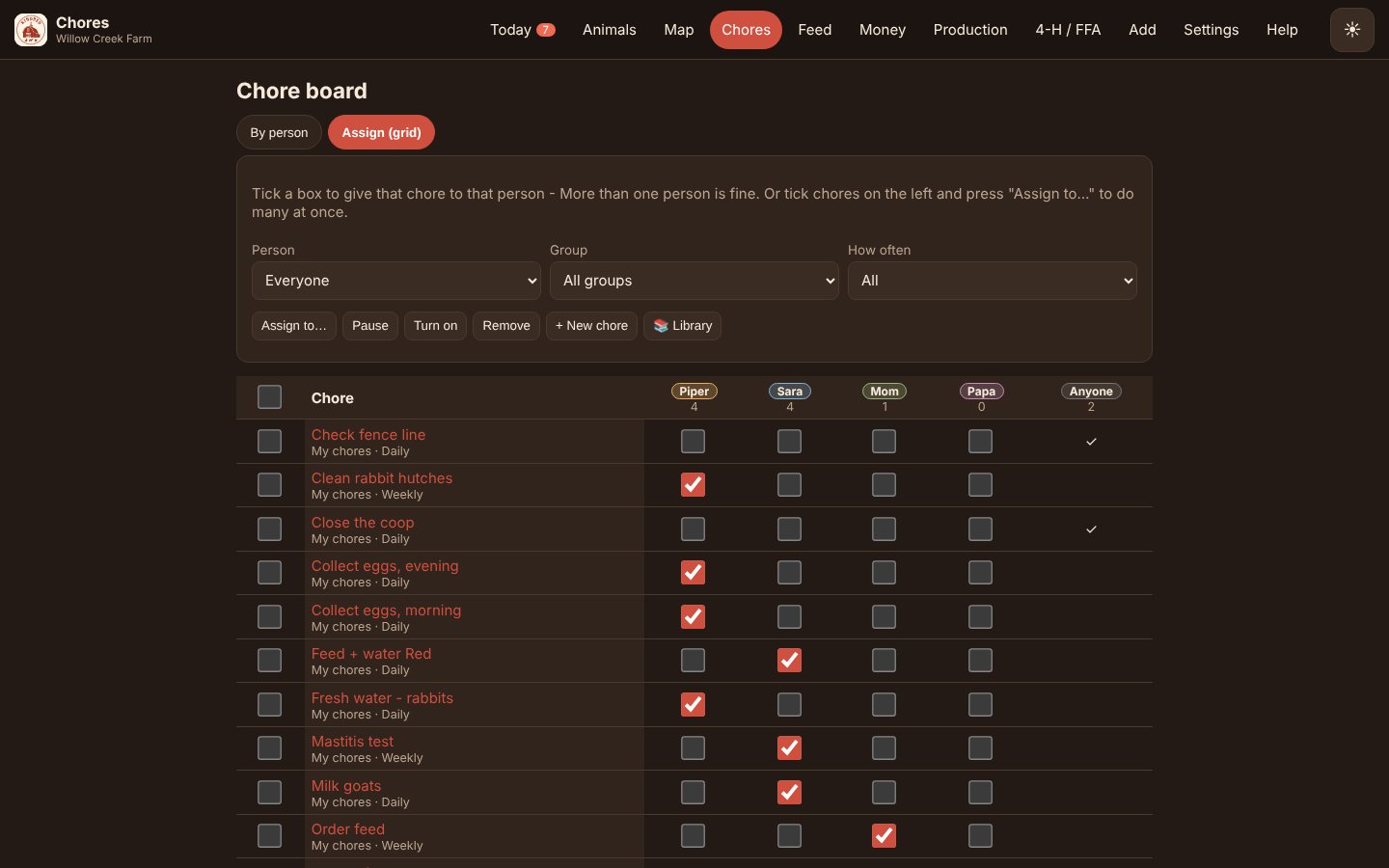
By person shows who has what. Assign (grid) is the fast way to hand out chores: one tick per person. Tick chores down the left and use Assign to…, Pause, Turn on or Remove on many at once. The board remembers the view and person you picked.
More about chores
- Where - pick a location (Pasture 2, Barn...) so the chore says where it's done.
- Feed it puts out - a feeding chore for a flock or animal that's on a feed ration asks "🌾 How much Layer ration?" when it's checked off (type it, or tap a quick amount). It goes into the Feed page; the other groups on that feed still count their ration that day. Pick a feed here for any chore - or Don't ask.
- ⭐ Celebrate it - confetti on the phone that checks it off.
- 🎁 Surprise chore - on for every farm (a parent can untick it under Settings › Chore times › 🎁 Surprise chore). Each day one of each kid's chores is secretly picked (kids with 2 or more chores that day). Checking it off brings a big celebration and "Surprise! That was today's mystery chore!" Nobody knows which one until it's done.
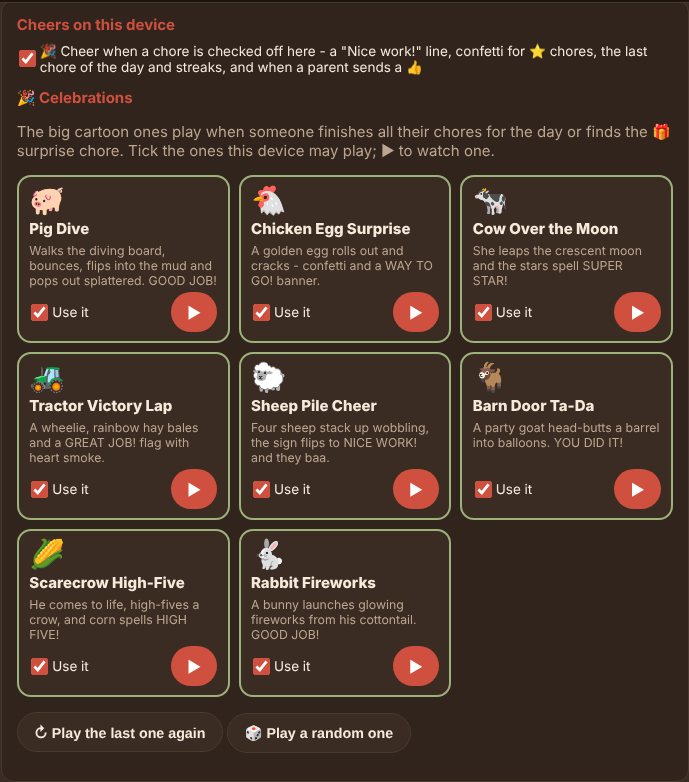
- Celebrations - confetti rain, fireworks, party cannons, streamers or a shower of the chore's own animal (🐐 🐔 🥚...), a different one each time. Turned off on a device in Settings › Cheers on this device, or when the phone asks for less motion.
- 🎉 Cartoon celebrations - finishing all your chores for the day, or the 🎁 surprise chore, plays a cartoon: Pig Dive, Chicken Egg Surprise, Cow Over the Moon, Tractor Victory Lap, Sheep Pile Cheer, Barn Door Ta-Da, Scarecrow High-Five or Rabbit Fireworks. Settings › Cheers on this device › Celebrations shows them all - ▶ to watch one, untick the ones you don't want. On a kid's screen, 🎉 Show it again by their name replays it all day so they can show everyone.
- 🎃 Seasonal celebrations - some cartoons only come out in their season and get extra turns then: Halloween has Jack-o'-Lantern, Ghost Cow, Bat Fly-Out and Witch Hen (October; this year until Nov 16). Thanksgiving (Nov 17-30) has Turkey in Disguise, Turkey Strut, Pie Catapult and Falling Leaves; Christmas (Dec 1-26) has Goat Sleigh Ride, Snowman Sheep, Present Surprise and Merry & Bright; New Year (Dec 27 - Jan 5) has the Rooster Countdown and Party Pig. The everyday ones take turns: every other Monday a new one comes in (with a NEW! tag) and the one that has been in longest takes a rest; Pig Dive and Rabbit Fireworks are always in. Scarecrow High-Five is a fall one (Sep 15 - Nov 30). Only the ones in play show in the gallery - the rest stay hidden until their turn. Kindred goes by the phone's date - no update needed.
- 🗑 Remove chore - in a chore's edit form (bottom left). One tap removes it; the note at the bottom has UNDO. Its check-offs stay in the history.
- ↩ Send it back keeps the kid's note, their photo and your reason on the chore, even after it's redone. Chores › ↩ Sent back has the whole list.
- 👍 Cheer - on a kid's done chore, send "Great job!" or your own words. It pops up on their phone with confetti, and next time that chore comes up it says what you said.
- Every check-off on a kid's phone gets a "Nice work!" line; their last chore of the day gets confetti (and "7 days in a row!" on streaks). Settings › Cheers on this device turns it off.
- A new chore given to a kid rings their phone, even when Kindred is closed.
Eggs + production
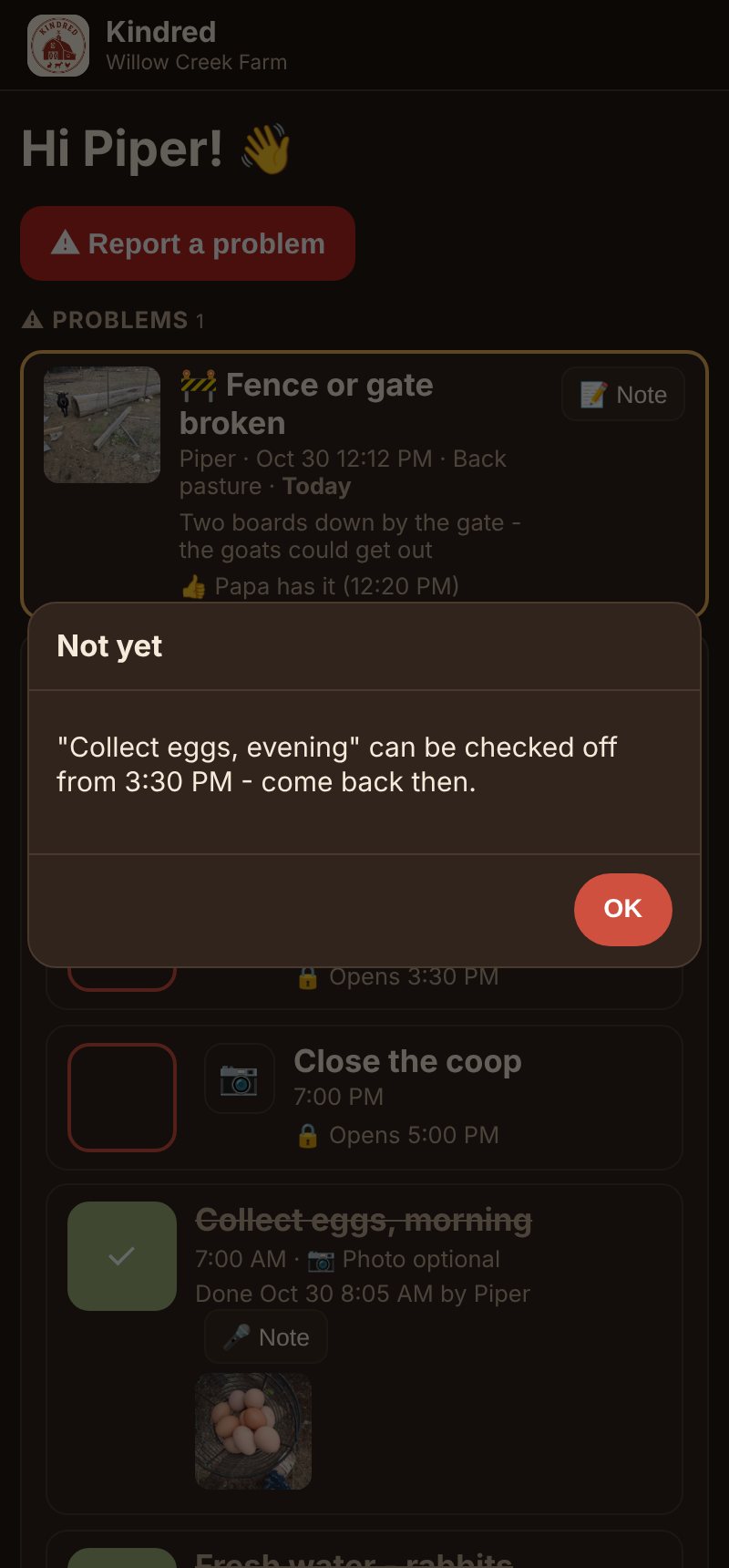
Any chore called something like Collect eggs, morning or Gather eggs evening asks how many eggs when it's checked off - with quick buttons (6, 12, 18…) and a box for cracked, dirty or thrown-out eggs. Morning and evening collections are kept apart and added together. Pressing Done with nothing typed asks once more, then saves 0.
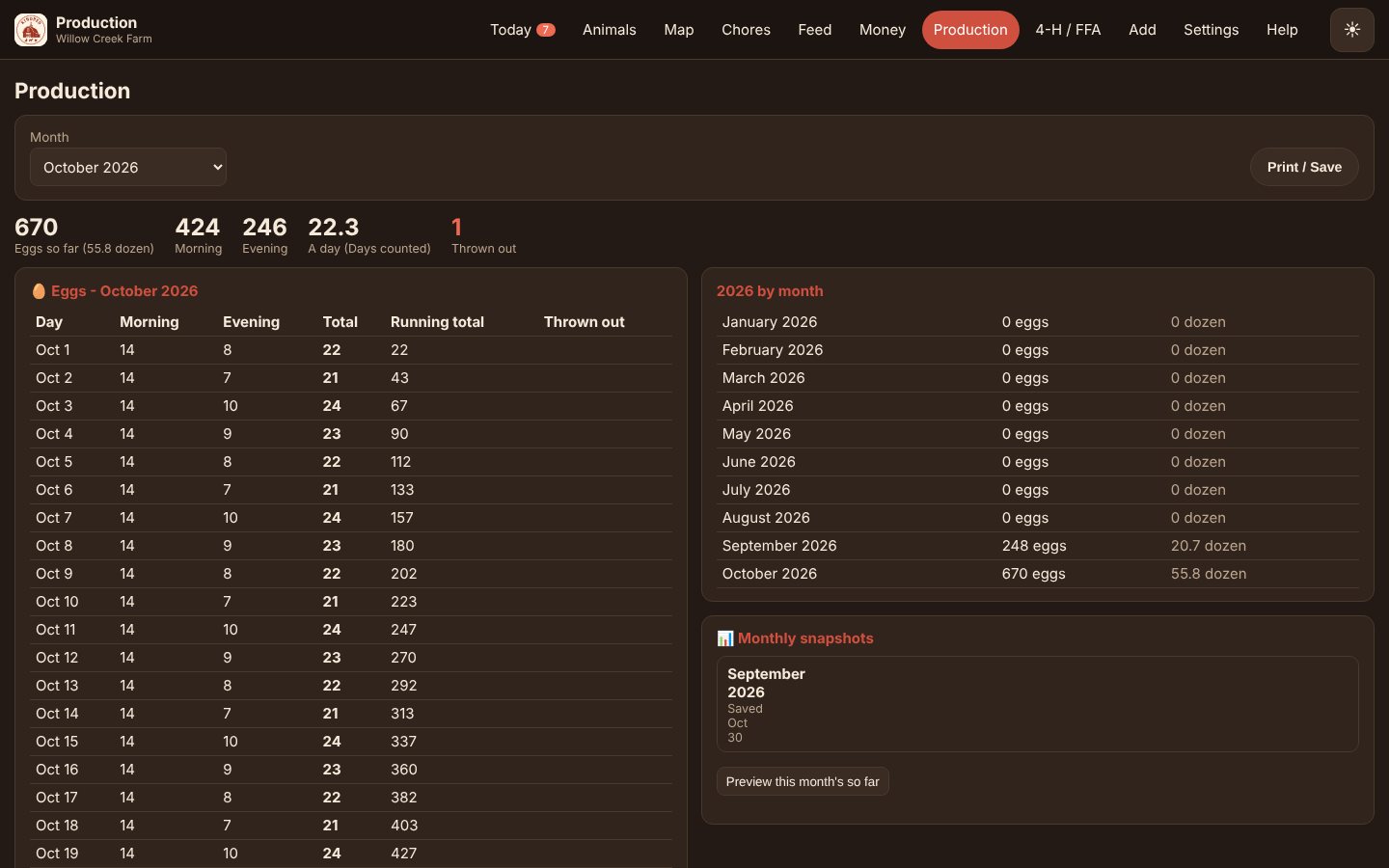
The Production page shows each day's morning, evening and total, the running total for the month, and the year by month. Pick a flock if you have more than one.
🥛 Milk - milking chores ("Milk the goats", "Morning milking"…) ask how much at check-off, and a doe's or cow's own page has a 🥛 Milk button (morning / evening, the amount in lb, gallons, quarts, cups, liters or kg). Her page shows a milk card (this week, last 30 days, the last 7 milking days). The Production page has the milk month - morning, evening, the running total, by animal - and the year by month; the monthly snapshot adds milk too, and the 4-H / FFA record book's animal inventory gets a Production table with each project animal's milk and eggs.
✅ Processing checklist - a meat animal's or meat batch's page has it. Pick the list (Poultry, Rabbits, To a processor), start the timer, put in the adult and youth helpers and tick items as you go - any phone can tick. Finish opens 🔪 Processing day with the hours and helpers filled in. The lists start filled in; change, remove or add items in Settings › Processing, where you also keep your processors: their quotes, their instructions for each kind of animal, and how your family rated each cut or smoke (1-10). Pick the processor and the drop-off on the checklist and Kindred reminds you the morning before and an hour before. More celebrations - 🏅 Farm Games (hurdles, sprint, high jump, pumpkin put, the podium, synchronized swimming, relay, curling, long jump) play every summer, July 15 to August 31; 8 urban farming scenes join the everyday rotation. Counts on the chore - an egg or milking chore shows what it added up to: this week and this month. 🌾 Log a feeding - a "Check the hay feeder" / "Fill the chicken feeder" chore (and a kid with one) gets a button to log how much went out, by weight, in bags, or in your own measure (a flake, a scoop - a parent sets what one weighs on the Feed page; rations can use it too). A picture is needed. Chore order - chores with a time sort by when they're due; chores without one sort by when that kid usually does them. 🔪 Processing day - a meat animal's page has it: on the farm or at a processor, the bill, live / hanging / take-home weights; the animal moves to 🍗 Harvested on the Animals page. On a phone, each record's Edit / ✕ sit behind one small ✎.
Monthly snapshot
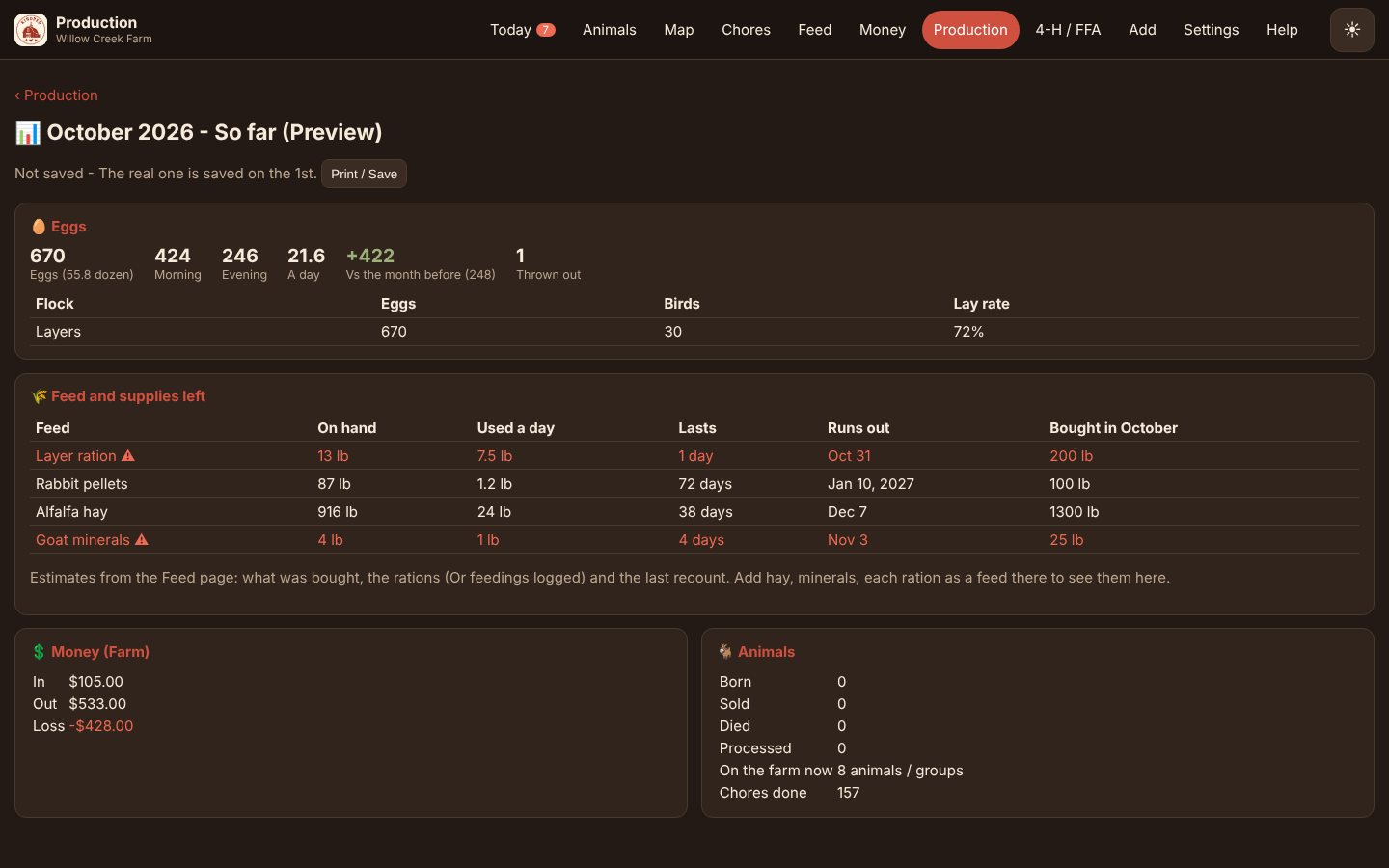
On the 1st of every month Kindred saves a snapshot of the month before: eggs and lay rate, how much of each feed is left and how long it will last, money in and out, and animals born, sold and died. Old snapshots are listed on the Production page. Preview this month's so far shows the current month before it's saved. Print / Save makes a paper or PDF copy.
Problems
Anyone - a kid's phone too - can send a problem: a hurt animal, one that's loose, no water, a broken fence, a predator sign, birth trouble or broken equipment.
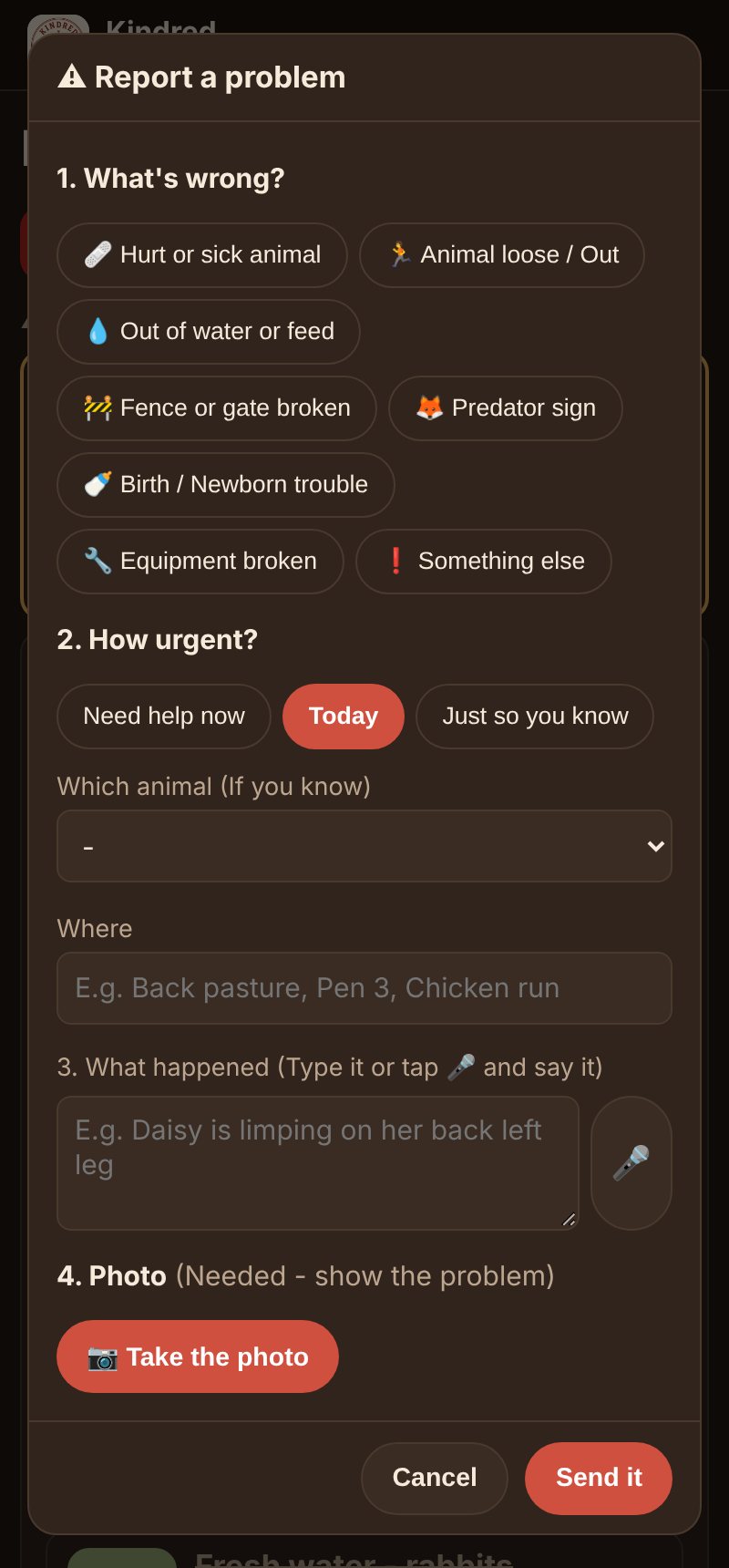
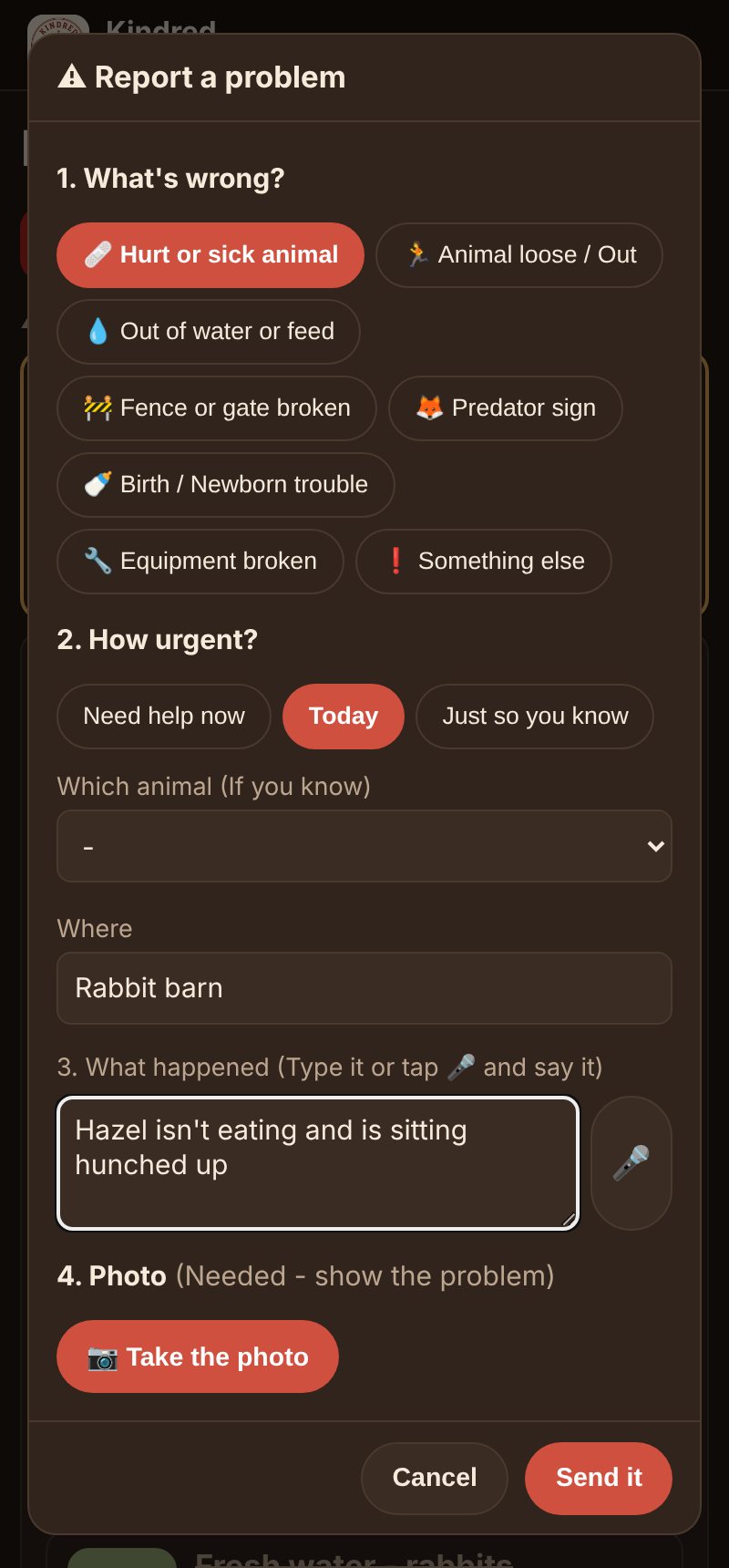
- Press ⚠ Report a problem. The camera opens - a photo is always needed, so the parents can see it.
- Pick what's wrong and how urgent: Need help now, Today or Just so you know.
- Pick the animal if there is one, say where, and type what happened. Press Send it.
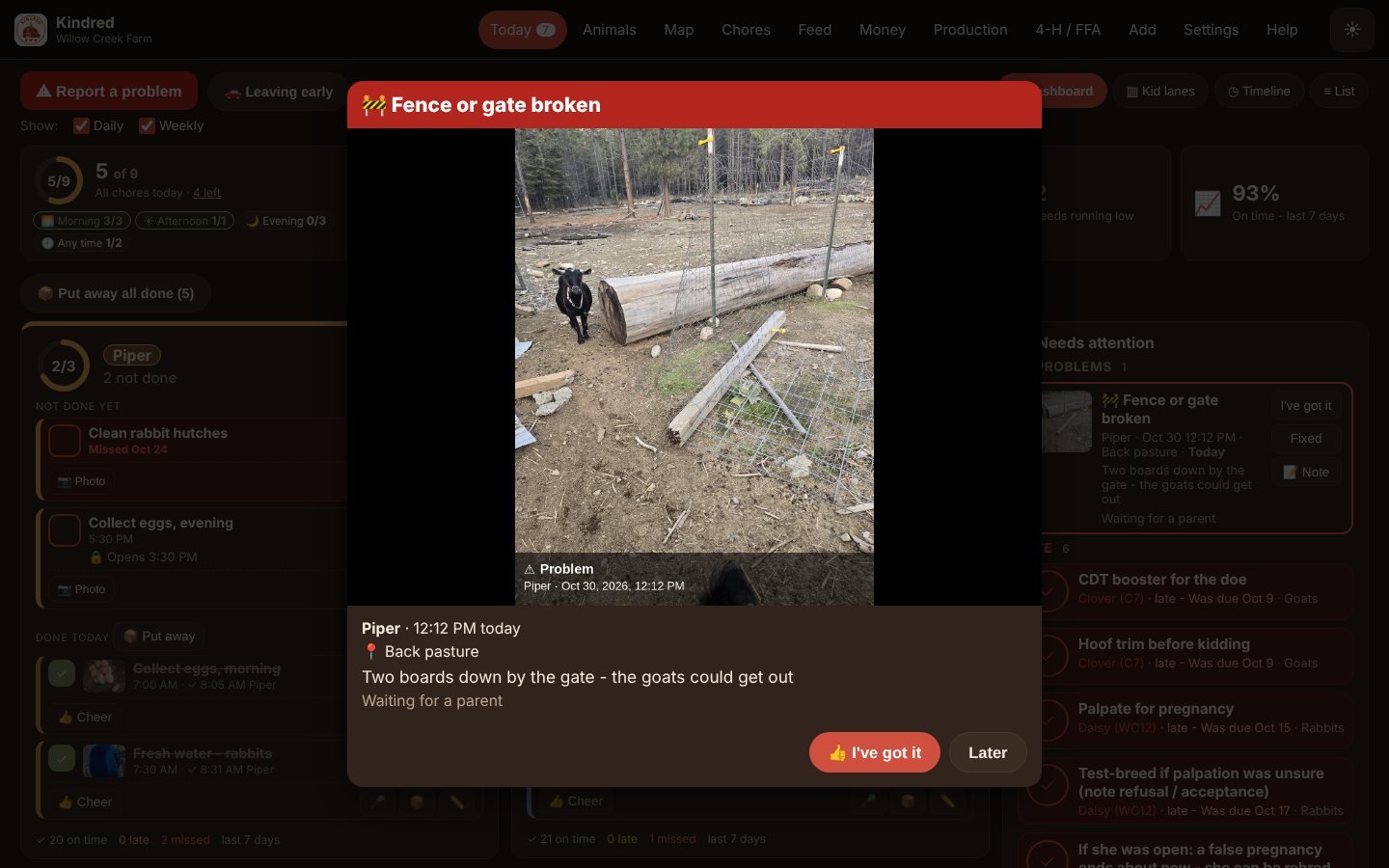
Every parent device pops it up straight away with the photo. The first parent to press 👍 I've got it takes it - everyone else sees who has it. Later closes the pop-up but keeps the problem in Needs attention. When it's sorted, press Fixed (a photo of the fix is optional). A problem about an animal also goes into that animal's health record.
📝 Note on an open problem changes or adds to its note ("Vet coming at 3") - every device sees the update and who made it.
Feed
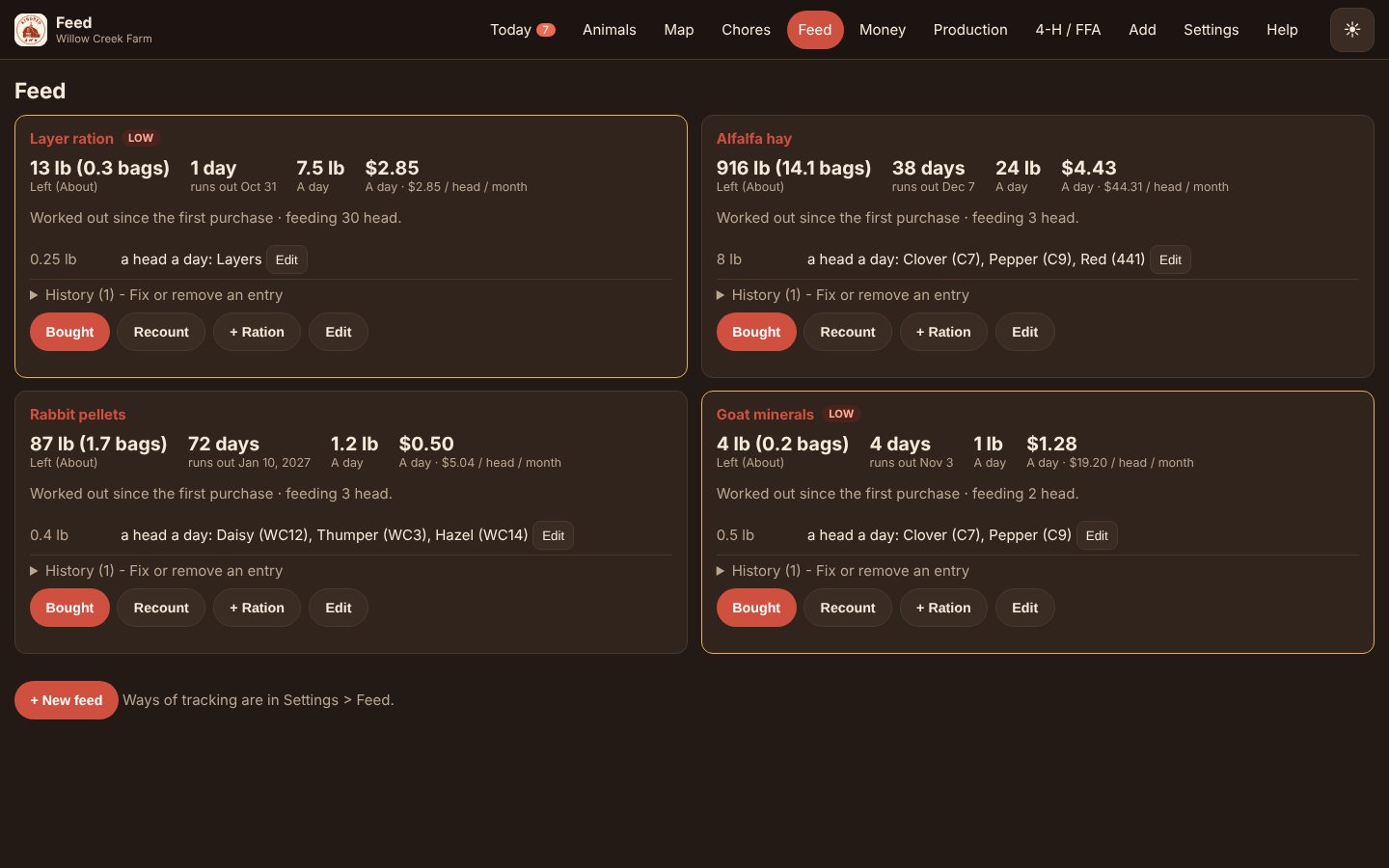
- Press + New feed: its name, pounds or kilograms, the bag or bale size, and how many days ahead to warn you.
- Press Bought each time you buy some (with the price if you track cost).
- Press + Ration: how much a head a day and who eats it. A group counts every head.
Kindred then estimates what's left each day and when it runs out. A feed shows LOW - and goes on the home screen - when it's within its warning days. Now and then press Recount and enter what's really there; the estimate starts again from that.
In Settings › Feed tracking you can also log each feeding instead of (or as well as) rations, and turn cost per day / per head / per month on or off. Hay, straw and minerals work the same way - add them as feeds.
Feeding chores can log what actually went in the feeder - see Chores › Feed it puts out. The first one turns on "log each feeding" for you.
Scoops, buckets, crocks - your own measure
On a feed's Edit, Our own measure is what you feed it with (scoop, bucket, crock, flake...) and about what one weighs - a rough guess is fine. A feeding chore for that feed then asks how many on a grid of big numbers (1 to 50) that opens on that chore's usual number; Fewer and More move it.
📦 I opened a new bag - tap it at the feeding where a fresh bag is cut open. From one tap to the next is one bag, so Kindred can work out what a scoop really weighs (pounds in the bag ÷ scoops reported). When that is more than 10% off your guess, the Feed page (and Home) asks a parent: Use the new weight or Keep yours - Kindred never changes it by itself. A bag only counts when every feeding from it was logged.
Ration and reported average (parent devices): under a feed, each animal or group shows what its ration says for a day beside the average of what was reported, and how many of the last days were reported. Days nobody logged are left out, and until there are five reported days it counts down instead. It is feed leaving the bag - spills and wild birds count too - so read it as a pointer, not a measurement.
The picture for a feeding logged with a chore's 🌾 Log feeding button is a choice on that chore: required, optional or none.
Money
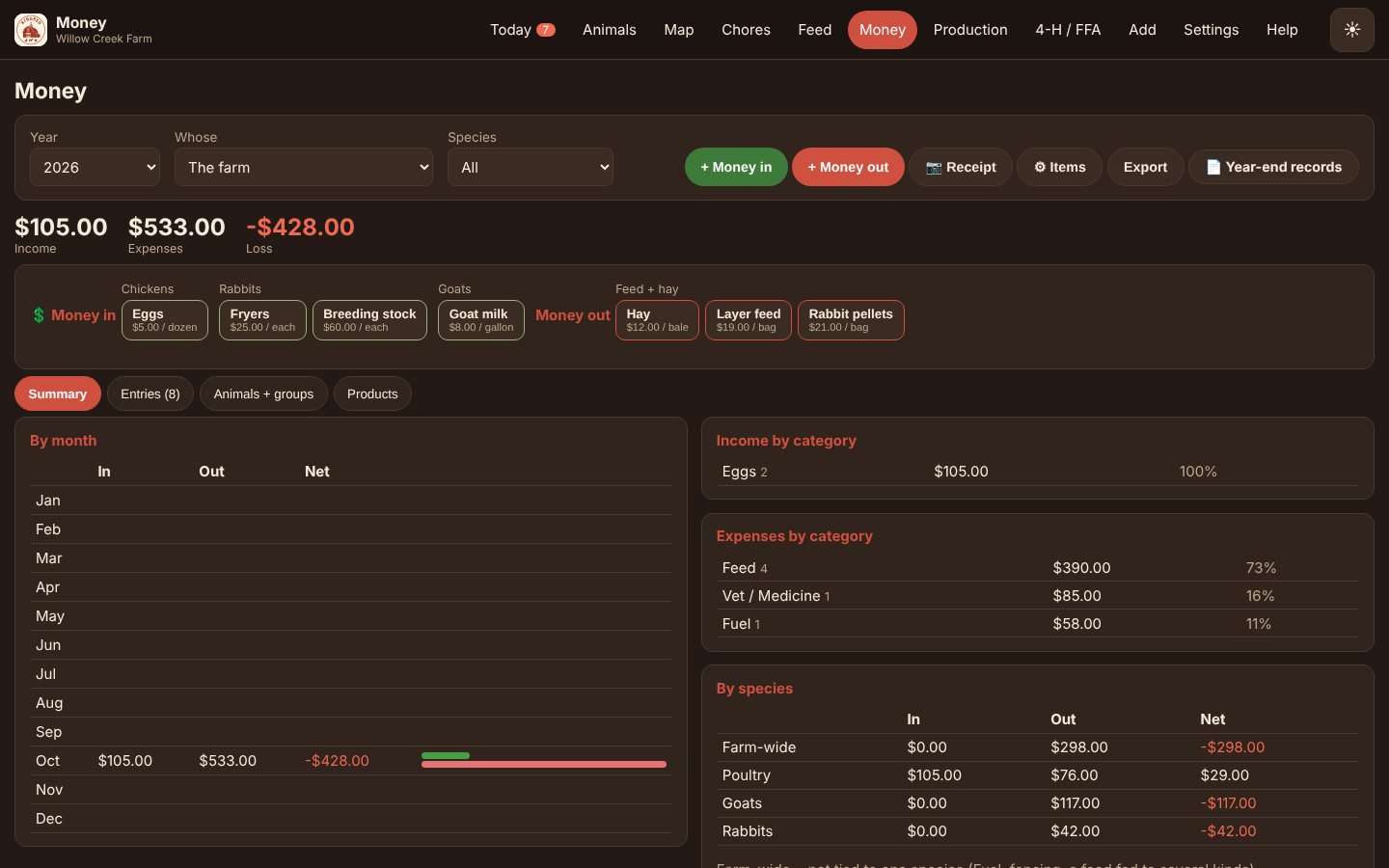
The buttons along the top: + Money in, + Money out, 📷 Receipt (take a picture first, fill in the rest after), ⚙ Items and Export. Filter by year, whose money (the farm, a kid, or one project) and species.
Items - what you sell and buy
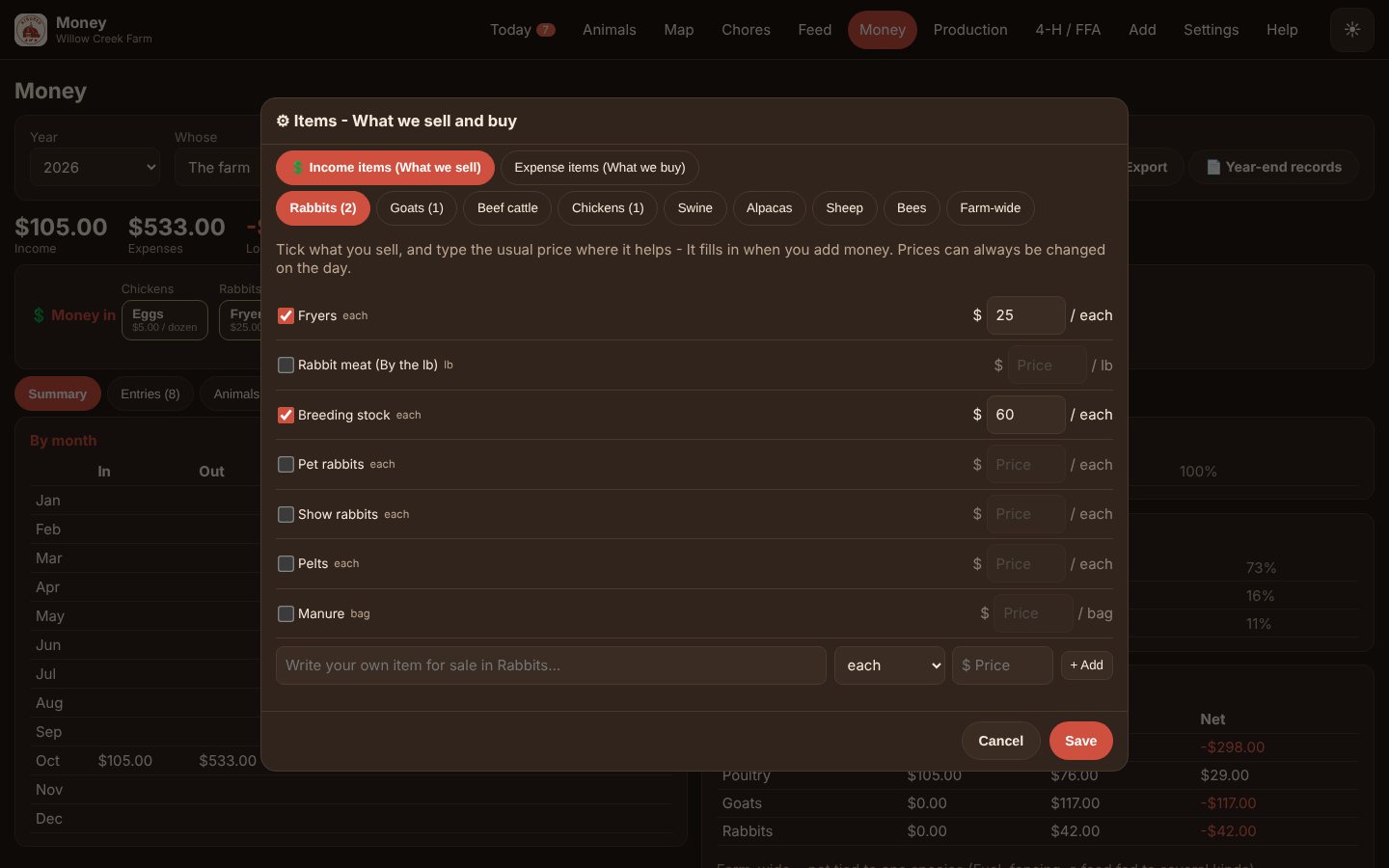
Under ⚙ Items tick what your farm sells (eggs by the dozen, fryers, breeding stock, goat milk, honey…) and what it buys (hay by the bale, layer feed by the bag…), with the usual price. Write in anything that isn't there. The ticked items become quick buttons on the Money page, and picking one fills in the category and works out quantity × price for you.
To change or remove an entry, open Entries and tap the line or its ✎. A feed purchase is changed on the Feed page, under that feed's History.
Adding an entry

- Pick an item, or a category (they match the Schedule F lines, so tax time is easier).
- Add an animal or a species if it's for one - the animal's page then shows what it has cost so far.
- 📷 Take a picture or 🖼 Choose a photo keeps the receipt with the entry.
- 🎗 4-H / FFA project - switch it on for a kid's project money: tap the kid, pick the project (or + New project) and who paid - the family or their own money. It goes into that kid's record book.
- Split between kids - on a new entry, tap more than one kid (feed for everyone's project animals, say). Each kid gets a row with their project and an even share; type a share to change it (the total has to add up) or press Split evenly. Each kid's record book gets only their share, and Entries shows "split 3 ways".


Export saves spreadsheet files: every entry with its category, Schedule F line, whose and which project - farm money first, then each kid by project.
4-H / FFA
Each kid added as Youth in Settings › People gets a 4-H / FFA page. Tap their name along the top.
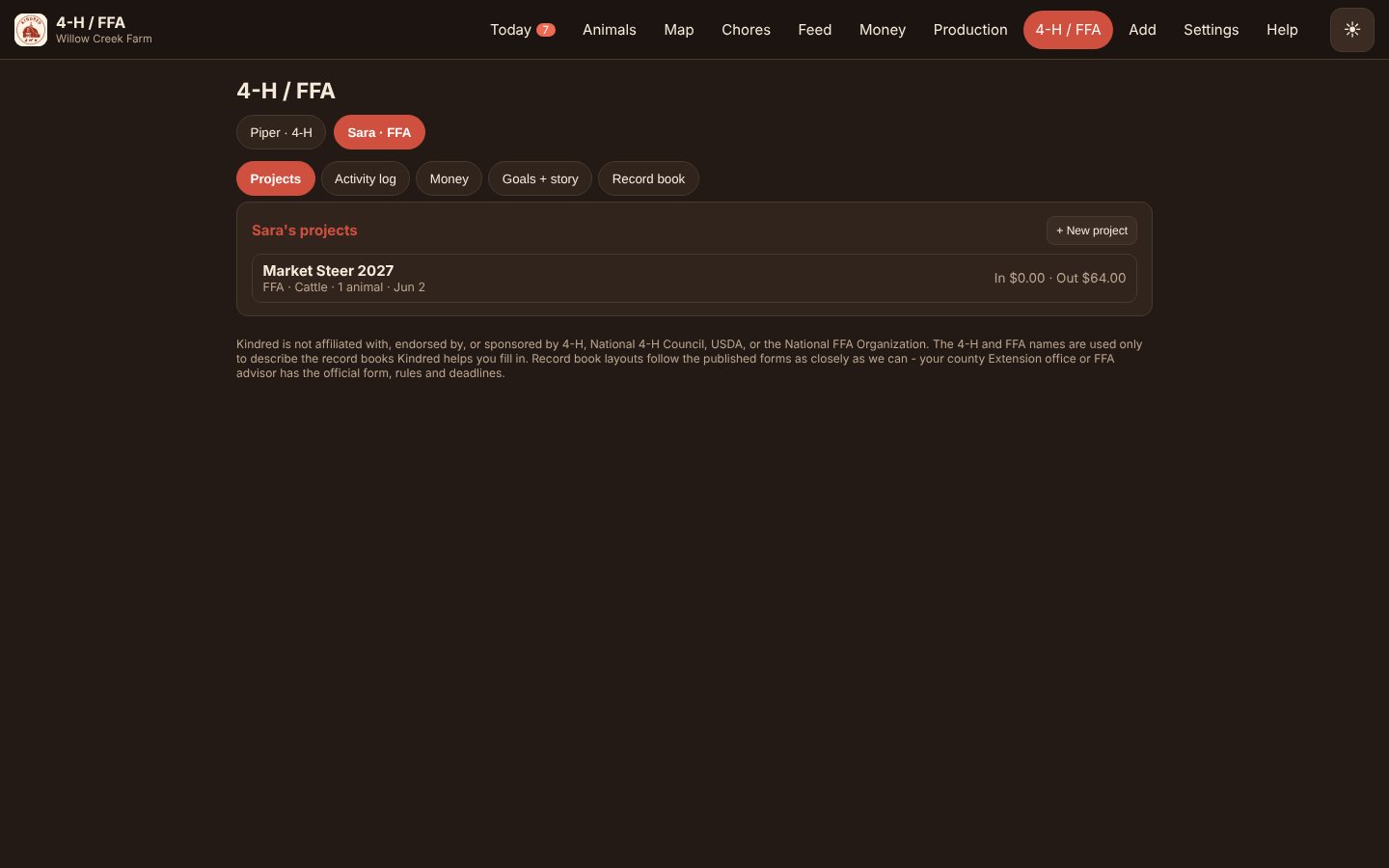
| Projects | One for each project - Market Steer 2027, Rabbit Breeding, Laying Flock… with its animals and dates. Kids with six or more projects are fine. If their animals are already marked as theirs, Make a project for each sets them up in one press. |
| Activity log | What they did and for how long: project work, service, leadership, shows, lessons, presentations. Kids can log from their own phone. |
| Money | Their income and expenses this year, project by project, and who paid. |
| Goals + story | Their goals and the end-of-year story (press Save). |
| Record book | Builds the book. Pick the project (or all of them), the layout and the dates. |
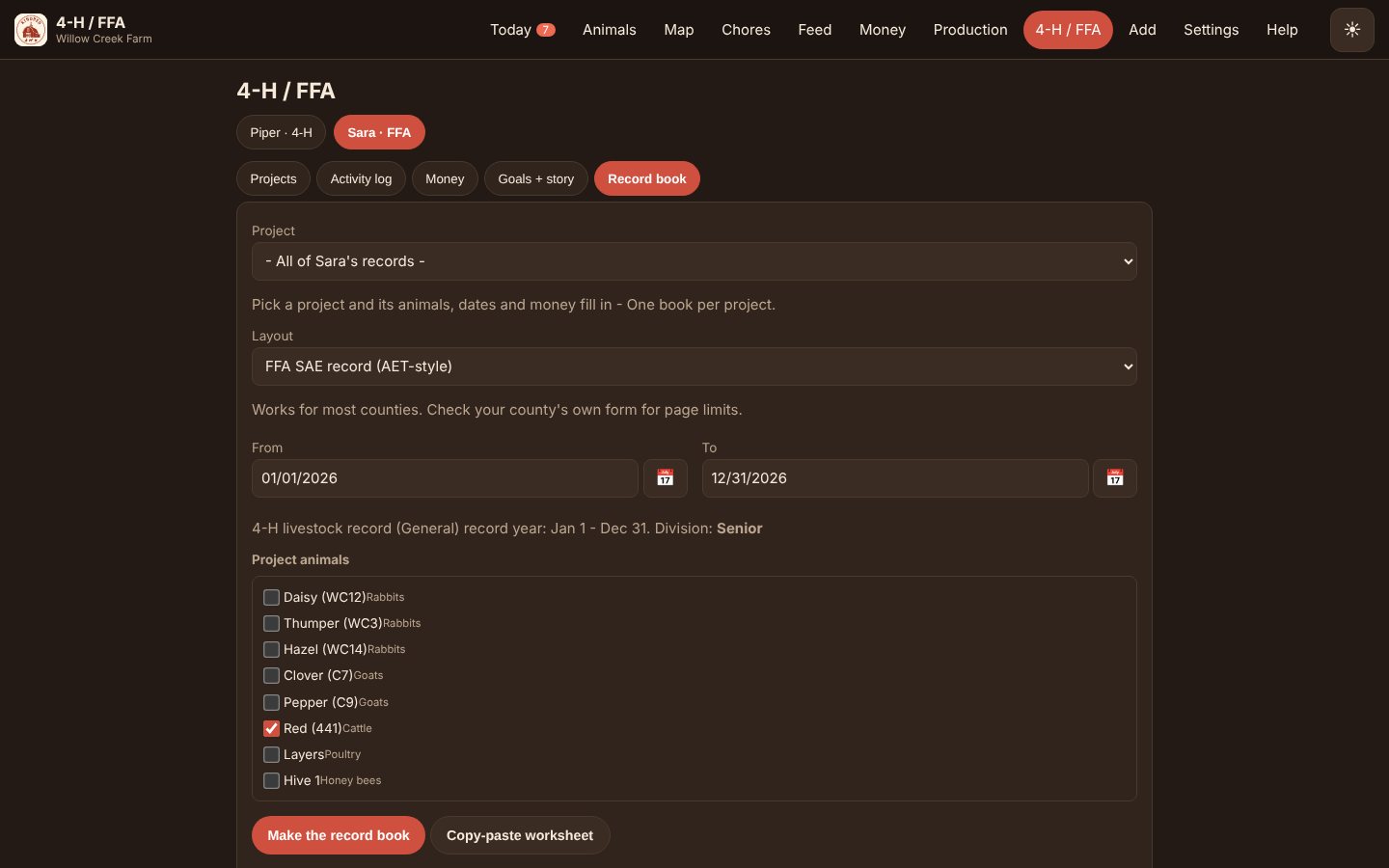
Layouts include Texas, Ohio, Indiana, California, Georgia, Oklahoma, Idaho, a general 4-H livestock record and an FFA SAE (AET-style) record. Make the record book gives a printable page plus spreadsheet files. Copy-paste worksheet puts every part of the book in its own box with a Copy button, for pasting into an online record book. Blanks become N/A and empty money lines $0.00.
Family, phones + sync
People
Settings › People › + Add. Parents and adults are Parent / Adult; kids are Youth with their program, club and grade. Each person gets a colour that's used on chores everywhere.
Syncing the PC and phones
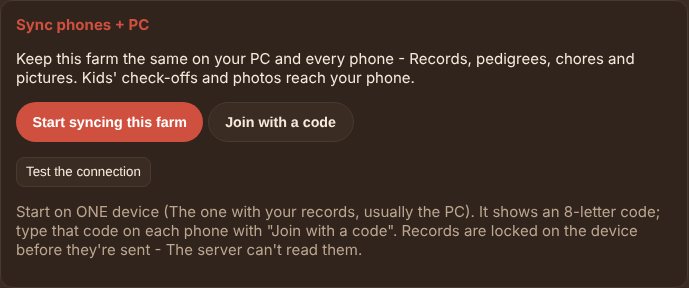
- On the device that has your records (usually the PC) press Start syncing this farm - only once, on one device.
- Press Show a code. It shows an 8-letter code, good for 30 minutes.
- On the phone: Settings › Sync phones + PC › Join with a code (or the first screen's My farm already uses Kindred). Type the code.
After that it happens by itself: a few seconds after any change, every couple of minutes, and whenever the phone gets its internet back. Records are locked on the device before they're sent, so the sync server can't read them. Every device on the farm shows the same Farm ID under More.
Recovery key - print it once
Settings › Sync phones + PC › 🔑 Recovery key shows a long key that starts with KINDRED-. Print it (or write it down) and keep it in the farm binder. If every phone and PC is ever lost or broken, install Kindred on a new one, press I have a recovery key (Settings › Sync phones + PC, or the first screen's join box) and type it in - all the records and pictures come back from the sync server. Without the key, nobody can open the server's locked copy - not even us. Keep it private: anyone with it can read your farm's records. It never changes, so one copy is enough.
Devices and parent phones
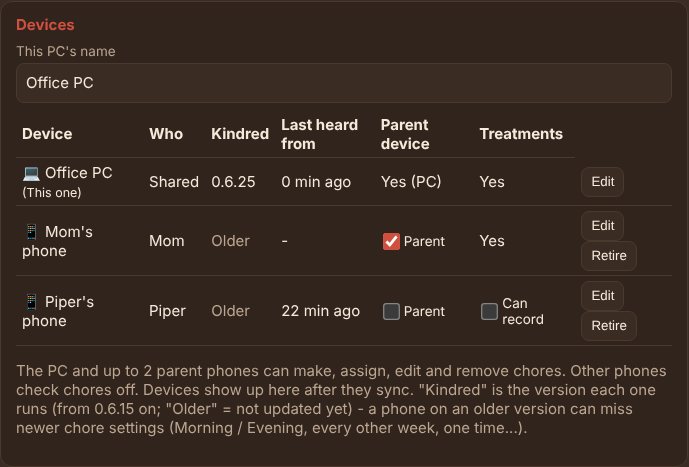
The PC and up to 2 parent phones can make, assign, edit and remove chores, excuse chores and set prices. Other phones check chores off and report problems. Tick Parent next to a phone to make it a parent device. Give each device a name and say who uses it.
A kid's own phone (helper mode)
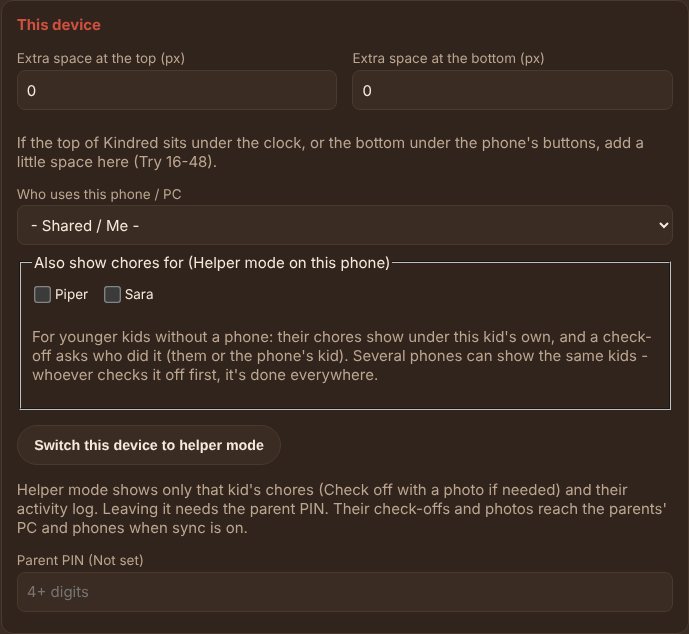
- Set a Parent PIN and press Save settings.
- On the kid's phone, pick them in Who uses this phone / PC.
- Press Switch this device to helper mode.
The phone then shows only that kid's screen - see For kids. The Parent button at the bottom of their screen asks for the PIN to switch back.
Where the pictures are kept
The PC and parent phones keep every record and every full-size picture, so the farm is in more than one place. Kids' phones keep all the records but only their own project's full-size pictures (small previews of the rest). The sync server only holds a picture until every parent device has it.
Settings + backups
Settings in groups
Settings is sorted into groups - Farm & places, Animals & species, Chores & times, People, devices & sync, This phone / PC, Photos & alerts, Money & feed and Backup & about. Tap a group to open or close it; each phone / PC remembers which ones you keep open. Open all / Close all are at the top, and 🔎 Find a setting shows only what matches (type PIN, sync, logo...). Below, a setting is written as Settings › its card - find the card in its group, or type its name in the search box.
| Light / Dark mode | Light, dark, or the same as the phone / PC. Each device keeps its own. |
| Farm | Name, herd / rabbitry prefix for tattoos, pounds or kilograms, hemisphere (for bee seasons), the rabbit rebreed default, and reminders that depend on where you are. |
| Barn mode | Big buttons and high contrast - for gloves and bright sun. |
| Extra space | If the top of Kindred sits under the phone's clock, or the bottom under its buttons, add a little space (try 16-48). |
| Breeds you typed in | Every breed you added yourself, by species. |
| How the dates work | Which species packs are in use and their gestation and incubation numbers. Per-animal numbers are on each animal's Edit screen. |
Changing a setting brings up a bar at the bottom with Save settings and Undo.
Your records are yours
Export everything saves every table as a spreadsheet (CSV), the full record log and your pictures - free, always. Kindred also keeps a dated copy of your records each day it opens, and one before each new version runs. Every so often, export and copy the folder to a USB drive or OneDrive.
Please note
Due dates, reminders and withdrawal times are estimates to help you plan; Kindred does not give doses - always follow the product label and your veterinarian. Money categories and Schedule F lines are a convenience, not tax advice - check with your tax preparer.
Updates
Kindred checks for a new version by itself once a day. Settings › About › Check for updates checks now.
Photos
Settings › 📷 Photos shows how many pictures the farm has and about how much room they take. So a year of goofy pictures doesn't fill the phones, a cleanup runs once a day: fun pictures - the newest 10 per animal; pictures kids sent to an animal's photos - 1 year, or the newest 30 per animal, whichever keeps more; chore check-off photos - full size for 90 days, then only a small preview. Change the numbers there (0 = never clean that kind up), or press Clean up now. Never touched: official head shots, tag pictures, health and problem photos, anything a parent added, and anything with ⭐ Keep.
Deleting a picture for good
On the PC or a parent phone, tap any picture to see it big, then 🗑 Delete for good (a chore photo: open it from the chore, then 🗑 Delete the photo for good). It comes off every record that uses it, and every phone, the PC and the sync server delete their copies at the next sync - it can't be undone. Photos turned down with "Not this one" are deleted by themselves 30 days later. A copy in an export or backup you made before isn't touched.
Questions + fixes
| A kid's check-off hasn't shown up | Their phone needs the internet. It sends as soon as it gets it. On the PC, Settings › Sync › More › Sync now pulls it straight away. |
| A picture shows a grey box | It's still on its way - pictures come with the next sync and fill in by themselves. |
| Two devices show different farms | Compare the Farm ID under Settings › Sync › More. On the wrong one, use Enter a code with a code from the right one. |
| "Parent devices only" | That phone isn't a parent device. On the PC, tick Parent next to it under Settings › Devices (2 phones at most). |
| A chore came up that we're not doing today | Press Skip today on the home screen (parents). It won't count as missed. |
| A due date looks wrong | Press ? on the reminder to see how it was worked out. A doe's own gestation can be set on her Edit screen. |
| Forgot the parent PIN | Type a new one on the PC or a parent phone in Settings › This device. |
| The phone's top or bottom is cut off | Settings › This device › Extra space at the top / bottom. |
For kids
Your phone shows your chores. Here's everything you need.
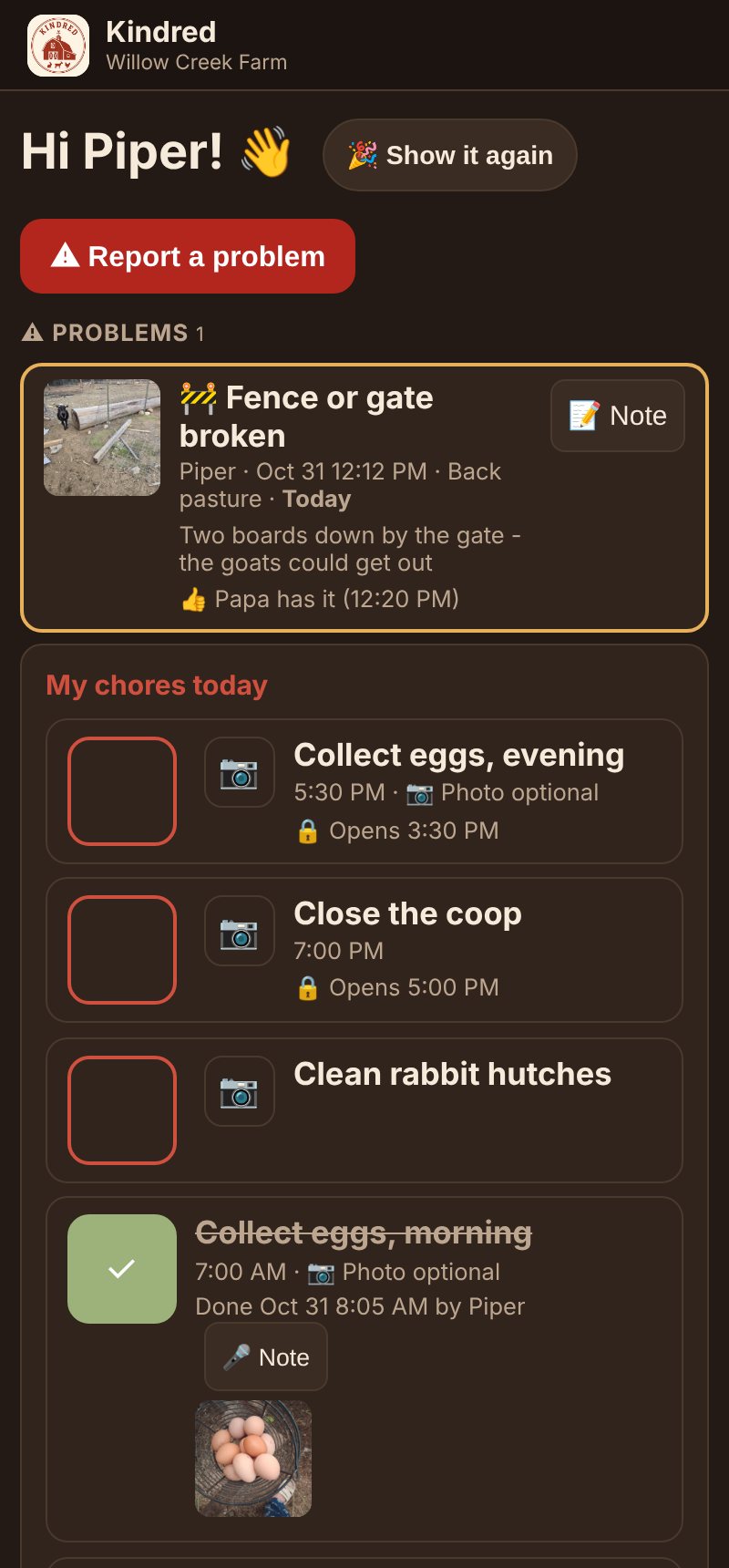
Doing a chore
- Do the chore 🙂
- Tap the big box next to it. A green ✓ means it's done.
- If it says 📷 Photo needed, the camera opens - take a picture of the job. The date and time go on the photo by themselves.
- Want to show off your work anyway? Tap 📷 to check it off with a photo.
Tapped the wrong one? Tap the ✓ again and choose Undo.
Red with Missed means it didn't get done on its day - do it now and check it off.
Collecting eggs
When you check off an egg chore it asks How many eggs? Type the number or tap a quick button (6, 12, 18…). Put cracked or dirty ones in the second box. Then tap Done.
Something wrong? Report a problem
- Tap the red ⚠ Report a problem button.
- Take a picture of what's wrong.
- Tap what's wrong (hurt animal, loose, no water, broken fence…) and how urgent. Need help now means right now!
- Say where, and what happened. Tap Send it.
Your parents' phones and the PC get it right away with your picture. You'll see 👍 Mom has it (or whoever) when someone is on it.
Logging what you did (4-H / FFA)
Tap + Log what I did: the date, how long, what kind (project, service, leadership…) and what you did. It all goes into your record book, so you won't have to remember it in the fall.
This week
The This week box shows your chores done on time, late and missed. Keep the ✓ number high!
Sending a picture of an animal
- Tap 📷 Send an animal photo.
- Pick what it is: 🐾 Fun picture (it goes up right away and shows on that animal's chores!), 📸 Other picture, 🏅 Official head shot or 🏷 Tag / tattoo.
- Pick the animal - yours are at the top. For a tag picture, type what the tag says.
- Take the picture and tap Send it.


Official head shots and tag pictures wait for a parent - you'll see ⏳ Waiting, then ✓ OK'd, or why not.
Cheers and 👍
Finish all your chores for the day and watch for the confetti 🎉. When a parent sends you a 👍, it pops up on your phone too.
🔒 Opens at…
Some chores can't be checked off until close to their time - the chore says when it opens.