CRASH OVERRIDE
Four-deck DJ software for Windows. Your own music files, no streaming, no account, nothing that needs the internet during a set. Click any picture to see it full size. Numbers on the pictures match the numbered lists under them.
Quick start
- Start Crash Override. Open VIEW and make sure Routing bar is ticked.
- Set MAIN OUT to the soundcard the room hears. If you have headphones on a second device (or channels 3/4 of an interface), set CUE OUT too.
- In the Library click FILES › SET MUSIC FOLDER and pick the folder that holds your music, then switch on the folders you want.
- Let the analysis run (BPM, key, waveform). It happens once per song, in the background - the app stays usable.
- Drag a song onto a deck, or click A / B on a library row.
- Press PLAY (or Space with that deck focused).
The screen at a glance
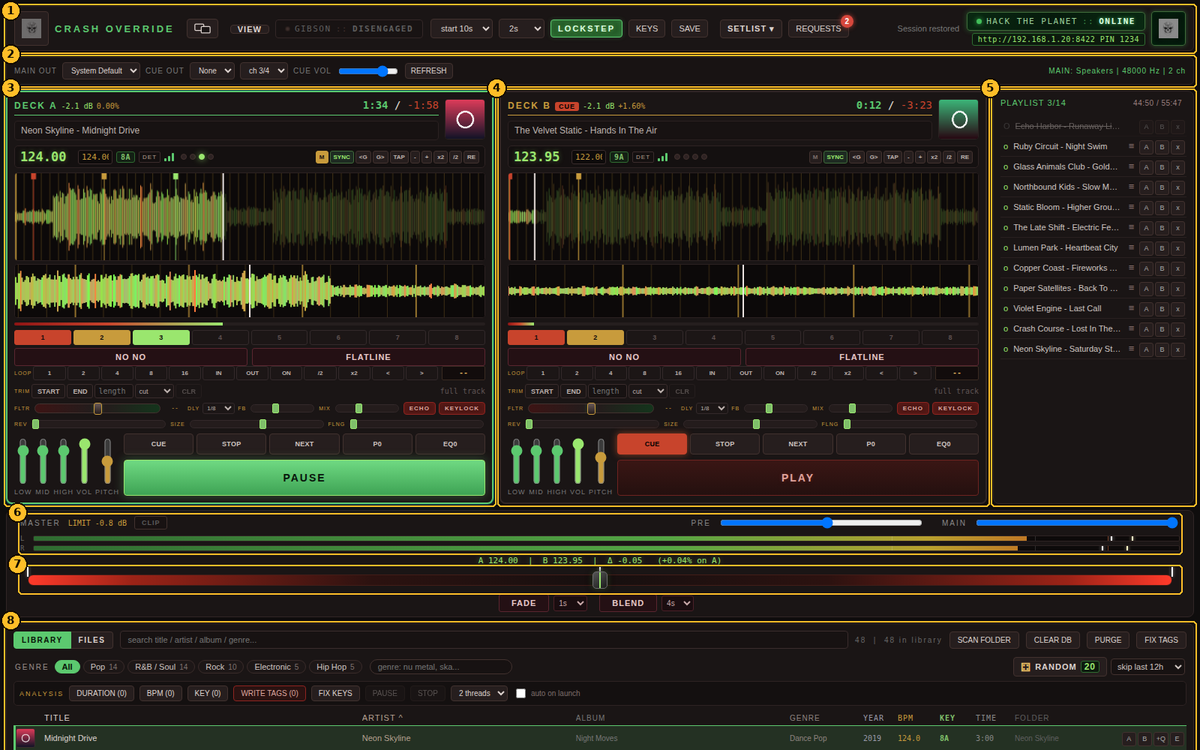
- Top bar - Gibson Mode, second screen, VIEW, SETLIST, REQUESTS, phone remote.
- Routing bar - where the room sound and the headphones go.
- Deck A - the left deck (green outline = the focused deck).
- Deck B - the right deck (amber header).
- Playlist - the running order for the night.
- Master meters - PRE, MAIN, limiter and clip lamp.
- Crossfader - with FADE and BLEND under it.
- Library - every song, with search, genres, analysis and RANDOM.
Top bar

- Skull (left) - turns Gibson Mode (automatic mixing) on and off.
- Two-screen icon - opens the second-screen window (lit while open).
- VIEW - show / hide panels and set-once options (see VIEW menu).
- GIBSON status - shows whether automatic mixing is engaged. Display only.
- start - Gibson: how many seconds before the end the next deck starts.
- fade - Gibson: how long the crossfade takes (it finishes as the track ends).
- LOCKSTEP - green = loop points and cue drops snap to the beat grid.
- KEYS - the keyboard overlay (also H or ?). Has LICENCES & CREDITS.
- SAVE - saves the session now (it also autosaves).
- SETLIST - playlist tools, saved playlists and played history.
- REQUESTS - guest requests; the red badge counts new ones.
- Phone remote status - HACK THE PLANET :: ONLINE while the remote is on.
- Skull (right) - starts / stops the phone remote and guest request page.
- Address + PIN - type this on a phone on the same Wi-Fi.
Audio routing

- MAIN OUT - the device the room hears.
- CUE OUT - the device your headphones are on. Must be a different device, or channels 3/4 of a multichannel interface.
- ch 3/4 pair - which channel pair carries the cue when CUE OUT is the same interface.
- CUE VOL - headphone level. Changes instantly and never touches the room sound.
- REFRESH - re-reads the list of sound devices (after plugging one in).
- Readout - the device, sample rate and channels really in use. Check this first when there is no sound.
The deck
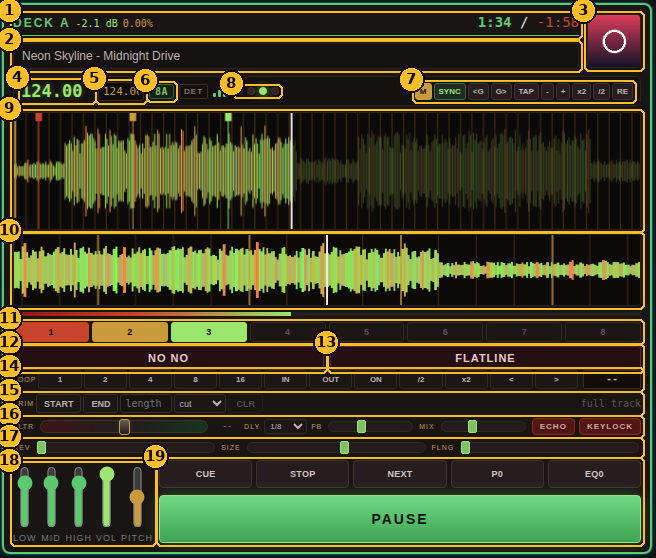
- Header - deck letter, auto gain (dB), pitch %, time played / time left (flashes red near the end).
- Track - artist and title of the loaded song.
- Cover - click it to edit tags and cover art.
- BPM - the real tempo right now (base BPM with the pitch applied).
- Base BPM - type a value + Enter to correct a wrong detection.
- Key - Camelot key (8A, 11B...). A second tag appears when pitch moves the key.
- BPM buttons - M (master), SYNC, <G G> (shift beat grid), TAP, - / + (0.1 BPM), x2 / /2, RE (re-detect).
- Beat dots - the beat within the bar; the lit dot is the current beat.
- Overview waveform - the whole song. Click to jump. Coloured by sound: red = bass, green = mids, pale = treble.
- Zoom waveform - about 8 seconds around the playhead, beat grid in amber.
- Hot cues 1-8 - click empty = set, click set = jump, shift-click = clear.
- NO NO - one second played backwards to mask a word, stays in time.
- FLATLINE - hold to mute the room (headphones still hear it).
- Loop row - beat loops 1-16, IN / OUT, ON, /2, x2, move < >.
- Trim row - START / END, length box, cut / fade, CLR.
- Filter & delay - FLTR (low / high pass), delay division, FB, MIX, ECHO, KEYLOCK.
- Reverb & flanger - REV, SIZE, FLNG.
- Faders - LOW, MID, HIGH (EQ), VOL, PITCH. Double-click resets EQ and pitch; the mouse wheel works.
- Transport - CUE (headphones), STOP, NEXT, P0 (pitch to 0), EQ0 (EQ flat), PLAY / PAUSE.
| Button | What it does |
|---|---|
| PLAY / PAUSE | Green while playing, red while paused. |
| CUE | Sends this deck to the headphones, before the fader. It latches: while any CUE is on, the headphones carry only the cued deck(s). With every CUE off, the headphones follow the master mix. |
| STOP | Stops and returns to the start (or to START when the song is trimmed). |
| NEXT | Loads the next unplayed playlist song into this deck. |
| P0 / EQ0 | Pitch back to exactly 0.00 % (shift-click glides back) / EQ back to flat. Undo buttons - they make no sound on their own. |
Waveforms
The thin strip on top is the whole song - click anywhere to jump. The taller one is the zoom, with the beat grid as amber lines (downbeats brighter). Colours show the sound: red is bass (a red block is a kick pattern), green is mids, pale blue-white is treble. You can see where a song kicks in before you hear it.
BPM, sync & key
| Control | What it does |
|---|---|
| TAG / DET / MAN | Where the BPM came from: the file's tag, detection, or typed by you. |
| Bars | Detection confidence. Three green is solid; one amber means check it by ear. |
| M | Makes this deck the master - the tempo the others sync to. |
| SYNC | Matches this deck's tempo to the master and lines up the beats. |
| TAP | Tap along to set the tempo by hand (live drums, rubato songs). |
| x2 and /2 | Fix half-time or double-time detection in one click. |
| <G and G> | Shift the beat grid without changing the tempo, until the amber lines sit on the hits. Saved automatically. |
| Pitch fader | Range ±8, 16 or 50 % (VIEW). Double-click resets. |
| KEYLOCK | Keeps the musical key while the tempo changes. Clean to about ±10 %. |
| Key tint | Library songs in a key that mixes well with the master deck are tinted. |
| Phase line | Under the meters: A and B BPM and how far apart they are. Green = locked. |
Hot cues
Eight coloured pads per deck. Click an empty pad to drop a cue at the playhead, click a set pad to jump there, shift-click to clear. Keys Z X C V B N J K (shift to clear). Cues are saved with the song in the library, so they come back next time. With LOCKSTEP on they snap to the beat.
Loops
With LOCKSTEP on, loop points snap to the beat grid (a waveform click only snaps when it lands close to a beat). If loops drift, check the beat grid first.
Trim - START and END
A trim saved with the song - the music file is never changed. Skip dead air at the top, or cut a song short (the 90-second mother and son dance).
| Control | What it does |
|---|---|
| START | Click, then click a waveform where the song should begin (shift-click = at the playhead). The song loads cued there and never plays the dead air. |
| END | Click, then click where the song should stop. Countdown, auto-advance and Gibson all work to END. |
| length | Type 1:30 or 90 + Enter: END is set that long after START (3 s fade). |
| cut / fade | Hard cut at END, or fade over the last 1-8 seconds. |
| CLR | Removes the trim. Trimmed songs show a red ✂ in the library. |
Effects
Every effect slider resets on double-click and works with the mouse wheel (shift = 10 steps).
| FLTR | One knob, two filters: left of centre removes treble, right of centre removes bass, centre = off. ' centres it. |
| DLY / FB / MIX | Delay in beat fractions (stays in time at any tempo), repeats, and level. ECHO or ; turns it on. |
| REV / SIZE | Reverb amount and room size - tiled room to cathedral. |
| FLNG | Flanger depth. |
NO NO and FLATLINE
Four decks
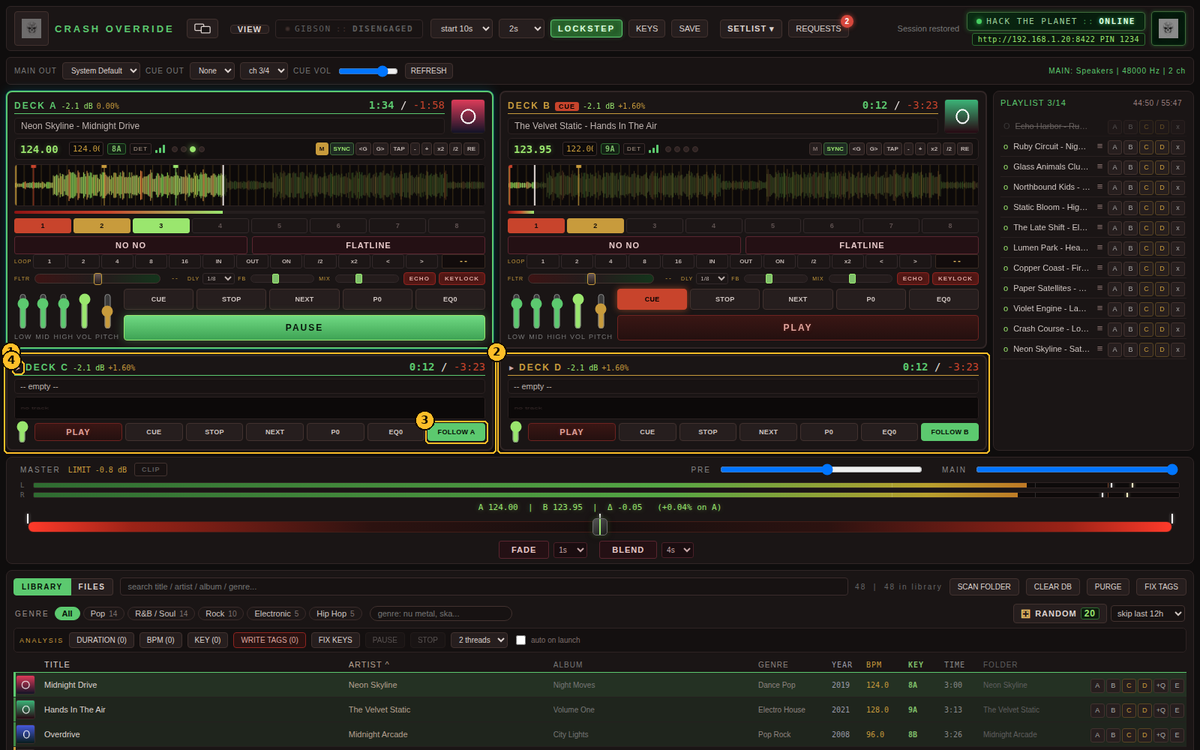
- Deck C - compact strip under deck A: title, waveform, volume and transport.
- Deck D - compact strip under deck B (amber, the right-hand side).
- FOLLOW A / FOLLOW B - lit: C fades with A on the crossfader (D with B). Click for LIVE: the deck ignores the crossfader and stays up.
- Arrow - opens the full controls of C or D.
Pick 2 or 4 decks in VIEW. In 4-deck mode every playlist and library row gets C and D buttons too. Gibson Mode and the phase line work on A and B.
Mixer & crossfader

- Master meters - bar = loudness, white line = peak, amber = peak hold.
- LIMIT - how hard the limiter is working. A flicker now and then is fine.
- CLIP - lights red if the output ever hit full scale. Click to reset.
- PRE - level into the limiter (up to 150 %): your loudness. Set it once.
- MAIN - clean room volume after the limiter. The one to ride for room level.
- Phase line - A and B BPM, the difference, and the pitch match.
- Crossfader - red at both ends, equal-power curve (centre ≈ -3 dB each).
- FADE + time - sweeps to the other side over the chosen time.
- BLEND + time - sweeps to the centre and stays (up to 16 s).
FADE and BLEND
Touching the crossfader stops a running sweep at once, and pressing the same button again cancels it - so they are safe to press. Keys: 7 FADE, 6 BLEND, Shift+A/D timed fade left / right, A/D// instant left / right / centre. The phone remote's AUTO FADE button does the same as FADE.
Gibson Mode
Automatic mixing. When the playing deck reaches the start time, the other deck starts; at the fade time the crossfader moves, timed to arrive as the song ends; then the playlist loads the next song into the free deck - and it repeats the other way. Grab the crossfader and the automation lets go. Short songs are handled (no handoff in the first 2 seconds; the fade is at most half the time left), and looping a deck turns Gibson off for that deck.
Playlist & SETLIST
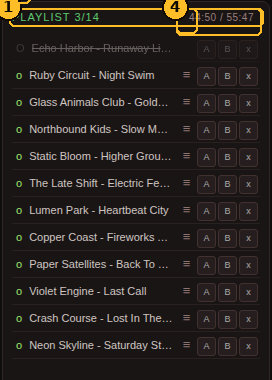
- Header - played / total, and time left / total time.
- Dot - click to mark a song played (or not). A letter = it is on that deck.
- ≡ handle - drag an unplayed song to a new place (a green line shows where).
- A B x - load into a deck, or remove from the playlist.
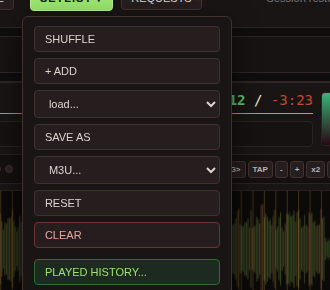
Loading a song into a deck claims it (it moves up and shows the deck letter); starting it moves it into the played part. Auto-advance and Gibson skip anything already on a deck. The SETLIST menu has SHUFFLE (only the unplayed part), + ADD, load / SAVE AS saved playlists, M3U import / export, RESET (all unplayed), CLEAR and PLAYED HISTORY.
More like this, LIKE THIS and Endless mode
More like this (right-click any song in the Library or the playlist) adds songs from your Library that fit it: the same kind of music, close in tempo (half or double time counts) and in key, from about the same years. They are put in a smooth order - each one mixes well into the next - and it adds as many as RANDOM does (10, 20 or 50). Songs already in the playlist, and songs played within RANDOM's skip time, are left out; Christmas and comedy songs only come with their own kind. The status line says what it matched, like "Rock · ~124 BPM · 8A · 1990s". The more of your songs have a genre, BPM and key, the better it works.
LIKE THIS (next to RANDOM) does the same for the song on the live deck.
∞ Endless mode (the infinity button on the top bar, between VIEW and the GIBSON status - dark green while on, dark red while off, like LOCKSTEP): when only two songs are left waiting in the playlist, ten more that fit the last ones are added by themselves. With Gibson Mode on, the set keeps going on its own for as long as you like.
Played history
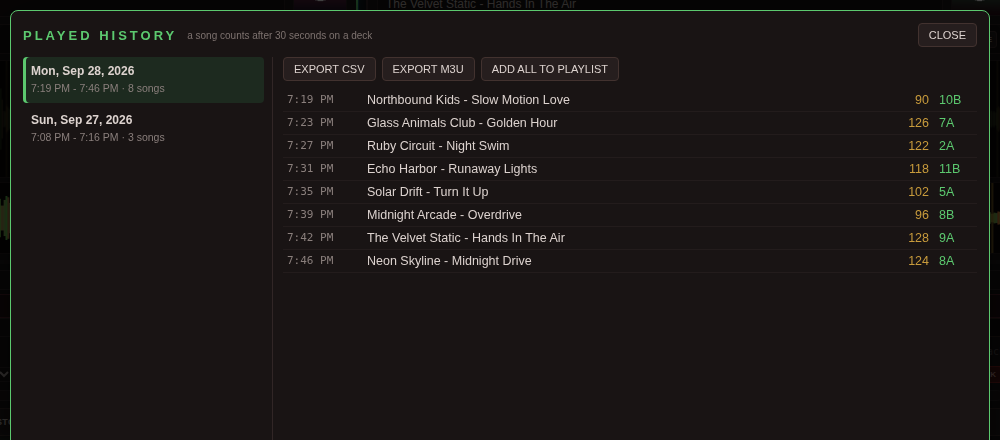
Every song that played at least 30 seconds on a deck, grouped into sessions (a 4-hour gap starts a new one), with time, BPM and key. EXPORT CSV for your records, EXPORT M3U, or ADD ALL TO PLAYLIST to replay a night.
∞ (between VIEW and the GIBSON status) - Endless mode: keeps the playlist topped up with songs that fit, so the music never stops (see Endless mode). Lit green while on.
Library
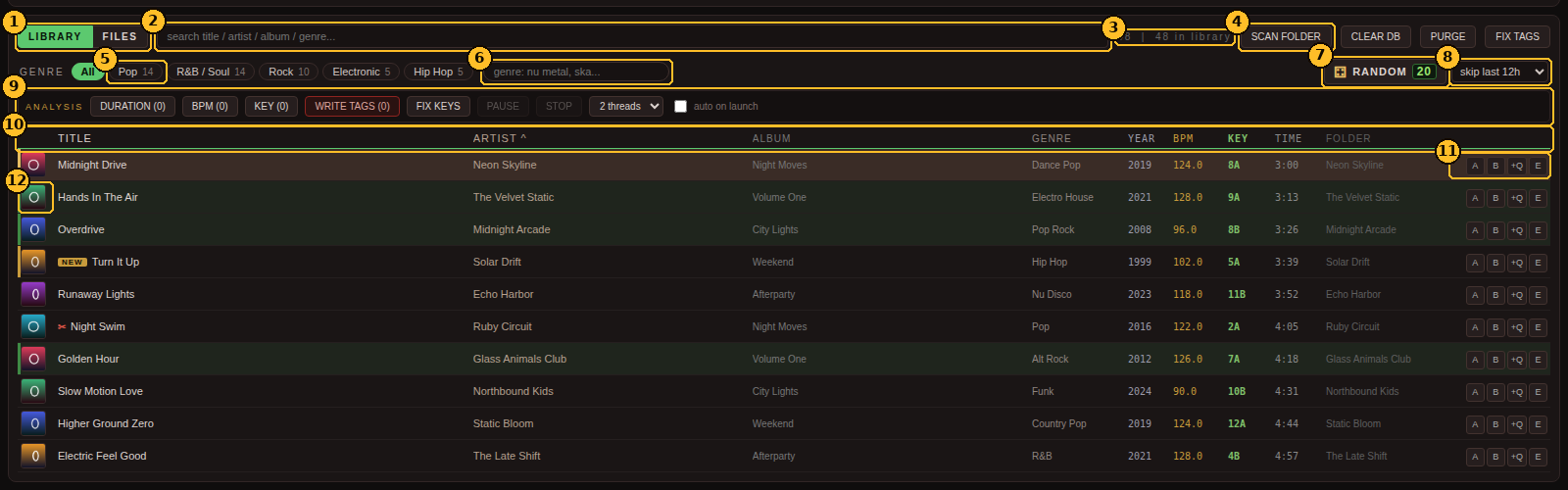
- LIBRARY / FILES - your switched-on folders, or a browser of the music folder.
- Search - title, artist, album, genre. The X clears it.
- Count - shown of matching | in library.
- SCAN FOLDER, CLEAR DB, PURGE, FIX TAGS - add a folder, empty the database, remove junk, re-guess missing tags.
- Genre families - click one to filter; its genres open underneath.
- Genre search - type words like "nu, thrash" to filter by genre.
- RANDOM 20 - adds 20 random songs from the current view to the playlist.
- skip last ... - RANDOM leaves out songs played in the last hours.
- ANALYSIS - duration, BPM and key passes, WRITE TAGS, FIX KEYS, threads, auto on launch.
- Columns - click a heading to sort (title, artist, genre, YEAR, BPM, key, time...).
- A B +Q E - load to a deck, add to the playlist, edit tags.
- Cover - the song's art. NEW badge = just arrived in On The Fly, ✂ = trimmed.
LIKE THIS (next to RANDOM) - adds songs that fit the one on the live deck (see More like this).
LIBRARY and FILES
The first time, open FILES and click SET MUSIC FOLDER. Everything under it is analysed, but a folder only shows in the Library once it is switched ON. Switch a parent off and a single subfolder back on to keep just that one. ALL OFF / ALL ON, +Q ALL, RESCAN and REMOVE MISSING (asks first) work on the open folder. Folders named like "0 Christmas" or "00 Compilations" are treated as collections, not artists.
On The Fly folder
Mark the folder your downloads land in as OTF. It is checked every 30 seconds; new songs (once they stop growing) are added and analysed in the background and get a NEW badge for 12 hours. The OTF button shows just that folder, newest first; NOW checks immediately. Typed guest requests are linked automatically when the song lands here (see FIND).
Right-click a song & edit tags
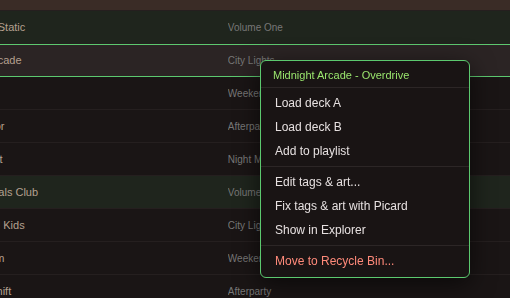
More like this - adds songs that fit this one to the playlist (see More like this).
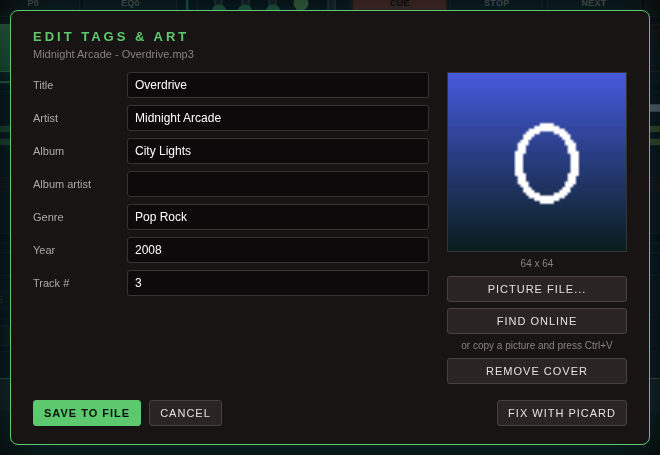
Edit tags & art - title, artist, album, album artist, genre, year, track number and cover. PICTURE FILE picks an image; FIND ONLINE opens a picture search (copy an image, then Ctrl+V here). SAVE TO FILE writes into the song and the library updates. Fix with Picard sends the song to MusicBrainz Picard (website or Microsoft Store version), which looks it up online - check the match and click Save in Picard; Crash Override re-reads the file by itself. Move to Recycle Bin asks first and never touches a song that is on a deck.
VIEW menu
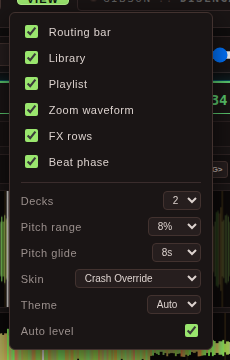
| Panels | Routing bar, Library, Playlist, Zoom waveform, FX rows, Beat phase - untick to hide. |
| Decks | 2 or 4 decks. |
| Pitch range | ±8, 16 or 50 %. |
| Pitch glide | How long shift + P0 takes to glide back to 0. |
| Skin / Theme | The colour scheme (including the AMPED palettes) and light / dark. |
| Auto level | Evens out loud and quiet songs. |
| USER MANUAL | Opens this manual. |
| CHECK FOR UPDATES | Asks crashoverridedj.com for a newer Crash Override now (it also checks by itself 20 seconds after start and every 6 hours). The answer pops up in a box in the middle of the screen - see Updates. |
| TRIMMED SONGS | Songs with a START / END set - open them in your audio editor to trim the file for real. |
| SEND AN IDEA | Send an idea, a wish or a problem straight to the maker. Only what you type is sent (with the app's name and version); add your name or email if you'd like an answer. |
Second screen
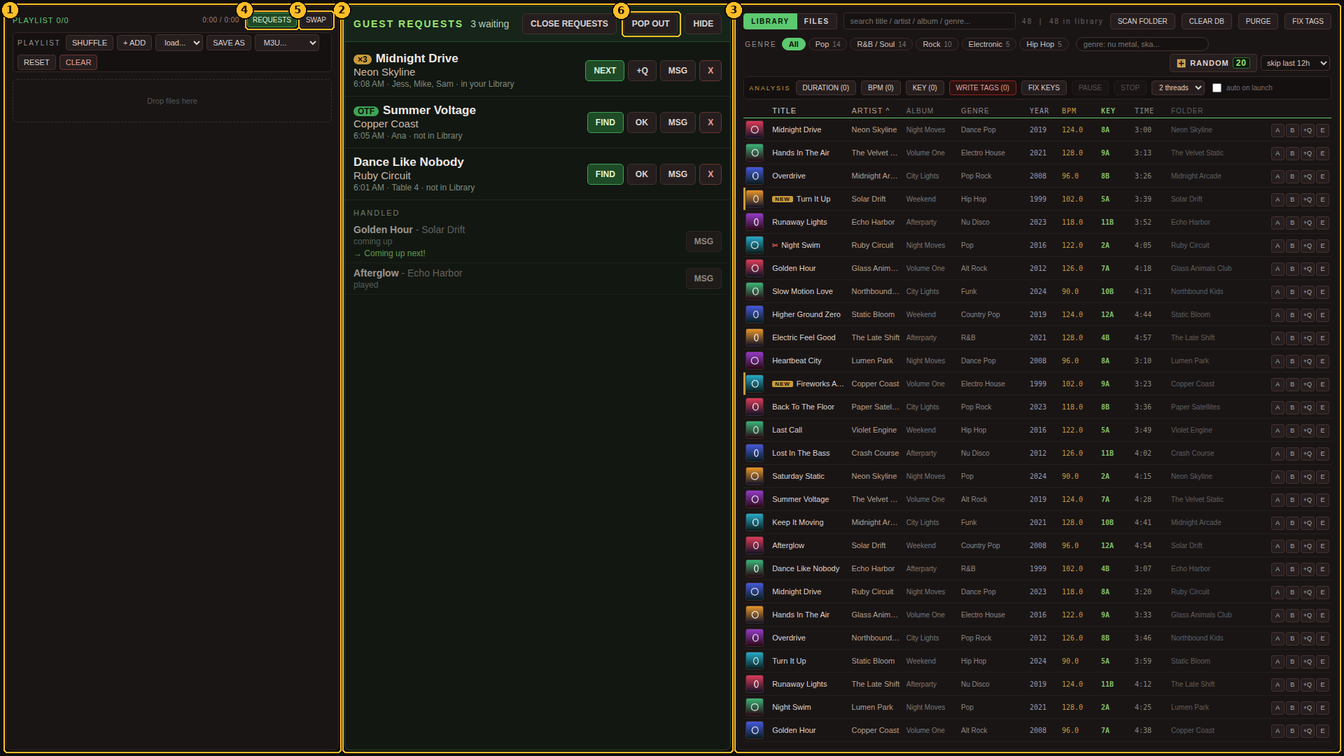
- Playlist - full height, with the SETLIST tools above it.
- Guest requests - big panel while requests are OPEN (on wide screens; under the playlist on smaller ones).
- Library - the whole library, full height.
- REQUESTS - shows / hides the big requests panel.
- SWAP - moves the decks to the other monitor.
- POP OUT - puts the requests in their own window.
The two-screen icon opens this window maximised on the other monitor; the main window then gives the decks the full width. Everything you do here is applied by the main window and mirrored back. Files dropped here go to the end of the playlist, never onto a deck. Closing it returns the panels to the main window.
Guest requests
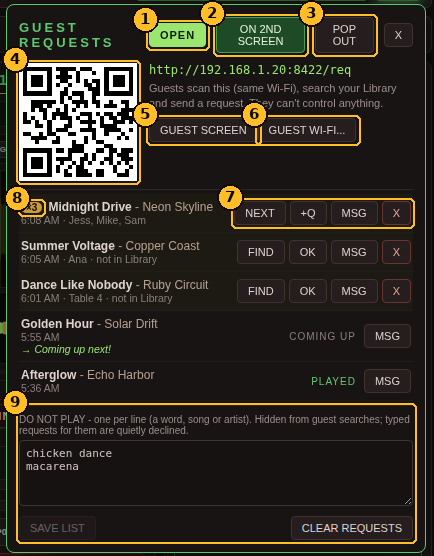
- OPEN / CLOSED - lets guests send requests (they start closed).
- ON 2ND SCREEN - also show them big on the second screen.
- POP OUT - requests in their own window for any screen.
- QR code - guests scan it (same Wi-Fi). Click for the guest screen.
- GUEST SCREEN - the full-screen QR page for a TV or projector.
- GUEST WI-FI - the network guests join, and which address the QR uses.
- NEXT / +Q (songs in your library) or FIND / OK (typed songs), MSG to message their phone, X to quietly decline.
- ×3 - how many people asked for the same song (names below the title).
- DO NOT PLAY - one word, song or artist per line: hidden from guest searches, typed requests quietly declined.
Approving a request sends a friendly thank-you to the guest's phone automatically; MSG lets you write your own. Declined requests just stay "on the DJ's list" for the guest - they never see a no. Each phone can send one request every 20 seconds and 8 per hour. While requests are open, waiting ones also dock under the playlist in the main window.
Guest screen & Wi-Fi
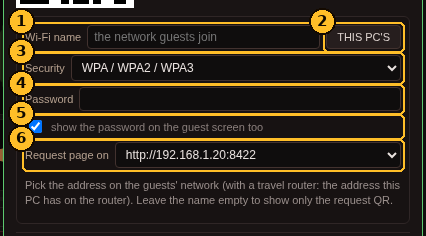
- Wi-Fi name - the network guests should join.
- THIS PC'S - fills in the Wi-Fi this PC is on.
- Security - WPA, WEP or open.
- Password - goes into the "join" QR code.
- Show password - also print it on the guest screen.
- Request page on - with a travel router, pick the address this PC has on the router.
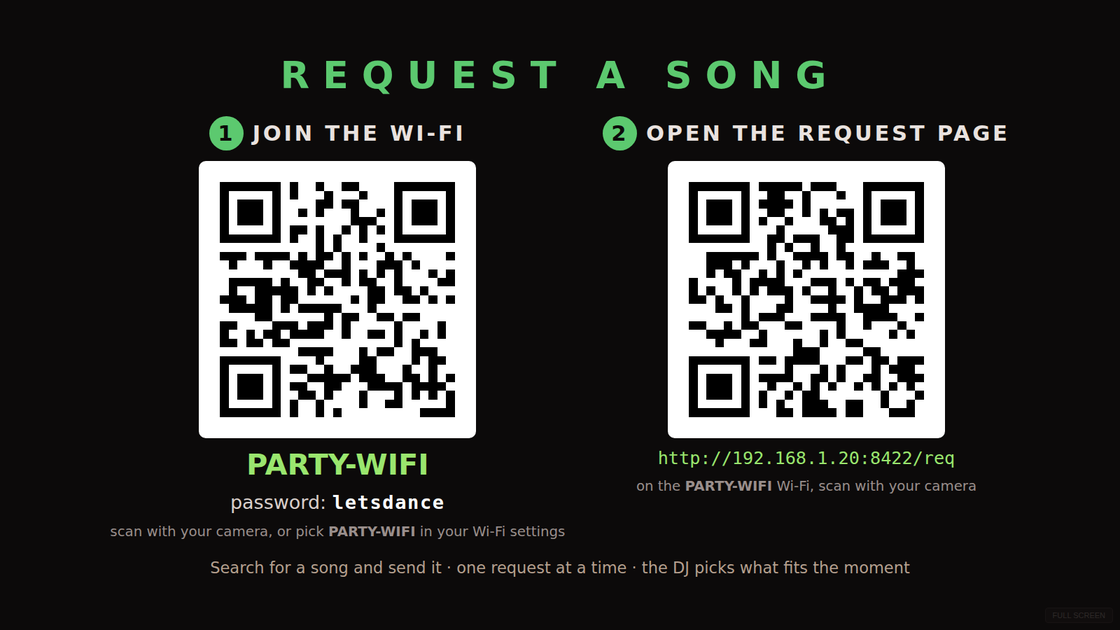
Step 1 joins the Wi-Fi when scanned with a phone camera; step 2 opens the request page. Leave the Wi-Fi name empty to show only the request code.
What guests see
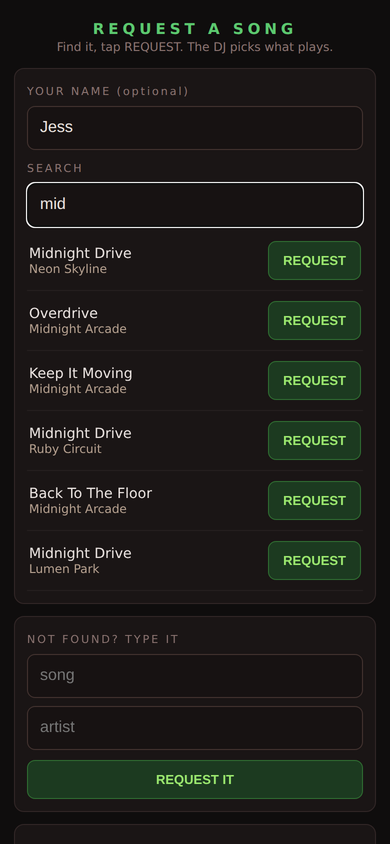
Guests type their name (optional, for a shout-out), search your Library (only folders that are ON, never do-not-play songs) and tap REQUEST - or type a song that isn't there. Their own requests show underneath with a status: on the DJ's list, coming up!, played - enjoy!, and your messages pop up on their screen. Guests can only ask - they can't control anything.
FIND & YouTube
For a typed request that isn't in your Library, FIND searches the Library for it and opens a YouTube search for the "clean version" in a separate window. That window's sound goes only to your CUE (headphones) output - never the room - and stays muted if no cue device is set (the banner at the bottom left says where the sound goes). COPY LINK copies the video's address. When the song then lands in your On The Fly folder, the request is linked automatically (spelling mistakes are allowed) and gets NEXT / +Q.
Requests pop-out
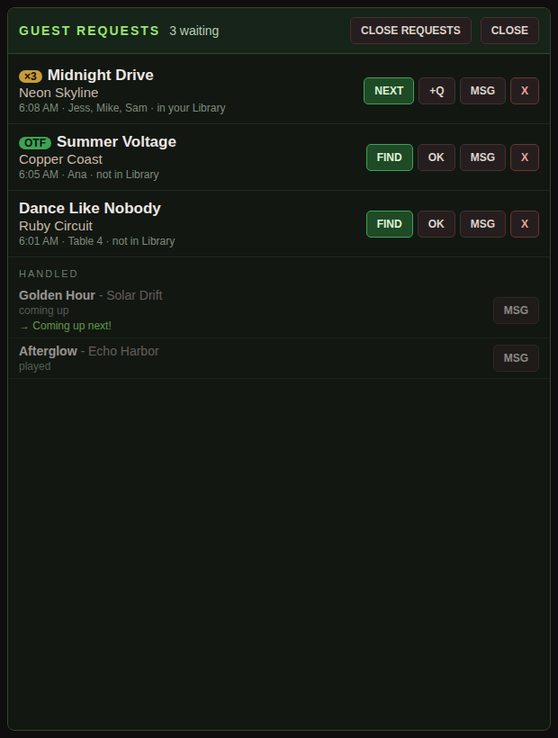
POP OUT opens the requests in their own window: drag it to any screen, resize or maximise it. Same big buttons as the second-screen panel, plus OPEN / CLOSE REQUESTS. FIND from here searches the Library in the other windows. Closing the window just hides it - POP OUT brings it back.
Phone remote
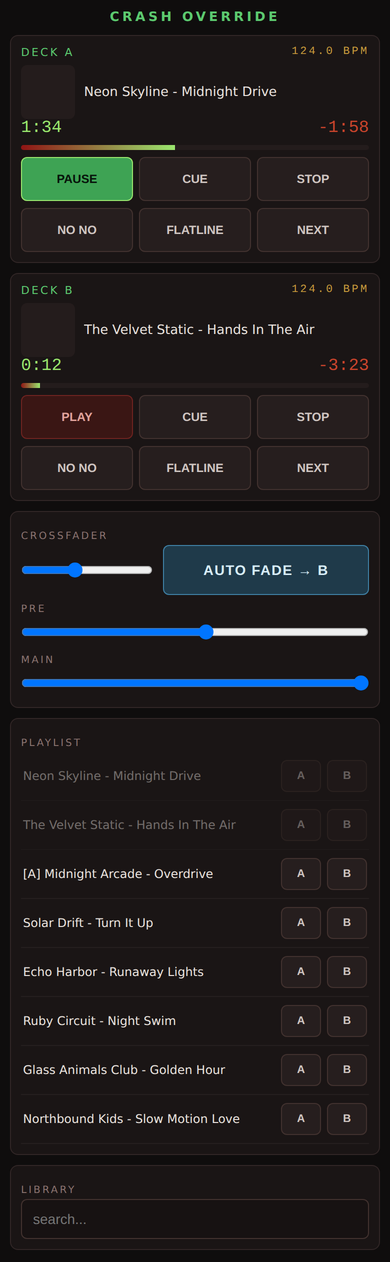
Click the right-hand skull. The address and PIN appear in the top bar - open the address on a phone on the same Wi-Fi and type the PIN once (or use AMPED Mobile › REMOTE › CRASH OVERRIDE › FIND, which remembers it).
- Both decks with cover, time and BPM: PLAY / PAUSE, CUE, STOP, NO NO, FLATLINE (hold) and NEXT.
- AUTO FADE - the FADE button: a timed crossfade to the other side. The small crossfader slider is still there for a live move.
- PRE and MAIN levels, the playlist (load to A / B) and a library search.
Keyboard
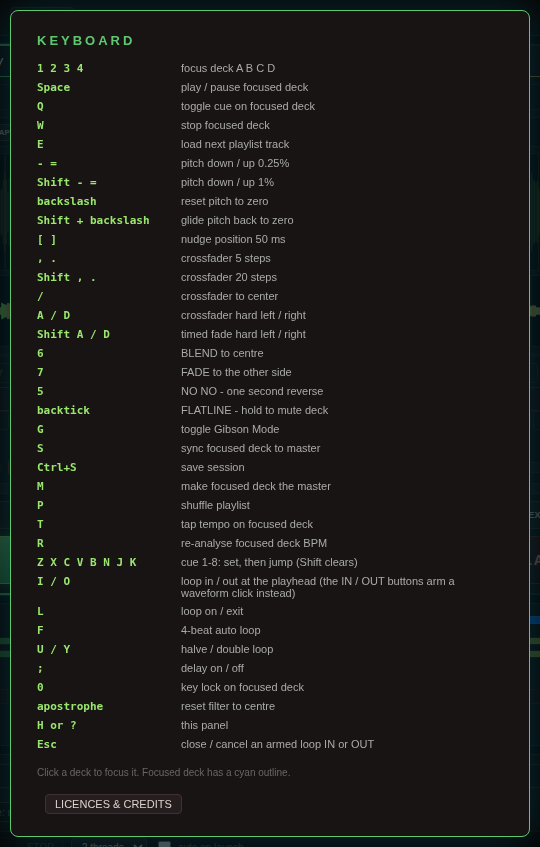
| Keys | Action |
|---|---|
| 1 2 3 4 | Focus deck A B C D |
| Space | Play / pause the focused deck |
| Q W E | Cue, stop, load next |
| M S T R | Master, sync, tap, re-detect BPM |
| - = | Pitch ±0.25 % (shift ±1 %) |
| \ | Pitch to 0 (shift = glide) |
| [ ] | Nudge 50 ms |
| 0 | Key lock |
| Z X C V B N J K | Hot cues 1-8 (shift clears) |
| I O L F | Loop in, loop out, loop on / exit, 4-beat loop |
| U Y | Halve / double the loop |
| , . | Crossfader 5 steps (shift 20) |
| A D / | Crossfader left / right / centre (shift A/D = timed fade) |
| 6 7 | BLEND, FADE |
| 5 / hold ` | NO NO / FLATLINE |
| ; ' | Delay on / off, filter to centre |
| G P | Gibson Mode, shuffle the unplayed playlist |
| Ctrl+S | Save session |
| H / ? / Esc | Keyboard overlay / close / cancel an armed loop point |
Mouse: click a waveform to jump, shift-click = loop in, alt-click = loop out. Double-click a slider to reset it (except volume and crossfader), the wheel moves sliders (shift = 10 steps). Shortcuts are off while you type in a text box.
Windows integration
- Open with › Crash Override on an audio file adds it to the end of the playlist (it does not become your default player).
- Add to Crash Override playlist on several selected files or a folder adds them all (Windows 11: Show more options).
- If Crash Override is already running the songs go straight onto its playlist; if not, it starts and adds them.
- Tag edits and recycled songs from AMPED MAX are picked up by Crash Override too.
Updates & your tester code
Updates
On Windows, Crash Override keeps itself up to date from crashoverridedj.com. When a newer version is out, an UPDATE READY box shows the version and what's new: UPDATE NOW downloads it, closes Crash Override and opens the new one - your library, cues, playlists and settings are kept. LATER asks again next time. Don't update in the middle of a set.
VIEW › CHECK FOR UPDATES checks right away and always answers in a box: "You have the newest Crash Override (version)", an UPDATE READY box, or what went wrong (no internet, for example). Every update is signed - Crash Override only installs one made by its maker.
Your tester code
While Crash Override is in its closed test, it needs a code (it starts with CODJ-). Paste the whole code on the code screen and press UNLOCK - once; it is remembered. The code has your name and an end date in it and works with no internet.
| Code runs out | Nothing stops in the middle of a set: a note says the code has run out and the music keeps going. The next time you open Crash Override it asks for a new code. |
| Code cancelled | The maker can cancel a code. Crash Override finds out when it's online - a note says so (the music keeps going), and the next start asks for a new code. Offline it keeps working until its end date. |
| Usage | Test copies tell the maker how often and how long they're used: the code number, version, Windows / Mac and minutes per session. No music, files, names or library are sent. Details on the privacy page. |
| Date warning | "This computer's date looks wrong" means the clock was set back - fix the date and time. |
Your music, playlists and settings are never lost while it waits for a code.
On a Mac
Crash Override also runs on a Mac (Intel or Apple silicon, macOS 10.15 or newer). The first time, right-click the app › Open (macOS asks once because the app isn't from the App Store). Everything in this manual works the same, with these differences:
- New versions come as a new Mac download (CHECK FOR UPDATES says so) - the self-update is Windows only for now.
- Use Cmd where this manual says Ctrl.
- Move to Recycle Bin puts the song in the Mac's Trash. The Explorer menus (Open with, Add to Crash Override playlist), keep-awake and filling in the Wi-Fi name for the guest screen are Windows only for now.
- Audio editors and Picard are picked as .app (in Applications).
Files & troubleshooting
| Data folder | %APPDATA%\com.crashoverride.dj - library.db (songs, BPM, keys, cues), artcache, wavecache, playlists, session.json, remote_pin.txt. |
| No sound | Check the routing readout (the device really in use), MAIN OUT, and that MAIN is up. If a device disappears, Crash Override plays on the default device and moves back when it returns. |
| No headphones | CUE OUT needs a second device or channels 3/4. CUE VOL changes instantly. |
| Phone can't connect | Same Wi-Fi, a Private network in Windows, and allow Crash Override in Windows Firewall. Client isolation on the router blocks it. |
| Wrong BPM | Beat detection is about 95 % right on four-on-the-floor music, less on live drums. Use TAP, x2 and /2, or type the BPM. |
| Wrong key | Key detection is about 75-85 % on electronic music, lower on acoustic. |
| Update didn't install | The box says why. Try again later, or download the newest version from your tester link - nothing is lost. |
| Licences | Press H › LICENCES & CREDITS for the open-source parts Crash Override is built with. |
Pictures show example songs and example QR codes. Crash Override needs your own licences to play music in public.