AMPED MOBILE
The music player for your Android phone - your own music, a smart library, driving mode, and your PC's music at home.
Tap any picture to see it full size. Numbers on the pictures match the numbered lists next to them.
Quick start
- Open AMPED and tap ALLOW MUSIC ACCESS - Android asks once.
- Tap CHOOSE FOLDERS (or the folder button at the top) and switch on the folders your music is in. AMPED finds the songs in seconds and reads their tags in the background.
- Tap a song: the list plays from there. Tap + to add a song to the queue instead.
- Tap the dice for a random mix, or a genre chip to play only that kind of music.
AMPED Mobile plays the music on your phone, and it works with your PC: copy songs from AMPED MAX, play the PC's whole library at home, and use the phone as a remote for AMPED MAX and Crash Override. No account, no ads, nothing sent to the cloud.
The screen
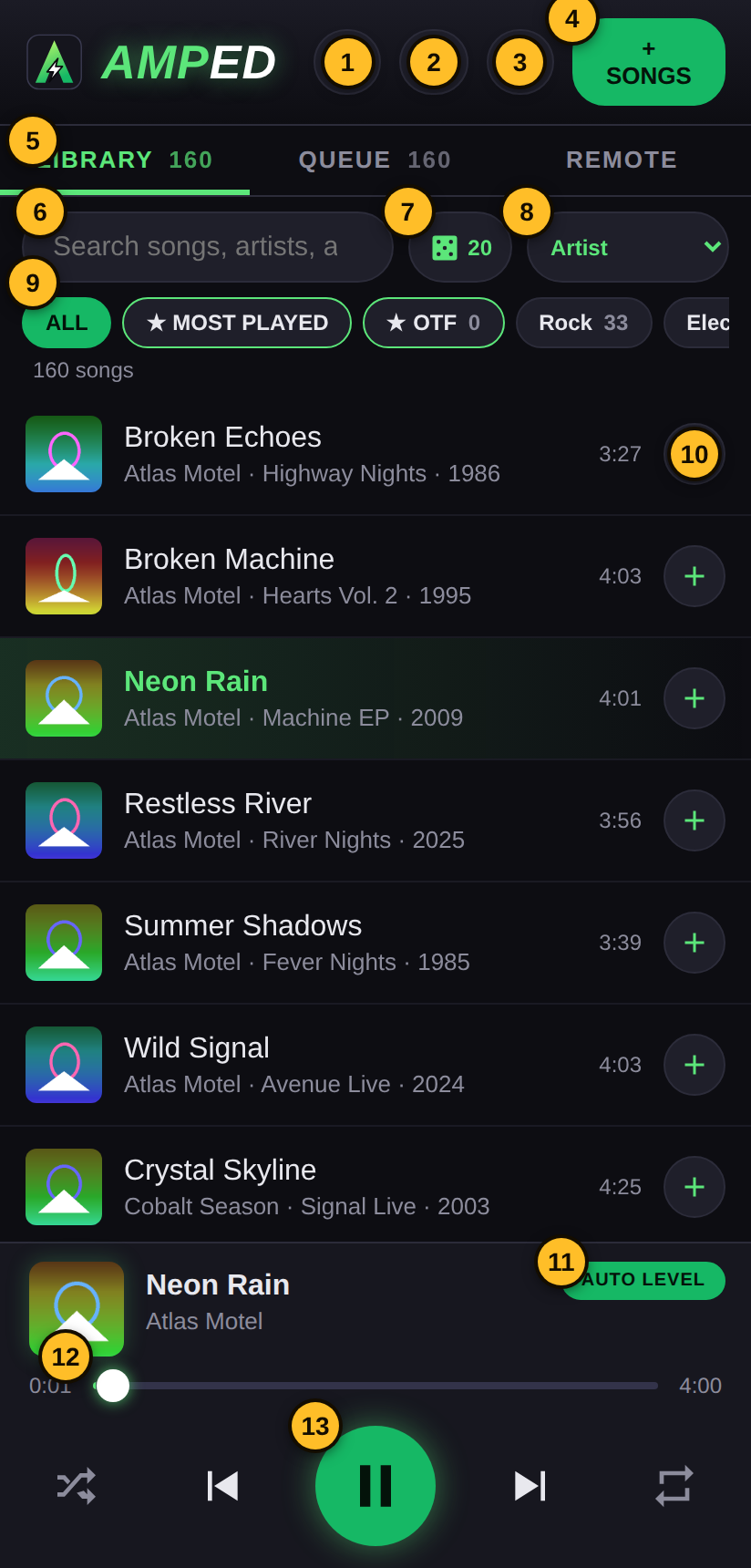
- Car - driving mode: a big, simple screen for the car.
- Folders - which folders on the phone (and SD card) hold your music.
- Settings - colours, crossfade, random, music from the PC, driving mode, updates.
- + SONGS - pick songs one by one with the phone's picker (they aren't remembered).
- Tabs - LIBRARY, QUEUE and REMOTE, with how many songs each has.
- Search - songs, artists, albums.
- Dice - adds random songs from the list shown, right after the song that is playing; nothing already in the queue is removed (the number is how many - Settings).
- Sort - artist, title, year (newest / oldest), most played, last played, newest files.
- Chips - ALL, MOST PLAYED, OTF (On The Fly) and every genre - tap one or more.
- + - adds that song to the end of the queue.
- AUTO LEVEL - loud songs are turned down to match the rest.
- Seek bar - drag to jump in the song.
- Controls - shuffle, previous, play / pause, next, repeat.
Library & genres
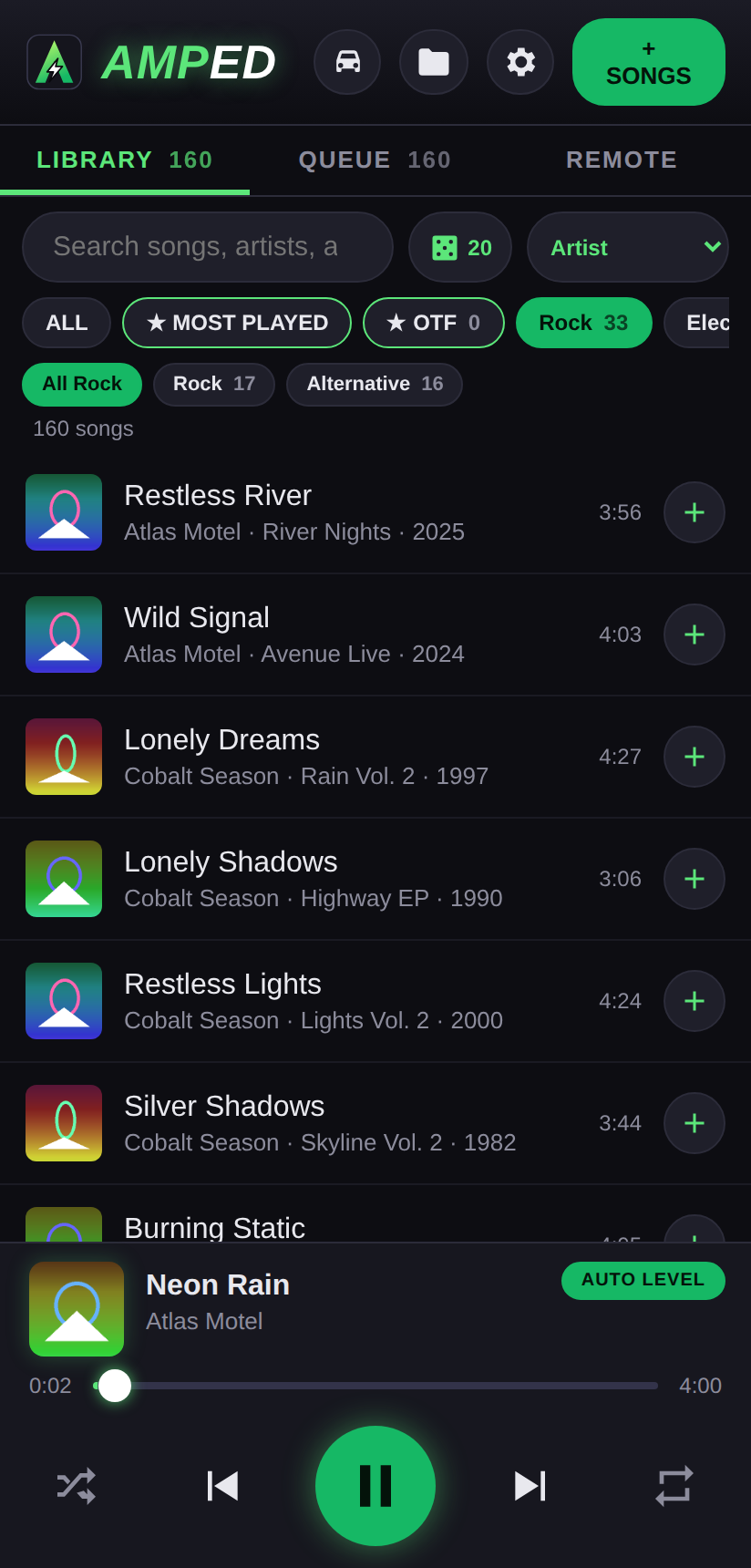
- Tap a song: the list you're looking at plays from that song (search and chips included).
- +: adds the song to the end of the queue.
- Chips: tap a genre family (Rock, Electronic, Hip-Hop...) to show only those songs; its sub-genres appear underneath (All Rock, Alternative...). Tap more chips to mix families. ALL clears them.
- ★ MOST PLAYED sorts by your play counts - tap it again to go back to the sort you had.
- ★ OTF: just the songs in your On The Fly folder (Settings › ON THE FLY), newest first.
- Dice: random songs from what's shown, put right after the playing song, skipping songs played in the last few hours (Settings).
A song counts as played after 30 seconds. Covers come from the songs' tags or a picture in the folder.
Queue & history
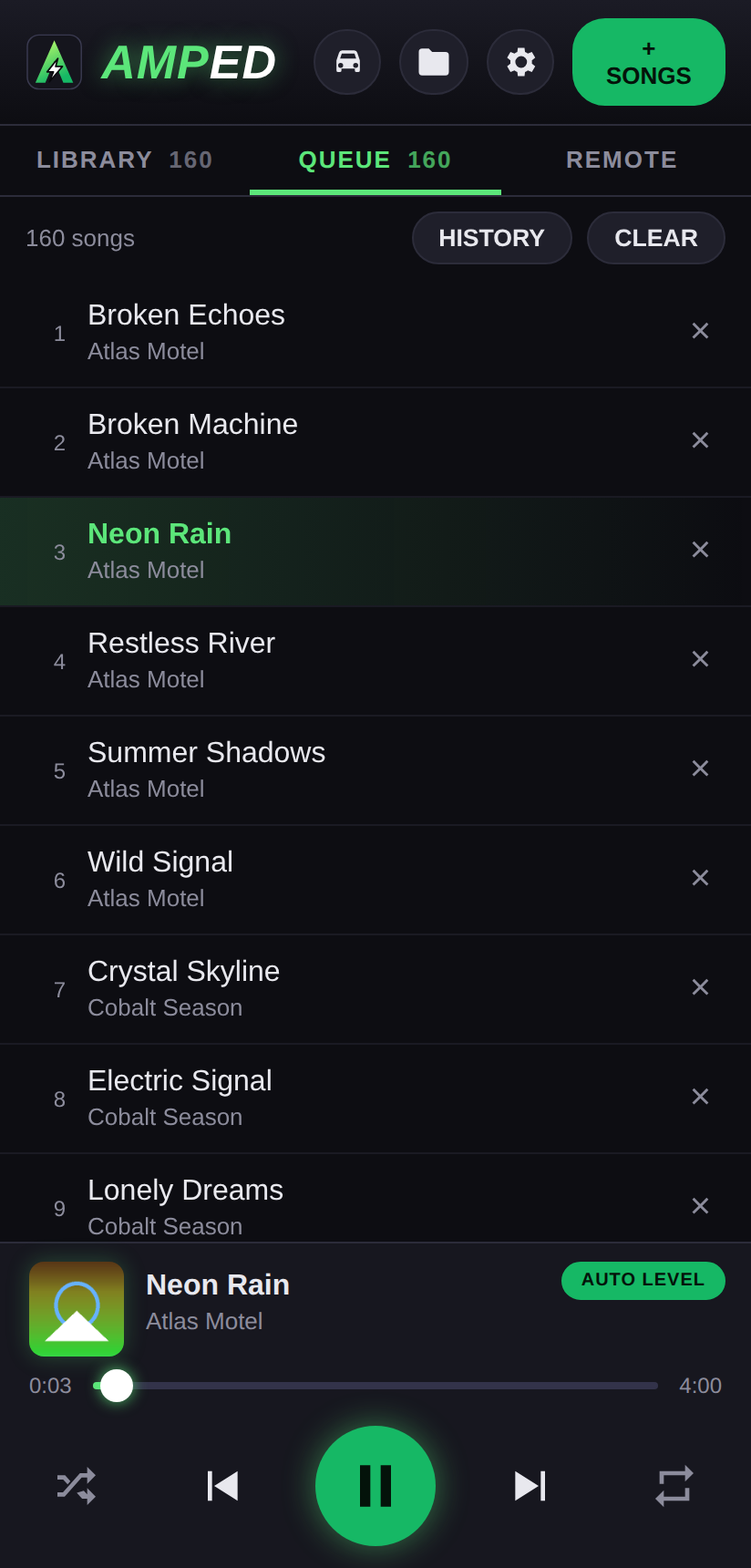
The queue is what plays, in order - it's remembered (with the place in the song) when the app closes.
- Tap a song to play it, × to take it out.
- CLEAR empties the queue.
- HISTORY shows what played (the last 3000 plays) - tap one to play it again; QUEUE goes back.
The player controls also show on the lock screen and in the notification, and work with Bluetooth headphones and car buttons.
Music folders
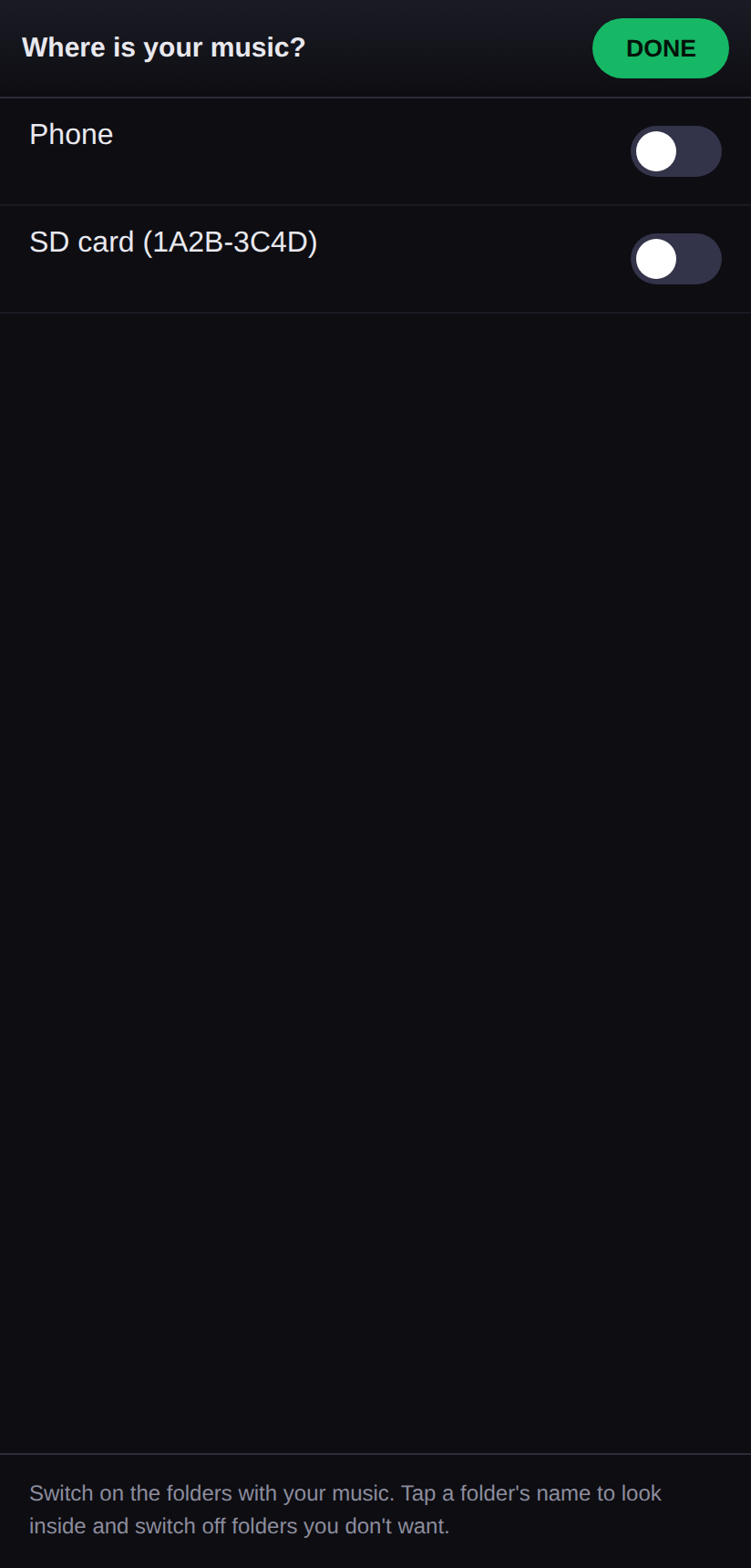
Tap the folder button. Switch a folder on to include everything in it; tap a folder's name to look inside and switch off folders you don't want (a podcast folder, say). A long list has an A-Z strip on the right: touch or slide it to jump to a letter. An SD card shows as its own place. New songs are picked up every time AMPED starts, and when you change folders.
Settings
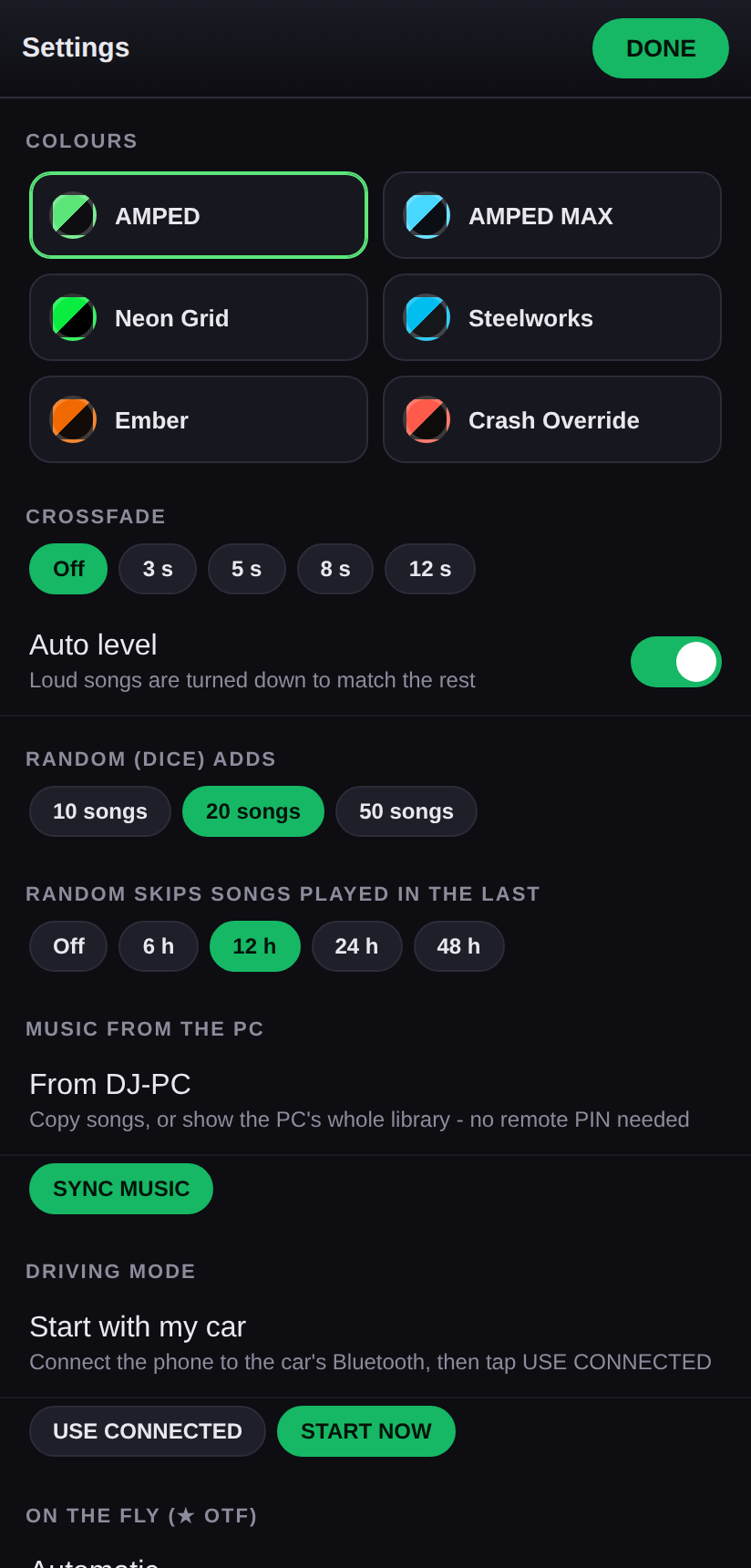
| COLOURS | AMPED, Neon Grid, Steelworks, Ember, Crash Override - and AMPED MAX once the phone has linked to AMPED MAX. |
| CROSSFADE | the next song fades in over the end of the current one (off, 3-12 s). |
| Auto level | loud songs are turned down to match the rest. |
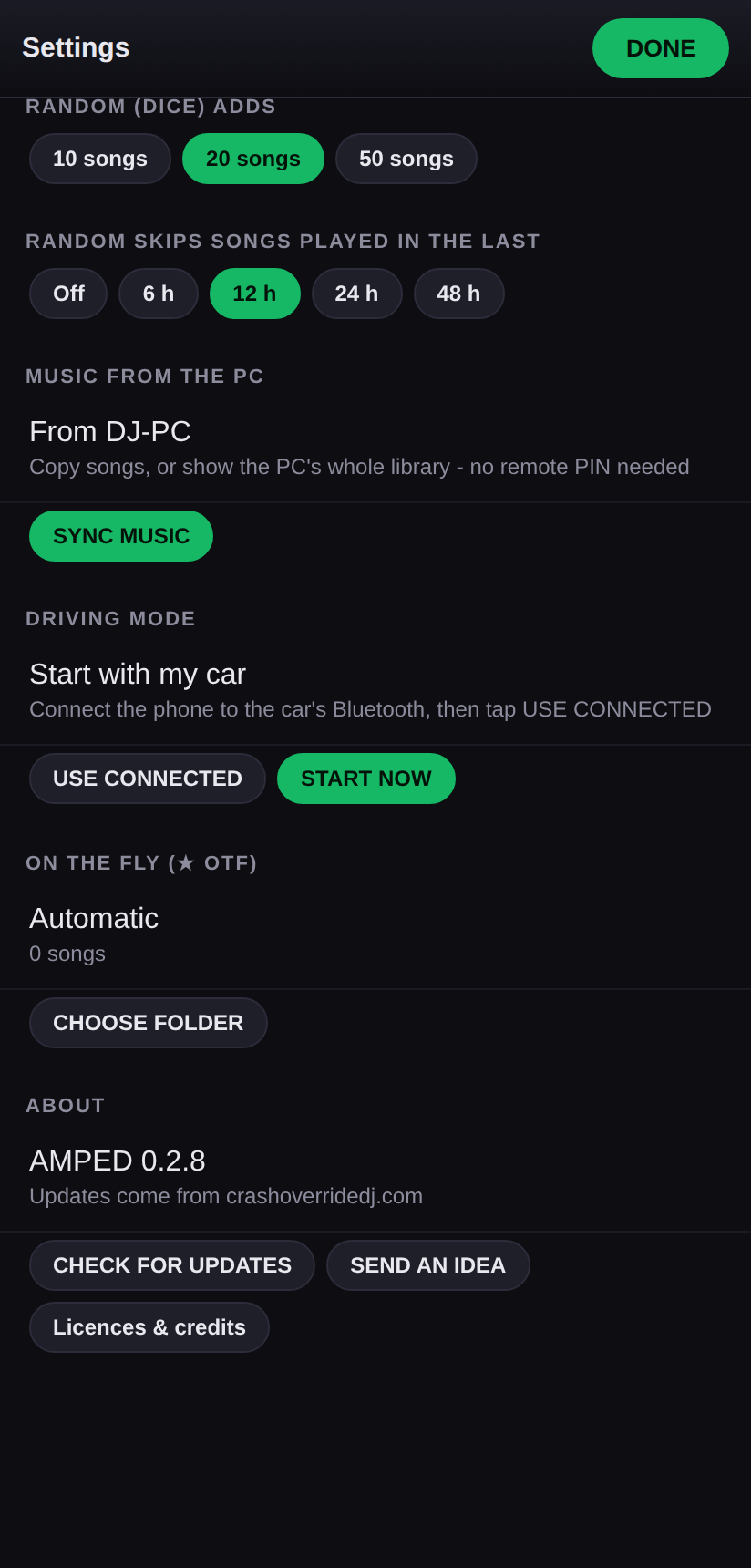
| RANDOM (DICE) ADDS | 10, 20 or 50 songs. |
| RANDOM SKIPS SONGS PLAYED IN THE LAST | off, 6, 12, 24 or 48 hours. |
| MUSIC FROM THE PC | SYNC MUSIC - copy songs from AMPED MAX, or show the PC's whole library (see Music from the PC). |
| DRIVING MODE | USE CONNECTED saves the car's Bluetooth: driving mode starts by itself when the phone connects to it. START NOW starts it. |
| APP ICON & LOGO | after linking to AMPED MAX: the green AMPED look or the blue AMPED MAX look (the home-screen icon changes after you leave the app). |
| ON THE FLY | the folder your new downloads land in - the OTF chip shows it. |
| ABOUT | the version, CHECK FOR UPDATES / UPDATE TO..., SEND AN IDEA and Licences & credits. |
Music from the PC
AMPED Mobile gets music from AMPED MAX on your PC through its MUSIC SERVER. Once the PC allows the phone, you can copy songs to the phone and play the PC's whole library at home - no remote PIN, and the phone can't control the PC unless you allow that separately.
Connect once
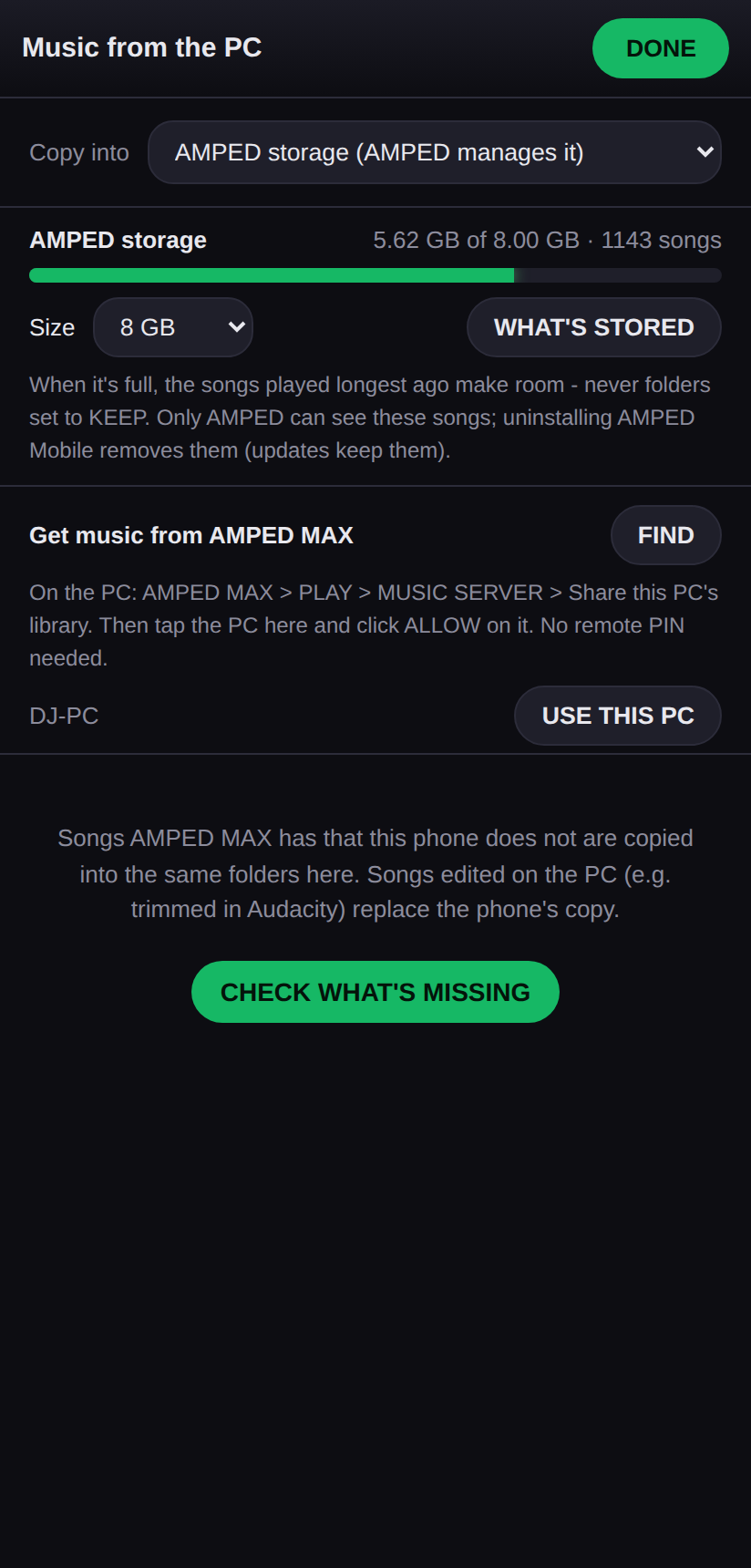
- On the PC: AMPED MAX › PLAY › MUSIC SERVER... › tick Let other AMPED MAX PCs ... play this PC's library.
- On the phone: Settings › MUSIC FROM THE PC › SYNC MUSIC, tap FIND, then USE THIS PC.
- On the PC a box asks - click ALLOW. The phone says "Music from DJ-PC is on".
Phone and PC on the same Wi-Fi. The phone shows in AMPED MAX's MUSIC SERVER list by its model (e.g. "Pixel 8 (AMPED Mobile)").
AMPED storage
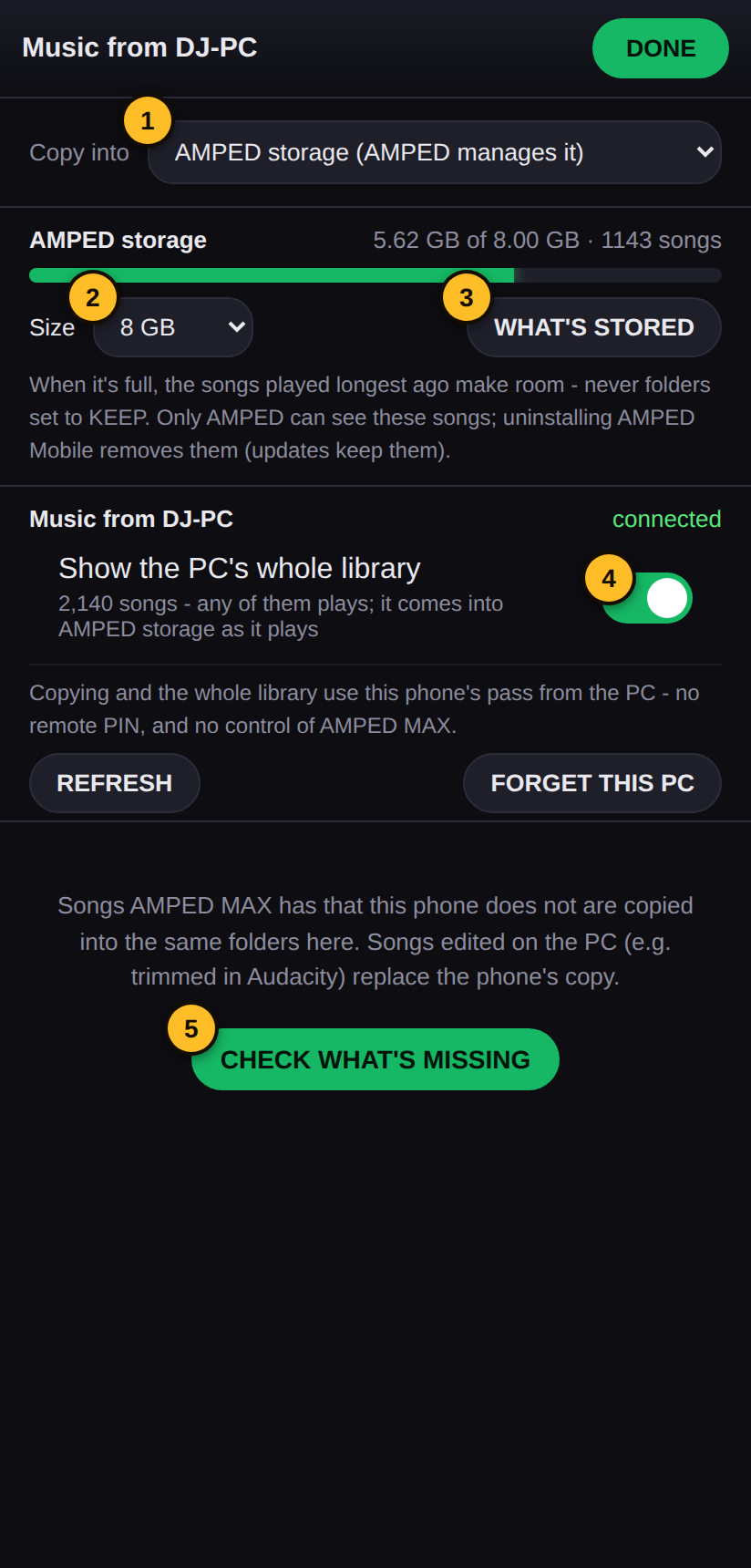
- Copy into - AMPED storage (AMPED manages it - recommended) or a normal phone folder (kept for good, no limit).
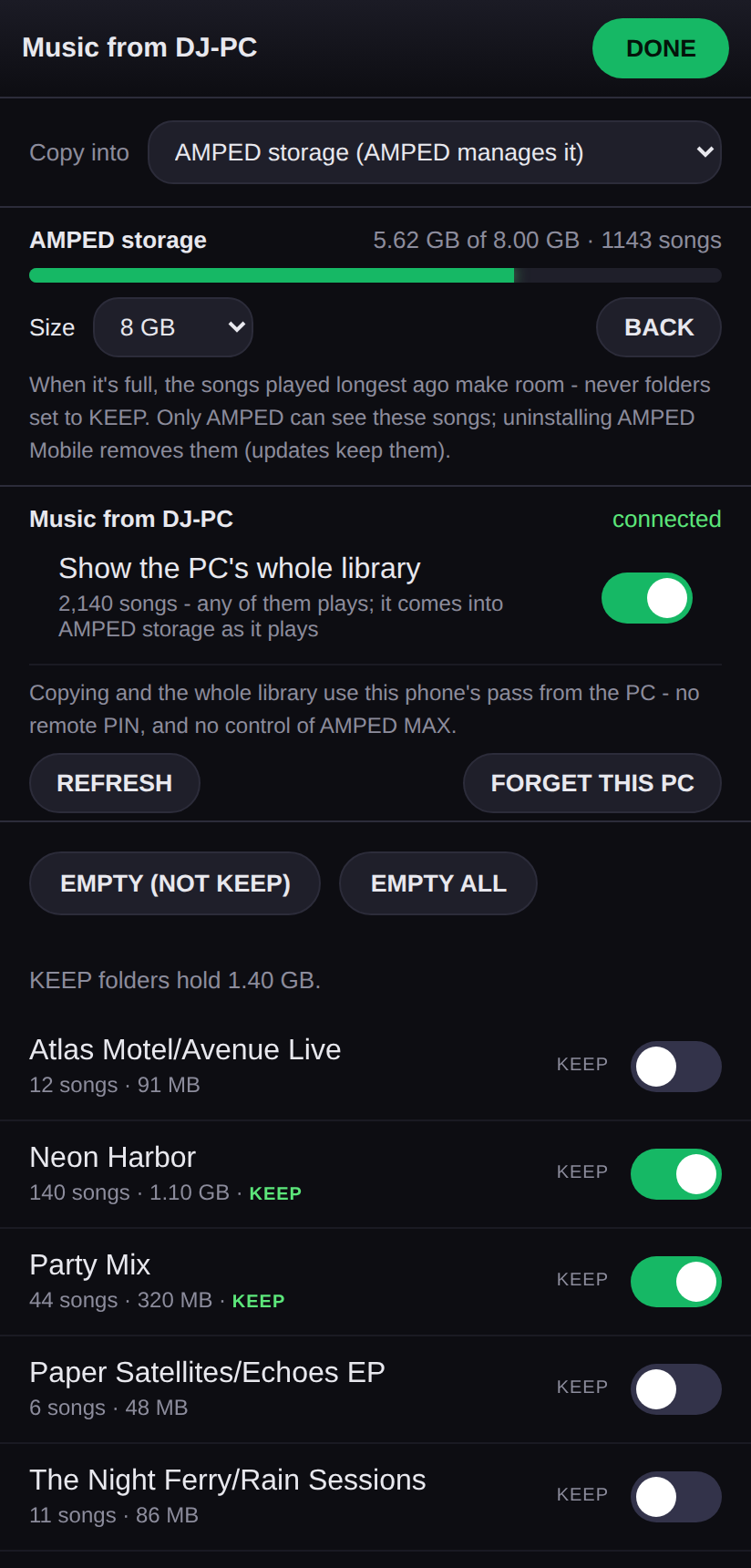
- Size - how much room AMPED storage may use (1-256 GB). When it's full, the songs played longest ago make room - never KEEP folders. Make it smaller and it trims down (it asks first).
- WHAT'S STORED - the folders in AMPED storage, with KEEP switches and EMPTY buttons.
- Show the PC's whole library - every song on the PC shows in your library; any of them plays.
- CHECK WHAT'S MISSING - compares the PC with the phone and lists what to copy.
AMPED storage is AMPED's own folder: only AMPED can see those songs, and Android removes them if you uninstall AMPED Mobile (updates keep them). A normal phone folder can be seen by other apps and stays after an uninstall.
Copy songs (SYNC)
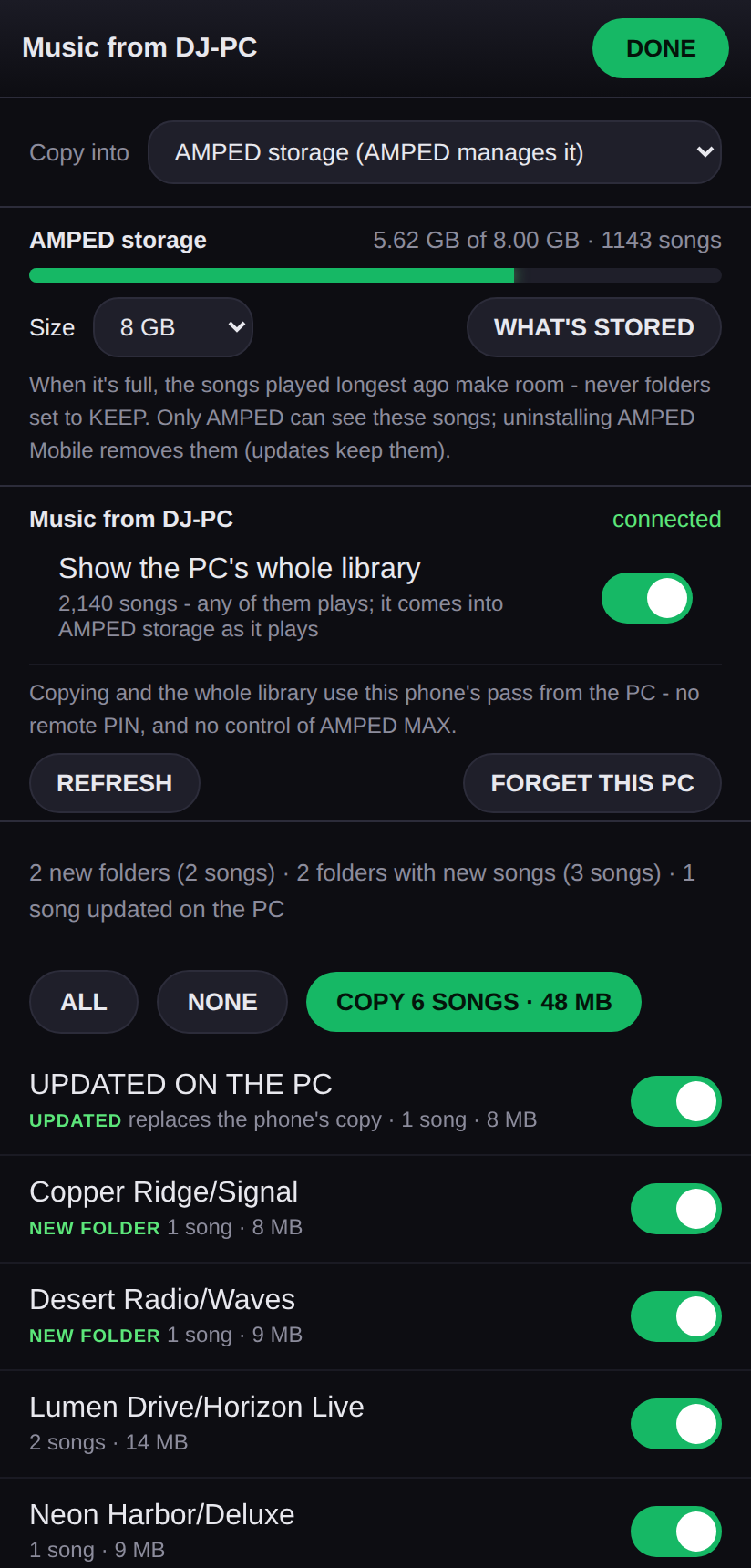
CHECK WHAT'S MISSING lists new folders, folders with new songs, and songs UPDATED ON THE PC (edited there, e.g. trimmed in Audacity - the phone's copy is replaced). Tick what you want (ALL / NONE) and press COPY. Keep AMPED open until it finishes; STOP stops after the current song. The phone keeps the same folders as the PC.
With AMPED storage, KEEP folders are copied first; if what you ticked won't fit, it says so and copies until full.
WHAT'S STORED: every folder in AMPED storage with its size. Switch KEEP on for folders that must never be removed to make room (a party playlist, your favourites). EMPTY (NOT KEEP) removes everything else; EMPTY ALL removes everything.
The PC's whole library
With Show the PC's whole library on, every song on the PC is in your library and search. Tap one that isn't on the phone yet: it's fetched into AMPED storage in a second or two and plays; the next song in the queue is fetched ahead of time. Away from home, only the songs already on the phone show and play. Your plays are sent to the PC (kept there under this phone) - when you're back if you were away. Songs added on the PC show up within a minute.
| REFRESH | asks the PC for its song list now. |
| FORGET THIS PC | removes the phone's pass. Songs already copied stay. To get music again: USE THIS PC and ALLOW on the PC. |
| Show the PC's whole library off | only the songs on the phone show; copying still works. |
Remote
AMPED MAX
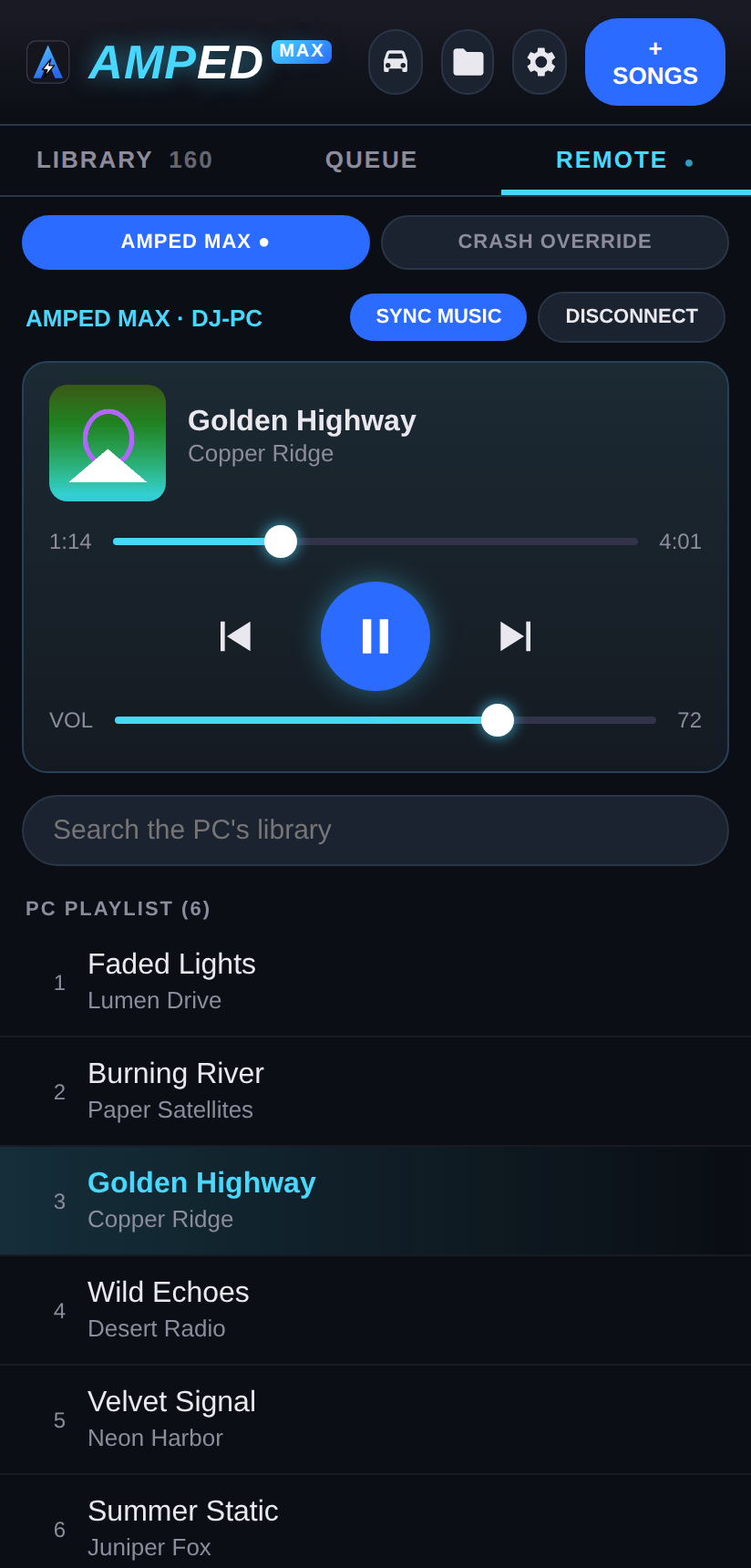
Control the music on your PC: cover, play / pause, previous / next, seek, volume, the PC's playlist (tap to jump) and a search of the PC's library (NEXT plays it next, +Q adds it to the end).
- On the PC: AMPED MAX › PLAY › PHONE REMOTE (the PIN shows under it).
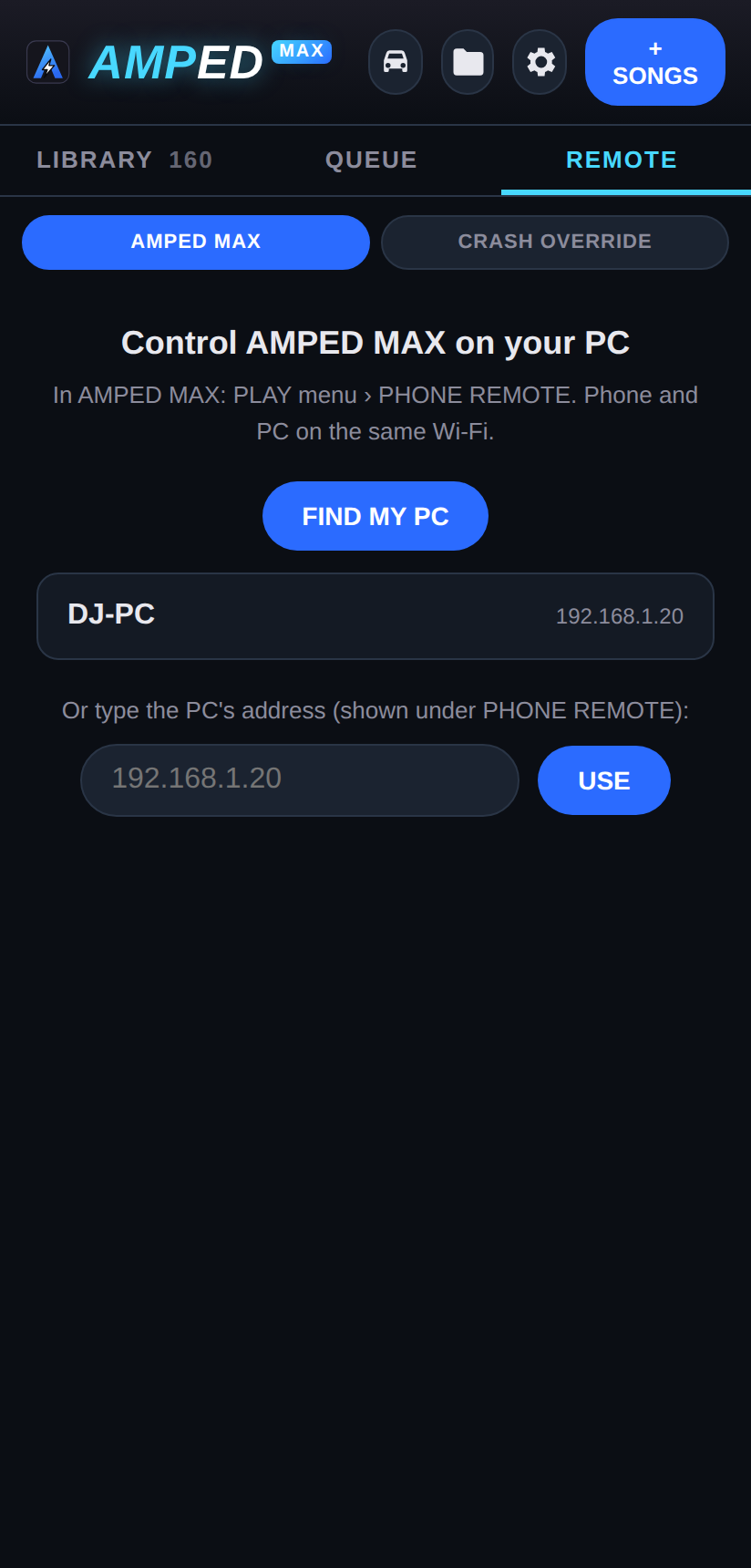
- On the phone: REMOTE › AMPED MAX › FIND MY PC, tap the PC.
- If the PC ticked REMOTE next to this phone (in its MUSIC SERVER list), it connects straight away. Otherwise type the PIN once.
A new PIN on the PC (NEW PIN) cuts the remote off until you type the new one. SYNC MUSIC on the remote screen opens Music from the PC; DISCONNECT forgets the PC.
Crash Override
REMOTE › CRASH OVERRIDE › FIND CRASH OVERRIDE (or type the address it shows) opens Crash Override's own phone remote: both decks, CUE, NO NO, FLATLINE, AUTO FADE, levels, the playlist and a library search. Switch its phone remote on in Crash Override first; its PIN is asked once and remembered.
Driving mode
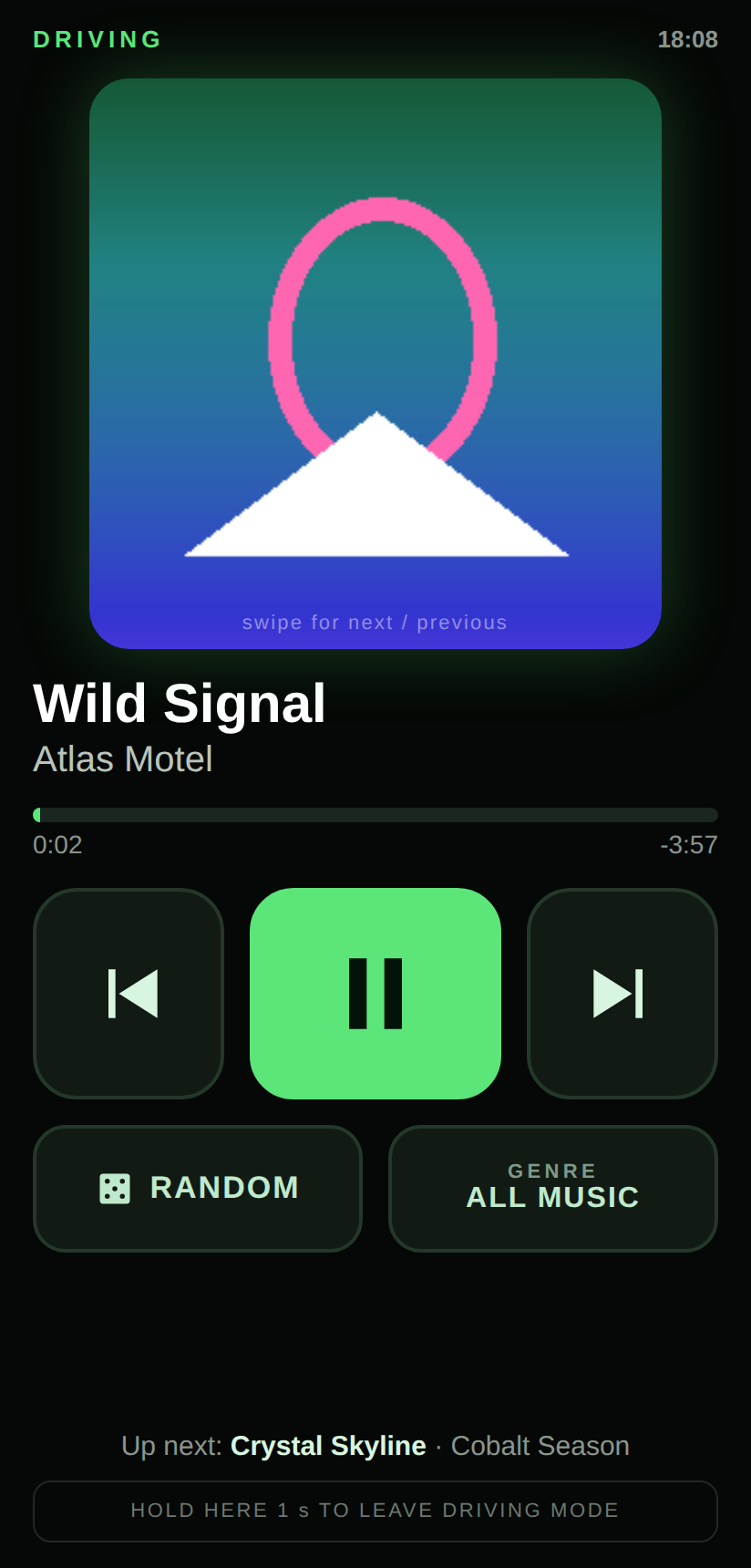
One big, simple screen for the car: cover, song, a thick progress bar, three huge buttons, RANDOM (a fresh random mix of 50 from the chosen genre, skipping songs played lately) and GENRE (which genre RANDOM uses), and what's up next.
- Swipe left / right on the cover for next / previous.
- The screen stays on while driving mode is open.
- Hold the bottom strip for 1 second to leave (a tap does nothing - no leaving by accident).
- Settings › DRIVING MODE › USE CONNECTED while connected to the car's Bluetooth: driving mode then starts by itself when the phone connects to the car, and ends when it disconnects.
Updates
AMPED Mobile checks crashoverridedj.com for a newer version. When one is out, Settings › ABOUT shows UPDATE TO 0.x.x: tap it, then let Android install it (the first time Android asks you to allow installs from AMPED). Your songs, AMPED storage, queue and settings are kept. CHECK FOR UPDATES checks right away.
Troubleshooting
| No songs | Allow music access, then switch on your music folder (folder button). |
| PC not found | Same Wi-Fi as the PC, AMPED MAX open (with MUSIC SERVER sharing for music, PHONE REMOTE for the remote), and allowed through Windows Firewall. Routers with "client isolation" (guest networks) block it - or type the PC's address. |
| "Isn't allowed to control" | The phone gets music but has no remote rights: on the PC tick REMOTE next to this phone in MUSIC SERVER, or use the PIN. |
| AMPED storage is full | Give it more room (Size), set fewer folders to KEEP, or tick fewer folders to copy. |
| A song won't play | It was moved or deleted, or (whole library) the PC can't be reached - AMPED skips to the next one. |
| Licences | Settings › ABOUT › Licences & credits. |
Pictures show invented example songs.