AMPED MAX
A classic-skinned music player for easy listening, pre-show and post-show music - with visuals, crossfade, Endless mode and a library shared with Crash Override and your other computers.
Click any picture to see it full size. Numbers on the pictures match the numbered lists under them.
Quick start
- Start AMPED MAX. The first time it asks for your tester code (it starts with CODJ-) - paste it and press UNLOCK.
- The library comes from Crash Override on this PC - nothing to set up. (No Crash Override? Use PLAY › + FOLDER to play a folder.)
- Pick songs in the Library and press Play (replaces the playlist) or Enqueue (adds to the end). Shuffle play plays the whole view shuffled.
- Press ∞ on the playlist strip and the music never stops: songs that fit are added as the playlist runs out.
- Pick a skin in LOOK › SKIN, and VISUALS (top right) for full-screen visuals.
AMPED MAX is a music player for easy listening, pre-show and after-show music, with the classic skinned player look and full-screen visuals. It reads Crash Override's library (it never changes it).
The screen at a glance
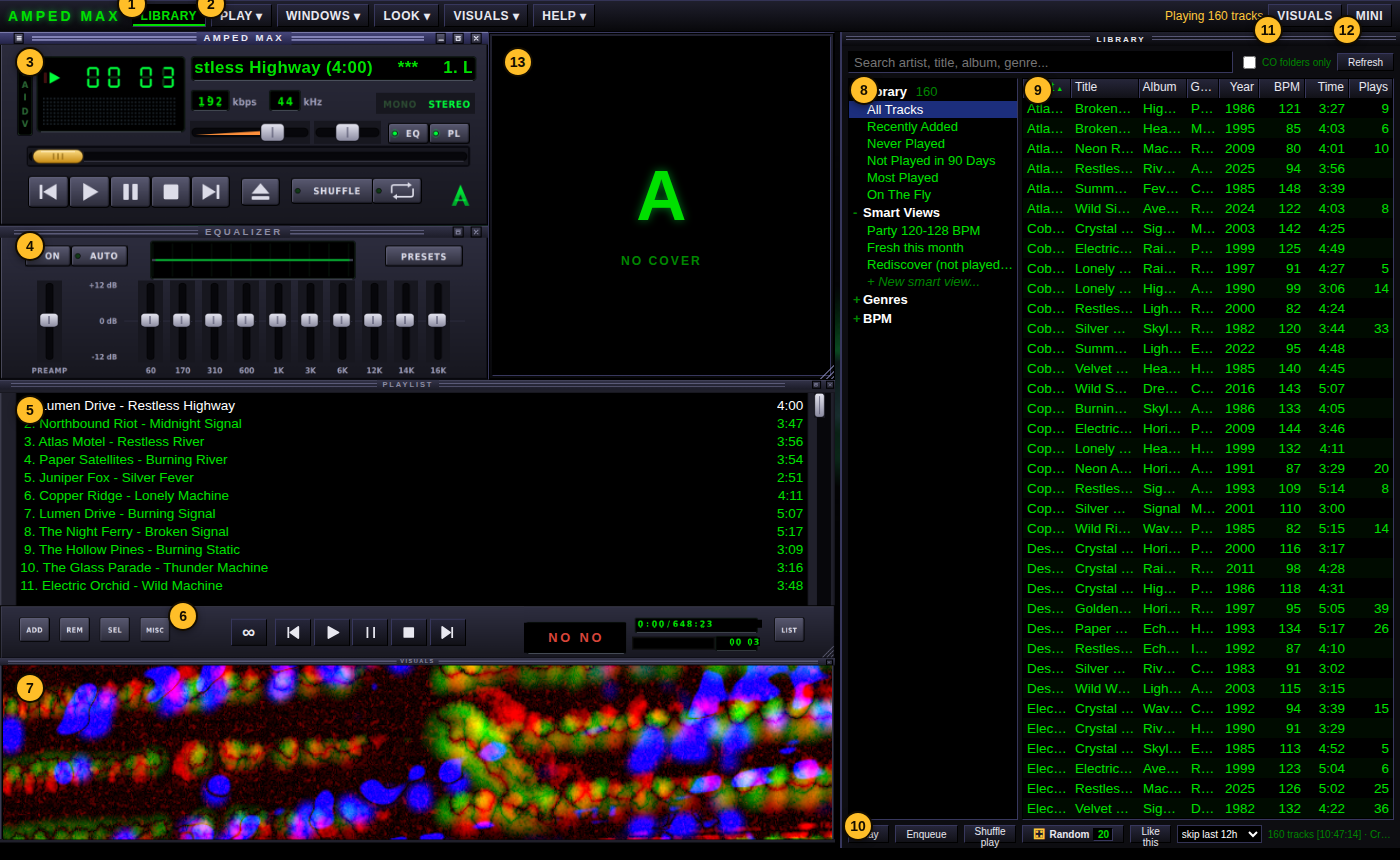
- LIBRARY - shows / hides the media library (Alt+L).
- Menus - PLAY, WINDOWS, LOOK, VISUALS and HELP - click to open, see Menus.
- Main window - the classic player: time, title, volume, balance, seek bar, transport, SHUFFLE and REPEAT.
- Equalizer - ten bands, preamp, ON and PRESETS (including Live).
- Playlist - what plays, in order. Double-click a song to play it, drag to reorder.
- Playlist strip - ∞ Endless, previous / play / pause / stop / next, and NO NO.
- Visuals - visual presets that move with the music (right-click for presets).
- Library tree - All Tracks, Recently Added, Never Played, Most Played, On The Fly, Smart Views, Genres, BPM.
- Song list - the songs in the chosen view - click a heading to sort.
- Library buttons - Play, Enqueue, Shuffle play, Random, Like this and the skip-recent setting.
- VISUALS - the visuals full screen - any key or mouse move exits.
- MINI - just the player windows, no big window around them (Alt+M).
- Cover - the playing song's cover art (from its tags, or a cover picture in its folder).
Menus
Most controls sit in five drop-down menus on the top bar. Click a menu to open it; click anywhere else to close it. One-off actions close their menu, switches (HD, ON TOP...) leave it open.
PLAY
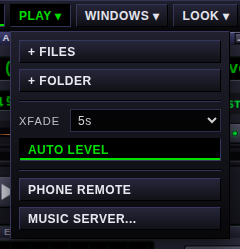
| + FILES / + FOLDER | add songs or a whole folder to the end of the playlist. |
| XFADE | crossfade: the next song starts this many seconds before the current one ends (off, 2-12 s). |
| AUTO LEVEL | every song plays at about the same loudness - quiet songs up, loud ones down, never clipping (the same as Crash Override). Each song is measured once, the first time it plays. |
| PHONE REMOTE | lets AMPED Mobile on your phone control AMPED MAX - see Phone remote. |
| MUSIC SERVER... | share this PC's library with your other computers and phones, or play another PC's library - see MUSIC SERVER. |
WINDOWS
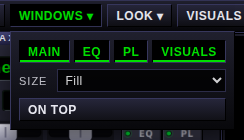
| MAIN / EQ / PL / VISUALS | show or hide each player window (lit = open). A window you closed comes back here. |
| SIZE | Fill = the player fills its part of the window and scales with it. Normal = like the original. Sharp / Double / Triple = every skin pixel exactly 1, 2 or 3 screen pixels. |
| ON TOP | keeps AMPED MAX above other windows. |
LOOK
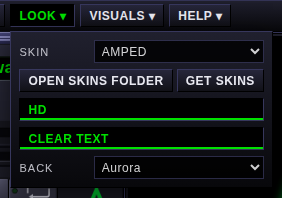
| SKIN | the player's look. Thousands of free skins (.wsz files) are at skins.webamp.org. |
| OPEN SKINS FOLDER / GET SKINS | where skins go, and the skins website - see Skins. |
| HD | every skin is redrawn at 4x with a pixel-art upscaler, so it stays crisp when the player is scaled up. |
| CLEAR TEXT | the song title and playlist in a smooth, easy-to-read font instead of the skin's pixel font. |
| BACK | an animated scene behind the player in the skin's colours, moving with the music: Aurora, Starfield, Clouds, Water, or off. |
VISUALS
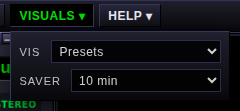
| VIS | what the visuals show: visual presets, or Code Rain (falling green code that moves with the music). Used by VISUALS, SAVER and the Visuals window. |
| SAVER | starts the visuals full screen after this long with no keyboard or mouse use, while music plays (off, 1-60 min). |
HELP
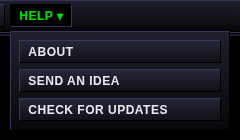
| USER MANUAL | opens this manual. |
| ABOUT | version, credits and licences. |
| SEND AN IDEA | send an idea, a wish or a problem straight to the maker. Only what you type is sent (with the app's name and version). |
| CHECK FOR UPDATES | looks for a newer AMPED MAX now - see Updates. |
The player windows
Everything the classic player did: double-click a title bar for window-shade (a thin strip), drag windows to move them - they snap together - and drag the playlist's corner to resize it. Closing a window just hides it (WINDOWS brings it back); the main window's close button quits AMPED MAX.
| Main window | Time (click it to switch to time left), scrolling title, kbps / kHz, volume and balance sliders, seek bar, previous / play / pause / stop / next, eject (= + FILES), SHUFFLE and REPEAT. |
| Equalizer | ON switches it on and off, PRESETS has the classic presets (Rock, Live, Dance...) and lets you save your own. Drag the sliders; PREAMP sets the overall level. |
| Playlist | Double-click a song to play it. Click to select, Ctrl-click (Cmd on a Mac) adds one, Shift-click a range, drag across songs to select them, drag selected songs to move them. ADD / REM / SEL / MISC at the bottom left are the classic playlist menus (MISC › sort, file info...). |
| Visuals window | Visual presets that dance to the music. Right-click it for presets, full screen and desktop mode. |
| Cover | The playing song's cover. It comes from the song's tags, or a cover picture in its folder (cover.jpg, folder.jpg...). |
AMPED MAX remembers the skin, EQ, volume, balance, window positions, MINI, crossfade, saver, library size, the playlist and where you were in the song (it comes back paused there - press play).
The playlist strip

- ∞ Endless - on / off. Near the end of the playlist, songs that fit are added by themselves - see Endless.
- Previous - the song before.
- Play - play (restart when it's already playing).
- Pause - pause / resume.
- Stop - stop.
- Next - the next song.
- NO NO - plays the next second backwards, then carries on exactly one second later - hit it just before a word you don't want heard (key N).
When the window is narrow, the least needed buttons (stop, play, previous / next, pause) drop out so they never slide under MISC or the NO NO box. ∞ and NO NO always stay.
Endless, More like this, Like this and Random
∞ Endless mode
Press ∞ on the playlist strip (it lights up). When only two songs are left after the one that is playing, ten more are added that fit the playlist's last eight songs - the same kind of music, close in tempo and key, from about the same years. The music never stops, and it stays in the feel of what was playing.
More like this
Right-click any song (in the Library or the playlist) › More like this: songs from your library that fit it are added to the end of the playlist - as many as Random adds (10, 20 or 50). If the song isn't in the playlist yet, it goes in first, then the ones like it. Songs played within the skip time are left out.
Like this
The Like this button (bottom of the library) does the same for the song that is playing.
Random
Random adds random songs from what the library is showing (the view on the left and the search) to the end of the playlist. Click and hold it (or right-click) to pick 10, 20 or 50. The box next to it leaves out songs played in the last 2 hours ... week.
Library
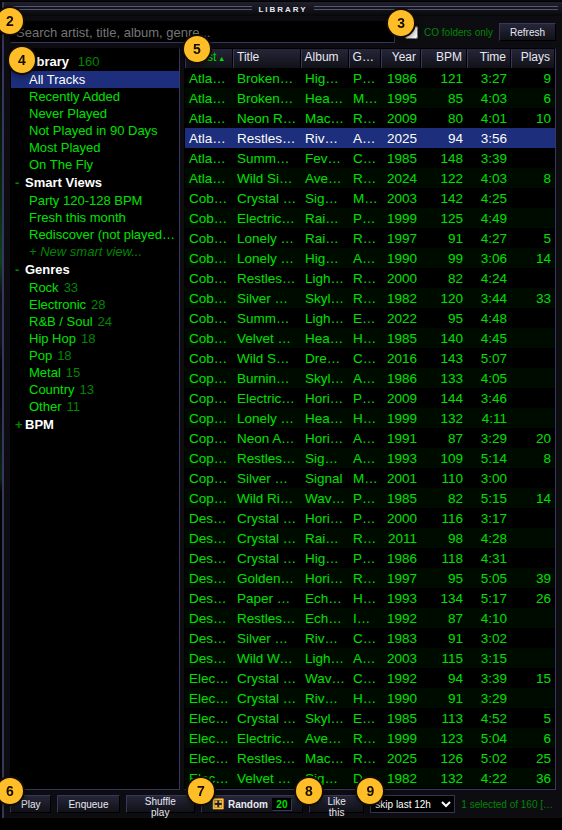
- View list - which tracks to show (the same as the tree).
- Search - filters the current view by artist, title, album or genre. Key J jumps here.
- CO folders only - only folders switched ON in Crash Override's FILES tab.
- Tree - All Tracks, Recently Added, Never Played, Not Played in 90 Days, Most Played, On The Fly, your Smart Views, every genre, BPM ranges.
- Columns - Artist, Title, Album, Genre, Year, BPM, Time, Plays - click a heading to sort, again to reverse.
- Play / Enqueue / Shuffle play - replace the playlist and play / add to the end / play the whole view shuffled.
- Random - adds random songs from the view (hold for 10 / 20 / 50).
- Like this - adds songs that fit the one that is playing.
- Skip recent - Random and Like this leave out songs played in the last hours / week.
Picking and playing songs
- Double-click a song: it plays next, right after the current song (which keeps playing). Several double-clicks line up in order. With nothing playing it starts right away.
- Click selects, Ctrl-click (Cmd-click on a Mac) adds or removes one, Shift-click a range, Ctrl+A all. Drag across songs to select a range (the list scrolls past its edges).
- Drag selected songs onto the playlist - a label says "put before 5" or "add to the end" and they land exactly there.
- Enter adds the selection to the end of the playlist.
Right-click a song
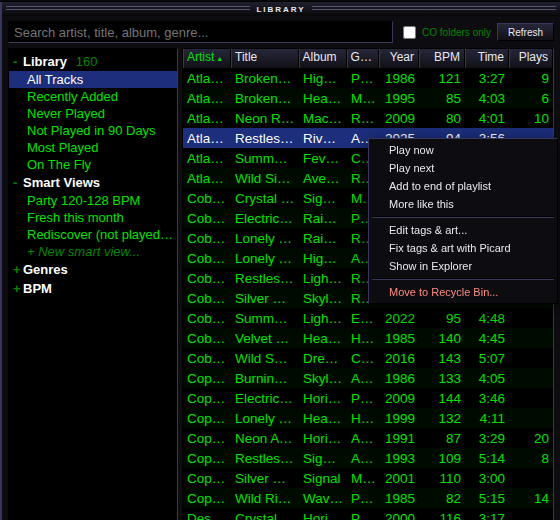
| Play now / Play next | replace the playlist / play after the current song. |
| Add to end of playlist | enqueue. |
| More like this | adds songs that fit this one - see Endless. |
| Edit tags & art... | title, artist, album, genre, year and cover picture - see Tags. |
| Fix tags & art with Picard | MusicBrainz Picard looks the songs up online. |
| Show in Explorer | opens the folder with the file selected. |
| Move to Recycle Bin... | asks first; the file can be restored from the Recycle Bin (the Trash on a Mac). |
Play counts are AMPED MAX's own - a song counts after 30 seconds. Crash Override is told about edited and recycled files and updates its library too.
Smart Views
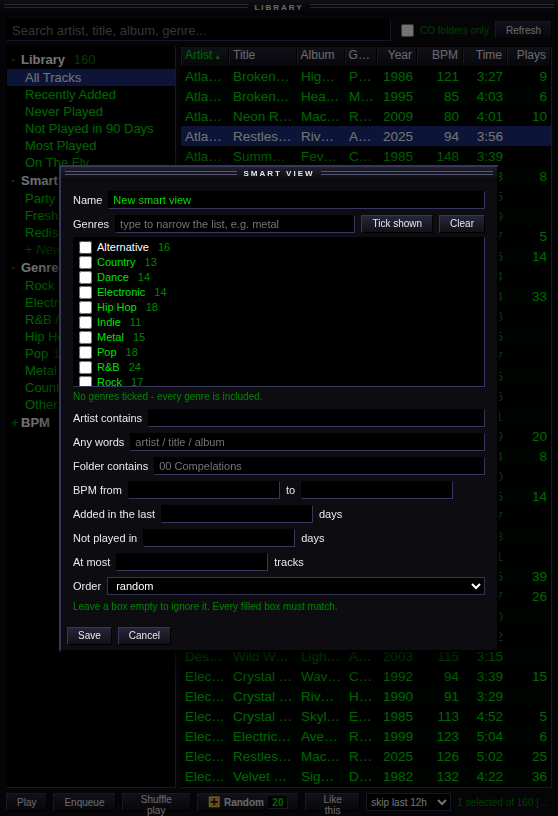
A Smart View is a saved search that keeps itself up to date. Click + New smart view... under Smart Views. Every box you fill must match; empty boxes are ignored:
| Genres | tick exactly the ones you want - type in the box to narrow the list (e.g. "metal"), then tick or Tick shown. |
| Artist / Any words / Folder | words that must be in the artist / the title, artist or album / the folder. |
| BPM from ... to | a tempo range. |
| Added in the last / Not played in | new songs / songs you haven't heard for a while (days). |
| At most ... tracks, Order | a limit and an order (random, newest, most played...). |
Double-click a Smart View to edit or delete it.
Edit tags & Picard
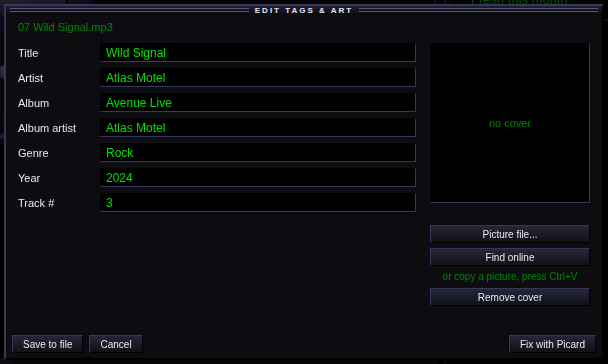
Right-click › Edit tags & art...: title, artist, album, album artist, genre, year, track number and the cover picture. Picture file... picks an image; Find online opens a picture search - copy an image and press Ctrl+V here. Save to file writes into the song. With several songs selected, only the boxes you change are written to all of them.
Fix with Picard sends the songs to MusicBrainz Picard (free, from picard.musicbrainz.org or the Microsoft Store), which looks them up online - check the match and click Save in Picard; the songs are re-read when you come back. If Picard isn't found, you're asked to locate it once.
Skins, HD and the look
A skin is a single .wsz file. The default is "AMPED MAX" (the classic base skin with AMPED MAX in the title bars); "Classic base skin" is the untouched original.
- LOOK › GET SKINS opens skins.webamp.org. Click a skin you like, then its download button.
- LOOK › OPEN SKINS FOLDER and move the .wsz there from Downloads.
- Pick it from LOOK › SKIN (choose "re-read Skins folder" if it isn't listed yet).
Dropping a .wsz on the player also works for a quick try, but only skins in the folder are remembered. Skins belong to their authors - for your own use, not for sale or sharing.
HD redraws any skin at 4x so it stays sharp when scaled up; CLEAR TEXT uses a smooth font for the title and playlist; BACK puts a moving scene behind the player; WINDOWS › SIZE sets how big the player is.
Visuals & screensaver
VISUALS (top right) shows the visuals full screen - any key or mouse movement exits. VISUALS › VIS picks visual presets or Code Rain (falling green code that moves with the music). VISUALS › SAVER starts the visuals by themselves after a few minutes with no keyboard or mouse use, while music plays. Right-click the Visuals window for its presets, full screen and desktop mode.
MINI mode
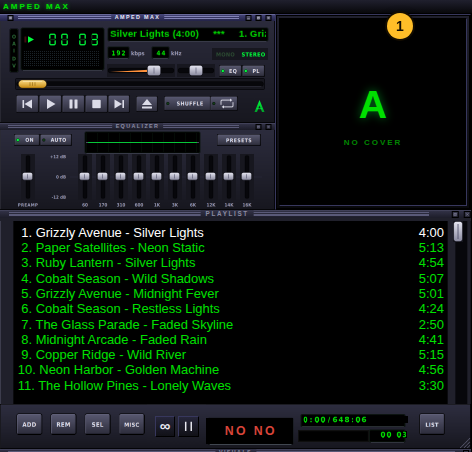
MINI (or Alt+M) shrinks AMPED MAX to exactly the player windows, without a frame. Drag any title bar to move it. The thin strip on top has EQ / PL / VIS (show or hide windows), LIB (a compact library docked under the player - drag its top edge to make it taller), TOP (always on top) and FULL (back to the full window). Arrange the windows the way you like in the full window first; in MINI a drag moves everything together.
Phone remote
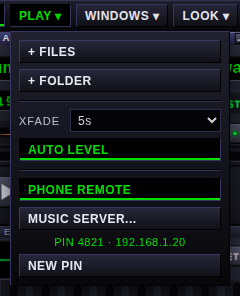
AMPED Mobile on your phone can control AMPED MAX: play, pause, next, volume, the playlist and a library search. Phone and PC on the same Wi-Fi.
- PLAY › PHONE REMOTE (it lights up). The PIN and this PC's address show under it.
- On the phone: AMPED Mobile › REMOTE › FIND MY PC, tap this PC and type the PIN once.
| PHONE REMOTE | the master switch. Off = no phone can control AMPED MAX, whatever else is set. |
| NEW PIN | shows while PHONE REMOTE is on. Makes a new PIN at once: every phone that used the old one is cut off until you give it the new one. Phones getting music through MUSIC SERVER keep working. |
| REMOTE (per device) | in MUSIC SERVER... next to each allowed phone: ticked = that phone may control AMPED MAX without the PIN. Unticked = it only gets music. |
MUSIC SERVER
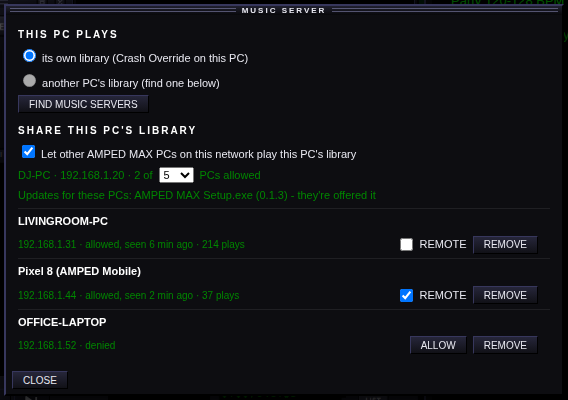
MUSIC SERVER lets your other computers (AMPED MAX or AMPED) and phones (AMPED Mobile) play this PC's library over your home network - one library for the whole house.
Share this PC's library
- PLAY › MUSIC SERVER... and tick Let other AMPED MAX PCs on this network play this PC's library.
- On the other computer or phone: MUSIC SERVER › FIND MUSIC SERVERS › JOIN (on AMPED Mobile: Settings › MUSIC FROM THE PC › SYNC MUSIC › FIND › USE THIS PC).
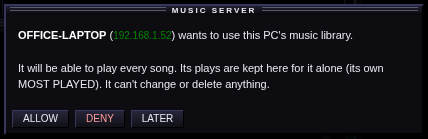
- Here a box asks: ALLOW, DENY or LATER.
| PCs allowed | how many devices may join at once. |
| The list | every device that asked: its name and address, when it was last seen and how many songs it played. ALLOW / DENY / REMOVE, and the REMOTE tick for phones (see Phone remote). |
| Updates | a joined AMPED MAX is offered this PC's newest AMPED MAX Setup (build it here and they get it). |
| Start with Windows | MUSIC SERVER › START: AMPED MAX starts minimized with Windows, so the music server is always on. |
Play another PC's library
Pick another PC's library, FIND MUSIC SERVERS, JOIN, and click ALLOW on that PC. Its library, covers and play counts come from there. Songs are copied into a cache on this computer before they play (a moment on home Wi-Fi); the cache keeps played songs and last week's most played, up to the size you pick. With that PC off, the songs in the cache still play. Edits (tags, Picard, Recycle Bin) only work on the computer that has the files.
Updates & your tester code
Updates
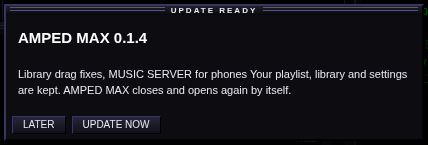
On Windows, AMPED MAX keeps itself up to date from crashoverridedj.com. When a newer version is out, an UPDATE READY box shows it: UPDATE NOW downloads it, closes AMPED MAX and opens the new one - your playlist, library and settings are kept. HELP › CHECK FOR UPDATES checks right away. Every update is signed - only one made by its maker is installed.
Your tester code
While AMPED MAX is in its closed test it needs a code (it starts with CODJ-). Paste the whole code and press UNLOCK - once; it is remembered and works with no internet.
| Code runs out | Nothing stops in the middle of the music: a note says so and the music keeps going. The next start asks for a new code. |
| Code cancelled | The maker can cancel a code. AMPED MAX finds out when it's online - a note says so (the music keeps going), and the next start asks for a new code. |
| Usage | Test copies tell the maker how often and how long they're used: the code number, version, Windows / Mac and minutes per session. No music, files, names or library are sent. |
On a Mac
AMPED MAX also runs on a Mac. The first time, right-click the app › Open (macOS asks once because it isn't from the App Store). The differences:
- Use Cmd where this manual says Ctrl.
- New versions come as a new Mac download - the self-update is Windows only for now.
- Move to Recycle Bin puts the file in the Trash; Show in Explorer shows it in Finder.
- The Explorer menus, Start with Windows and keep-awake are Windows only.
Keyboard
| Keys | Action |
|---|---|
| Space | play / pause |
| Z X C V B | previous, play (restart), pause, stop, next - the classic keys |
| N | NO NO (one second backwards) |
| Left / Right | back / forward 5 seconds |
| Up / Down | volume |
| R | repeat on / off |
| L | add files |
| J | find in the library (jumps to the search box) |
| Numpad 4 5 6 | previous, play, next |
| Numpad 7 / 9 | back / forward 5 s |
| Numpad 8 / 2 | volume |
| Numpad 1 / 3 | 10 songs back / forward |
| Alt+L | library |
| Alt+M | MINI |
| Alt+G / Alt+E | equalizer / playlist window |
| Media keys | play / pause, next and previous work any time, even when another app has focus |
Keys work anywhere in the app (also after clicking the library), except while you type in a box.
Windows integration
- Right-click audio files or a folder › Add to AMPED MAX playlist (Windows 11: Show more options first).
- Open with › AMPED MAX on a single file adds it too (the first time it may be under Choose another app).
- If AMPED MAX is already running, the songs go straight to its playlist.
The menus are set up for your user each time AMPED MAX starts; if that fails, the status line says why.
Files & troubleshooting
| Data folder | %APPDATA%\com.amped.max - settings.json, play counts, Skins, MUSIC SERVER files (net.json, server-cache, server-log.txt). |
| No songs | Crash Override's library is read - open Crash Override once and set its music folder. |
| Music server not found | Same network, AMPED MAX open on the other computer with sharing ticked, and allowed through its firewall. Routers with client isolation block it. |
| A song won't play | The file may have moved or been deleted - the playlist skips it. With MUSIC SERVER, the window shows the last problem (also in server-log.txt). |
| Update didn't install | The box says why. Try again later, or download the newest version - nothing is lost. |
| Licences | HELP › ABOUT › LICENCES for the open-source parts it's built with. |
Pictures show invented example songs. AMPED's look is our own nod to the classic, retro skinnable desktop players of the late '90s.